Invoice Guide
Learn how to create, manage, duplicate, and track tax invoices for your practice. Use the View PDF button in the left sidebar to open or download the guide, or jump to the Video tutorial section for a walkthrough.
Adding a New Invoice
Start by navigating to the Billing Module and selecting 'Add Invoice'. Fill in the primary details to define the context of the invoice.
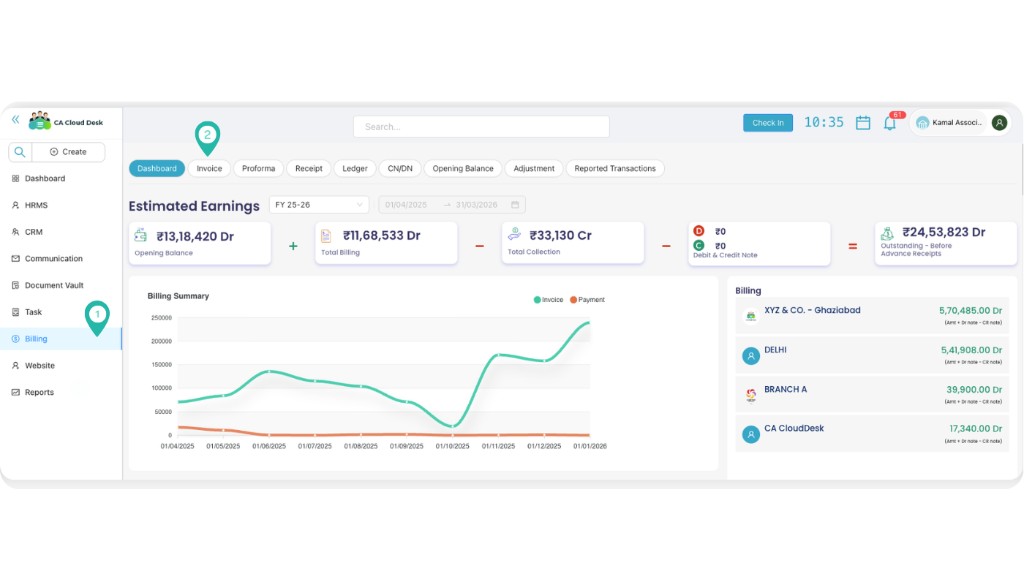
Primary Details
- Branch: Select your branch (defaults to your assigned branch).
- Client: Select client from the searchable dropdown menu.
- Invoice Date: Set the date of issuance.
- Team: Optional selection to assign the invoice to a specific internal team.
Billing Configuration
- Invoice Initial: Select your pre-defined billing series.
- Reverse Charges: Toggle 'Yes' or 'No' for amount reverse charges.
- Audit Mode: Mark if this invoice is for audit services (defaults to unchecked).
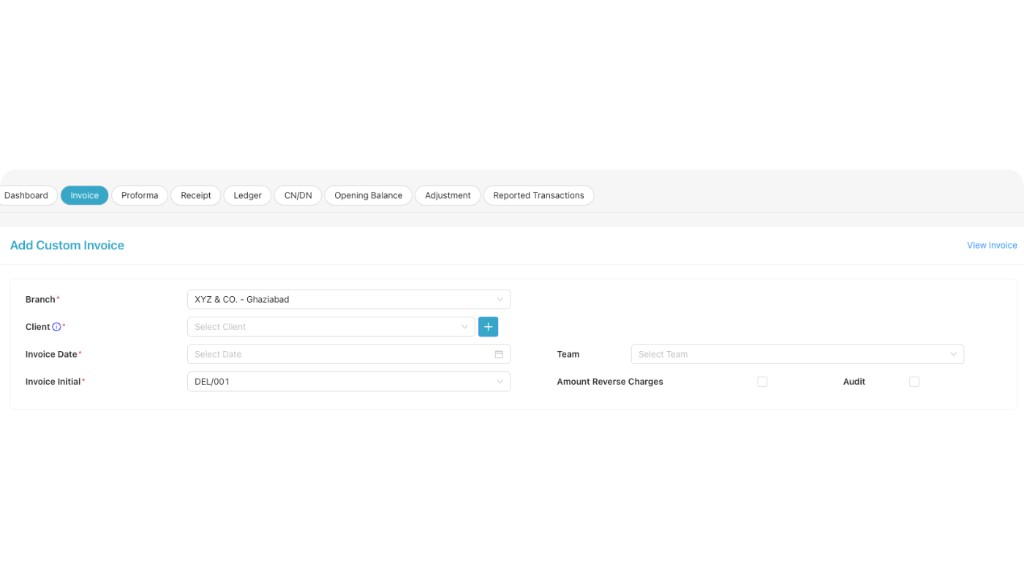
Value Based Details (Line Items)
Add specific services and costs. The system auto-calculates taxes based on your SAC selections.
| Column | Behavior & Logic |
|---|---|
| S. No. | Automatically incremented for each row. |
| Particular | Dropdown selection of services. Select 'Others' for manual entry. |
| Description | Auto-fetches short description from Setup, or enter manually. |
| SAC | Select SAC code. Can be auto-fetched if mapped in Setup. |
| Amount & Qty | Enter numeric values. Final value = (Amount × Quantity) - Discount. |
| Tax Amount | Calculated automatically if SAC is selected. Leave SAC empty for no tax. |
| Rows | Use + icon to add a new row or - icon to remove. |
Terms & Remarks
Pro-Tip: Automation
Configure your default Terms and Public Remarks in the Setup module to have them pre-filled for every new invoice.
- Terms and Conditions: Professional caveats and payment terms.
- Public Remarks: Notes visible to the client on the invoice PDF.
Bulk Import Utility
Save time by importing multiple invoices at once using our Excel-based import utility.
Download Template
When downloading the template, you can select the Number of Items per invoice (Default is 1). Selecting more will add extra item columns (Item2, Item3, etc.) to your Excel sheet.
Template Field Mapping:
| Item Details (Per Row) | Description & Behavioral Logic |
|---|---|
| Item (1, 2...) | Select service item from your predefined list. |
| Particular (1, 2...) | If item not found, write manual entry here. Shows as particular in PDF. |
| Description (1, 2...) | Detailed service notes for the specific line item. |
| HSN/SAC (1, 2...) | Code for tax categorization. |
| Amount (1, 2...) | Base numeric value of the service. |
| Quantity (1, 2...) | Number of units. |
| Discount (1, 2...) | Deduction amount if applicable. |
Viewing Invoice List
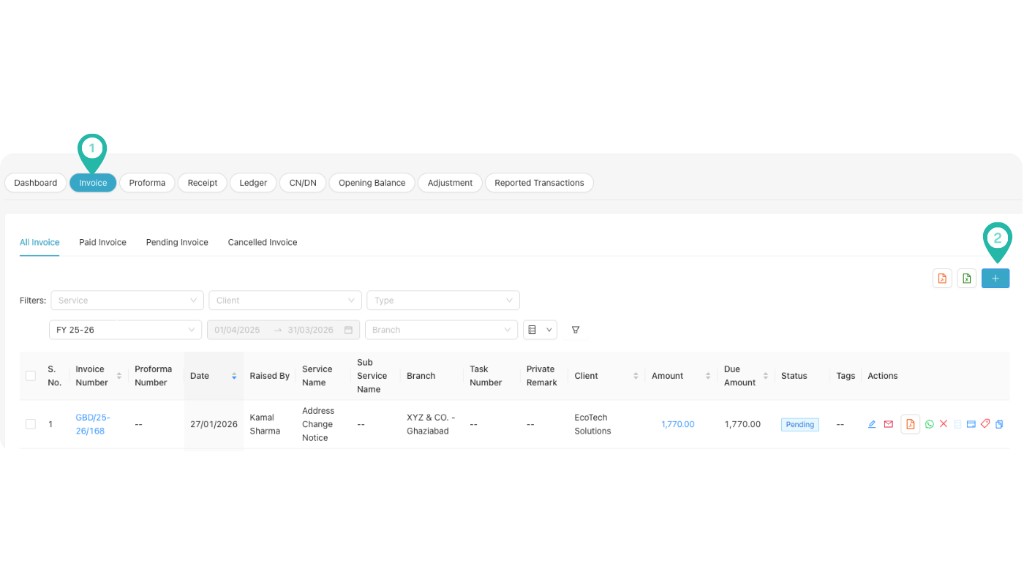
The Invoice dashboard provides a comprehensive overview of all issued tax invoices and their statuses.
| Field | Description |
|---|---|
| Invoice No. | Unique ID for the tax invoice document. |
| Invoice Date | Date of invoice issuance. |
| Raised By | Employee who created the document. |
| Exp. Pay Date | Expected payment date for tracking. |
| Service/Sub Service | Service classification for reporting. |
| Status | Current state (Draft, Sent, Cancelled, Paid). |
| Tags | Custom tags for internal categorization. |
Actions & Tools
Once an invoice is added, you can perform the following operations from the Actions column:
Communication
Management
Edit Logs (Version History)
Track all changes made to your invoice with complete version history. Every edit is automatically logged with timestamp and user information.
Automatic Version Tracking
Every time you edit an invoice, the system creates a new version entry. You can view the complete edit history by clicking on Edit Logs in the Actions menu.
| Version | Information Tracked |
|---|---|
| Version Number | Sequential version identifier (v1, v2, v3, etc.) for each edit. |
| Edited By | Name and details of the user who made the changes. |
| Date & Time | Exact timestamp when the edit was saved. |
| Field Changes | Detailed list of all fields that were modified (e.g., Amount, Client, Date, Line Items). |
| Old Value → New Value | Before and after values for each changed field, making it easy to track modifications. |
| View Version | Click to view the complete invoice as it appeared in that specific version. |
Use Cases for Edit Logs
- Audit Trail: Maintain a complete record of all invoice modifications for compliance and auditing purposes.
- Error Correction: Quickly identify when and what changes were made if discrepancies are found.
- Team Accountability: Track which team member made specific changes for better workflow management.
- Version Comparison: Compare different versions side-by-side to understand the evolution of an invoice.
- Client Communication: Reference specific versions when discussing invoice details with clients.
Duplicate Invoice
Create a copy of an existing invoice quickly and easily. This feature is perfect for recurring clients or similar service invoices.
Time-Saving Feature
Instead of manually entering all details again, use Duplicate Invoice to create a new invoice with all the same information. You can then modify only the fields that need to change.
How to Duplicate
- Navigate to the invoice list and locate the invoice you want to duplicate.
- Click on Duplicate Invoice in the Actions column.
- A new invoice form will open with all fields pre-filled from the original.
- Modify the fields that need to change (e.g., Invoice Date, Invoice Number, Amount).
- Save the new invoice with a unique invoice number.
What Gets Copied
- Client Information: All client details are copied.
- Line Items: All service items, descriptions, amounts, and quantities.
- Terms & Conditions: Payment terms and conditions.
- Remarks: Public and internal remarks.
- Branch & Team: Branch assignment and team allocation.
- Configuration: Reverse charges, round off settings, etc.
Best Practices
- Update Invoice Number: Always assign a new, unique invoice number to the duplicated invoice.
- Review Dates: Update the invoice date to reflect the current date.
- Verify Amounts: Double-check all amounts and line items before saving.
- Check Client: Ensure the client information is still correct for the new invoice.
- Modify Line Items: Adjust quantities or amounts if the services differ from the original.
Video tutorial
Watch this video to understand the complete invoice management cycle, from manual entry to bulk imports, version tracking, and duplication. You can also use the View PDF button in the left sidebar to open or download the Invoice guide.