
Add Bulk DSC (CRM)
Use Add Bulk DSC to upload Digital Signature Certificates for multiple clients at once using an Excel file. This saves time when you receive DSC details for many clients together.
Overview
From CRM you can upload DSC details in bulk using the Import Utility available under Settings → Document Vault. This guide explains:
- How to login to CA CloudDesk Partnerdesk and open Settings.
- How to open Import Utility and select Document Vault.
- How to use the Upload DSC option with the sample Excel file.
- What happens in the next steps: Excel Mapping and Data Validation.
Step 1: Login & open Settings
Login to CA CloudDesk Partnerdesk with your credentials.
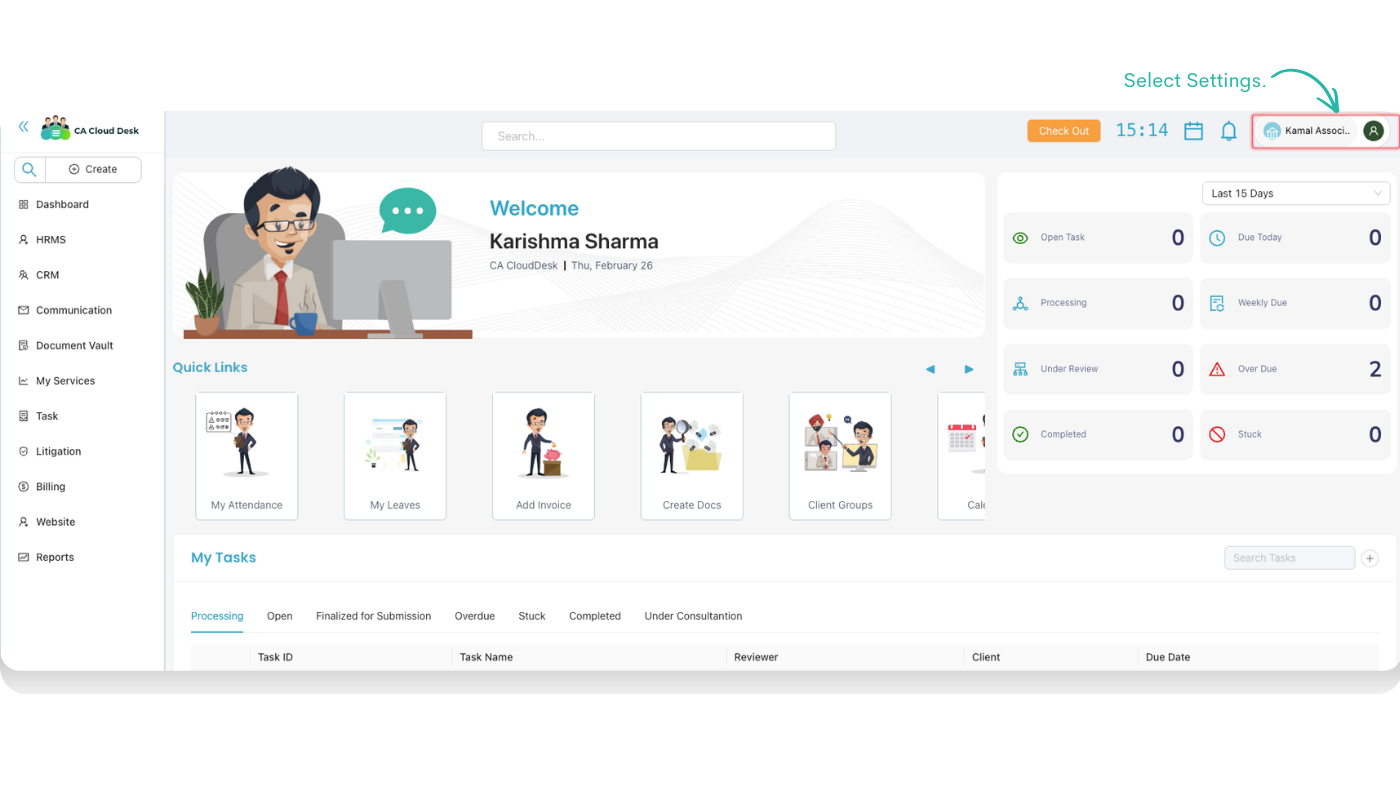
From the left side menu choose CRM to open the CRM dashboard. On the top‑right corner, click on your profile/firm name and then select Settings.
Step 2: Open Import Utility & Document Vault
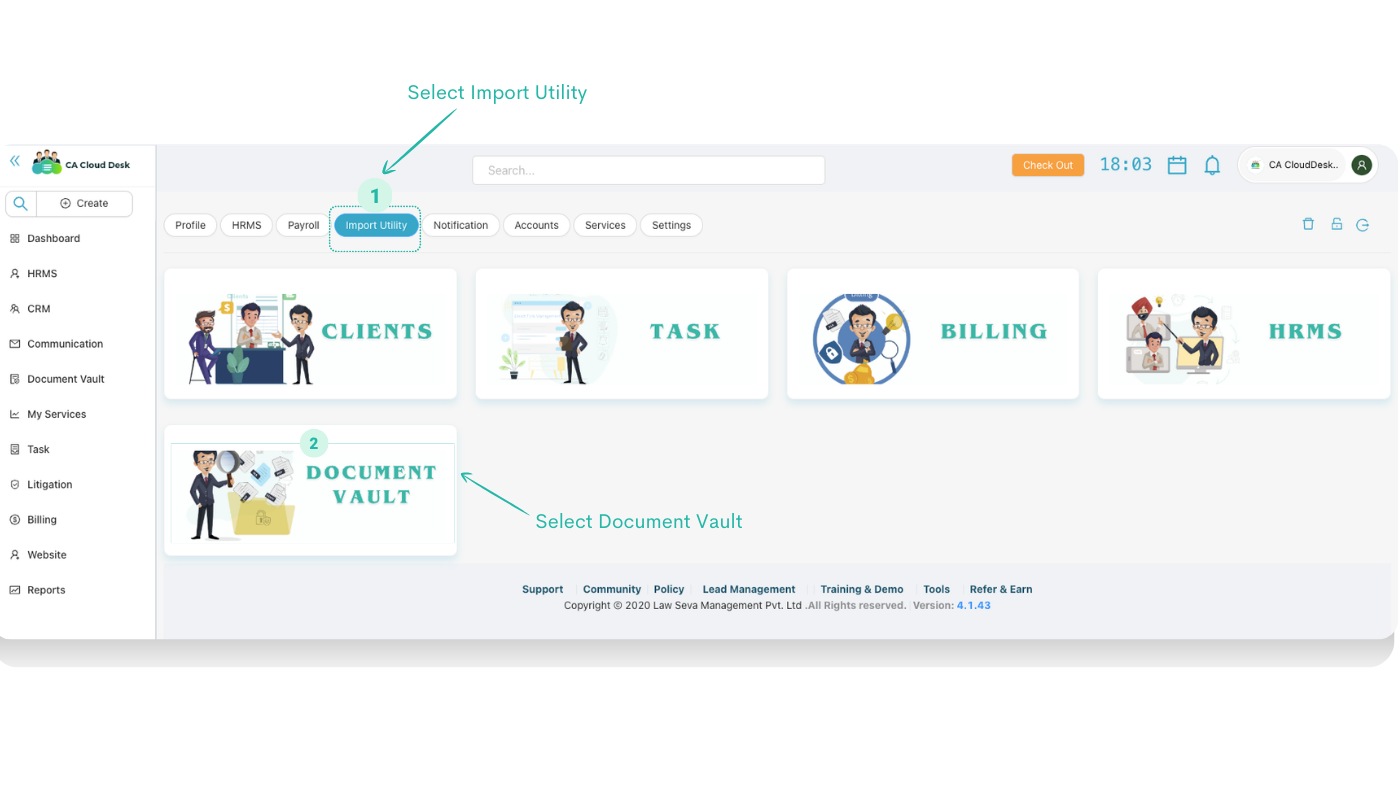
In the firm settings screen, click the Import Utility tab from the top tab bar.
Inside Import Utility you will see different tiles. Click on the Document Vault tile to open the document related import options.
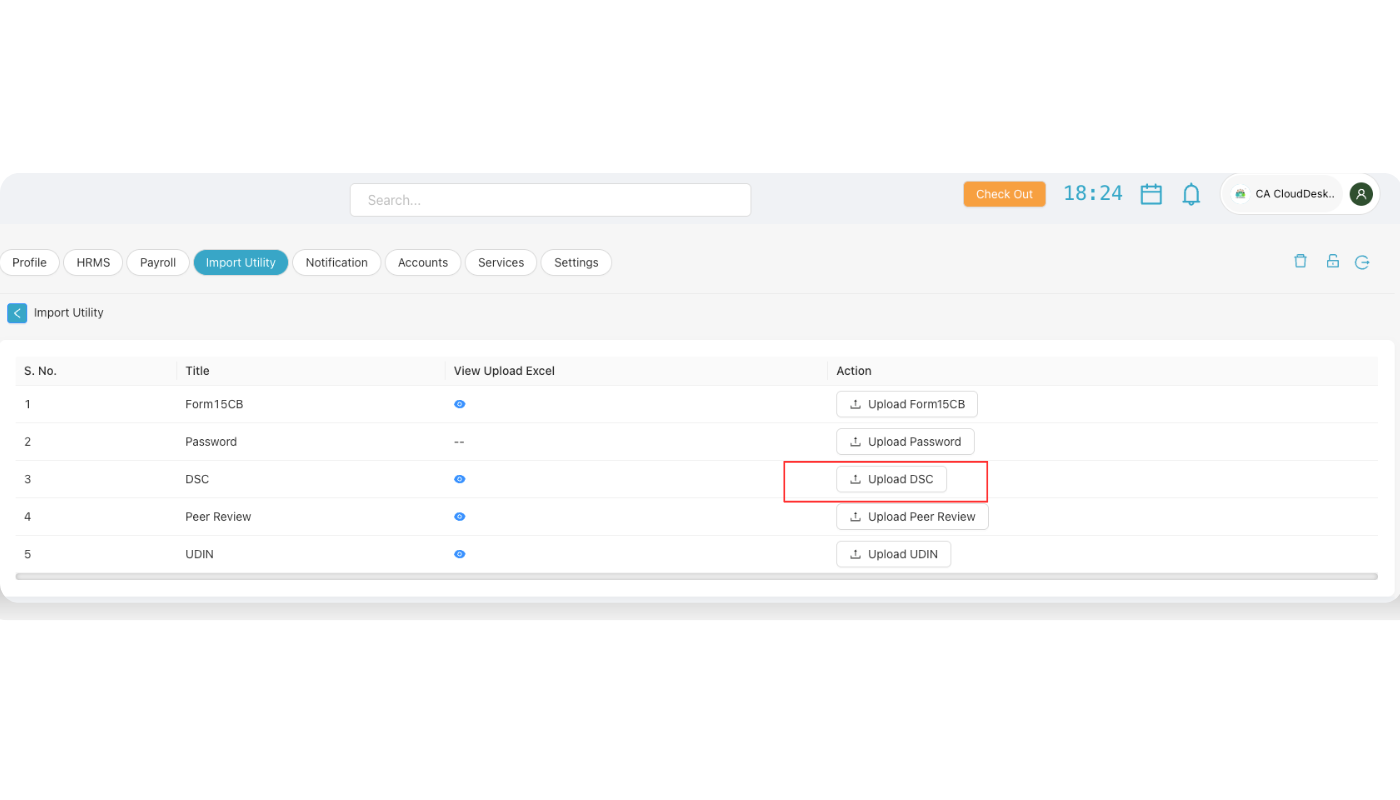
Step 3: Upload DSC with Excel
The DSC Upload with Excel screen opens with three steps: Upload, Excel Mapping and Data Validation. In this step you will prepare and upload the Excel file.
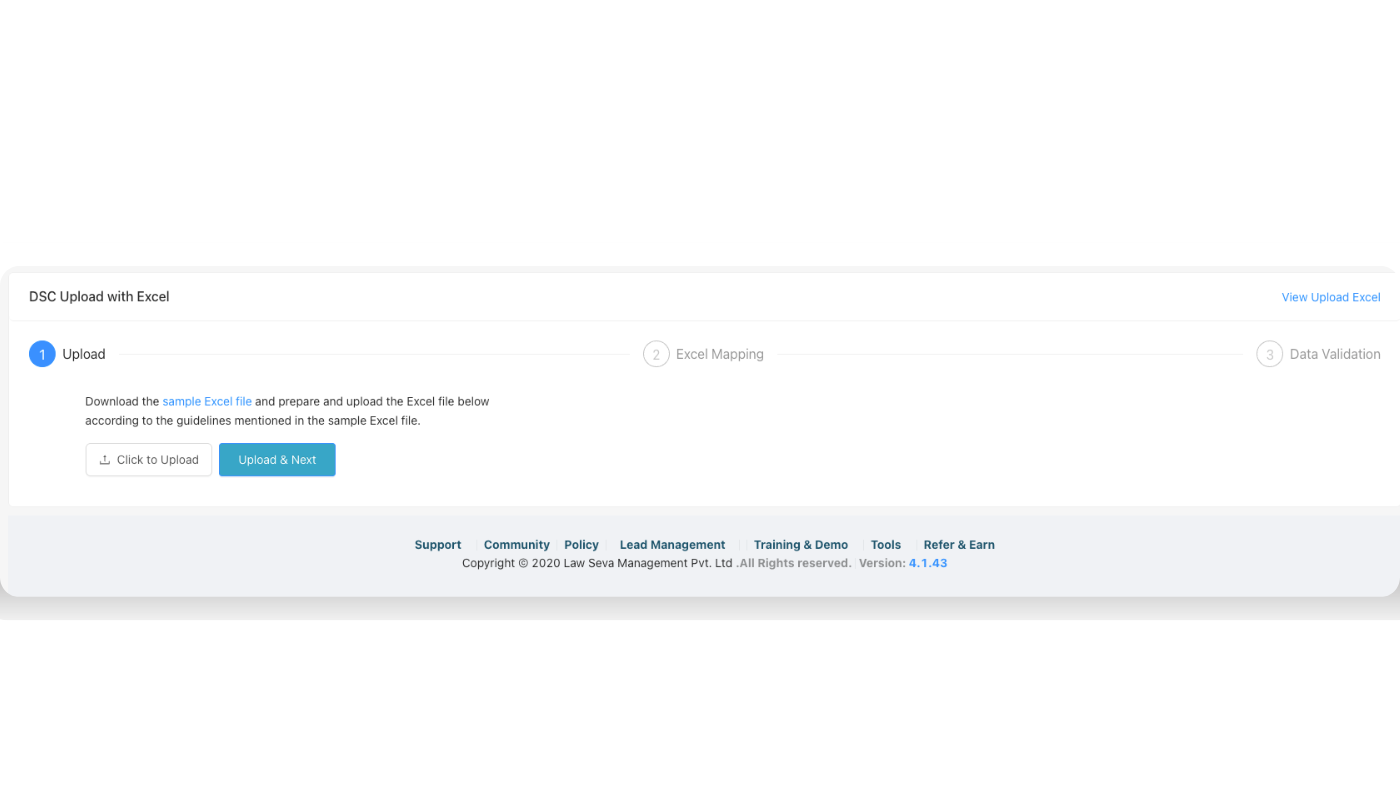
Click on the sample Excel file link. This file contains the exact column names and format that CA CloudDesk expects for DSC upload.
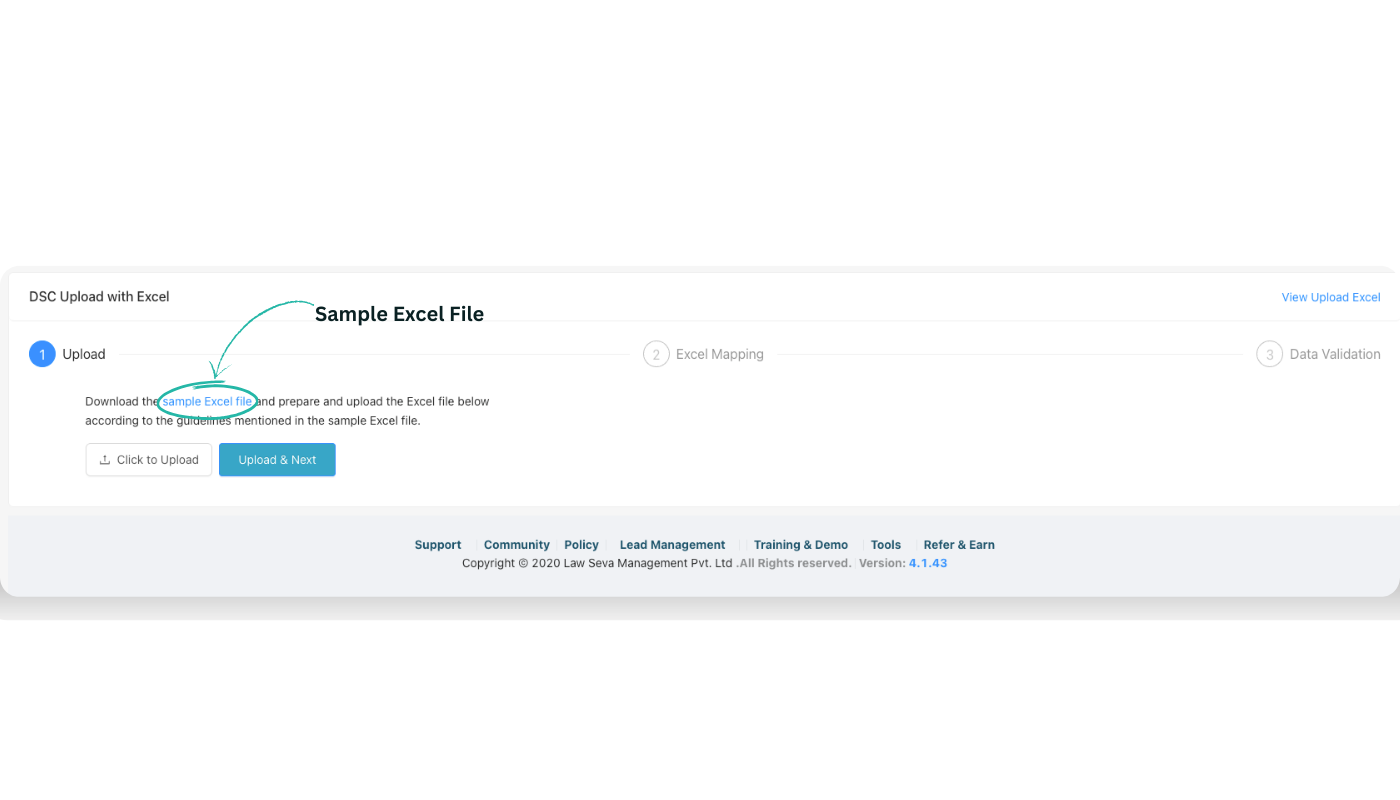
Open the downloaded sample and fill in the DSC details for each client row (for example Client Name, PAN, Certificate Number, Validity, etc.) exactly as per the guidelines in the sample file.
When your Excel is ready, click Click to Upload and select the prepared file from your system. Make sure the correct file is attached.
After attaching the Excel file, click Upload & Next to move to the next step. The system will read the file and take you to the Excel Mapping screen.
Step 4 & 5: Excel Mapping and Data Validation
After the upload is successful, the remaining steps of the wizard help you confirm the data and create the DSC records.
Excel Mapping
- System reads the column headers from your Excel file.
- You map each Excel column to the corresponding field in CA CloudDesk (for example Client, PAN, DSC Serial).
- Ensure every mandatory field is mapped correctly to avoid errors in the next step.
Data Validation
- System validates each row and highlights issues such as missing mandatory values or incorrect formats.
- You can review the list, correct the Excel (if required) and re‑upload in case of major errors.
- Once all rows are valid, confirm to complete the Add Bulk DSC process and create DSC entries for all clients.
After Data Validation is completed successfully, the DSC information becomes available in the respective clients' records under the Document Vault. You can then use it for future filings and digital signing.