
Add Bulk Password (CRM)
Use Add Bulk Password to add or update passwords for multiple clients together using an Excel file. This is useful when you maintain login credentials or portal passwords in CA CloudDesk.
Overview
From CRM you can upload passwords in bulk using the Import Utility available under Settings → Document Vault. This guide explains:
- How to login to CA CloudDesk Partnerdesk and open Settings.
- How to open Import Utility and select Document Vault.
- How to use the Upload Password option with the downloaded sample format.
- How to upload the Excel and view the uploaded file from View Upload Excel.
Step 1: Login & open Settings
Login to CA CloudDesk Partnerdesk with your user ID and password.
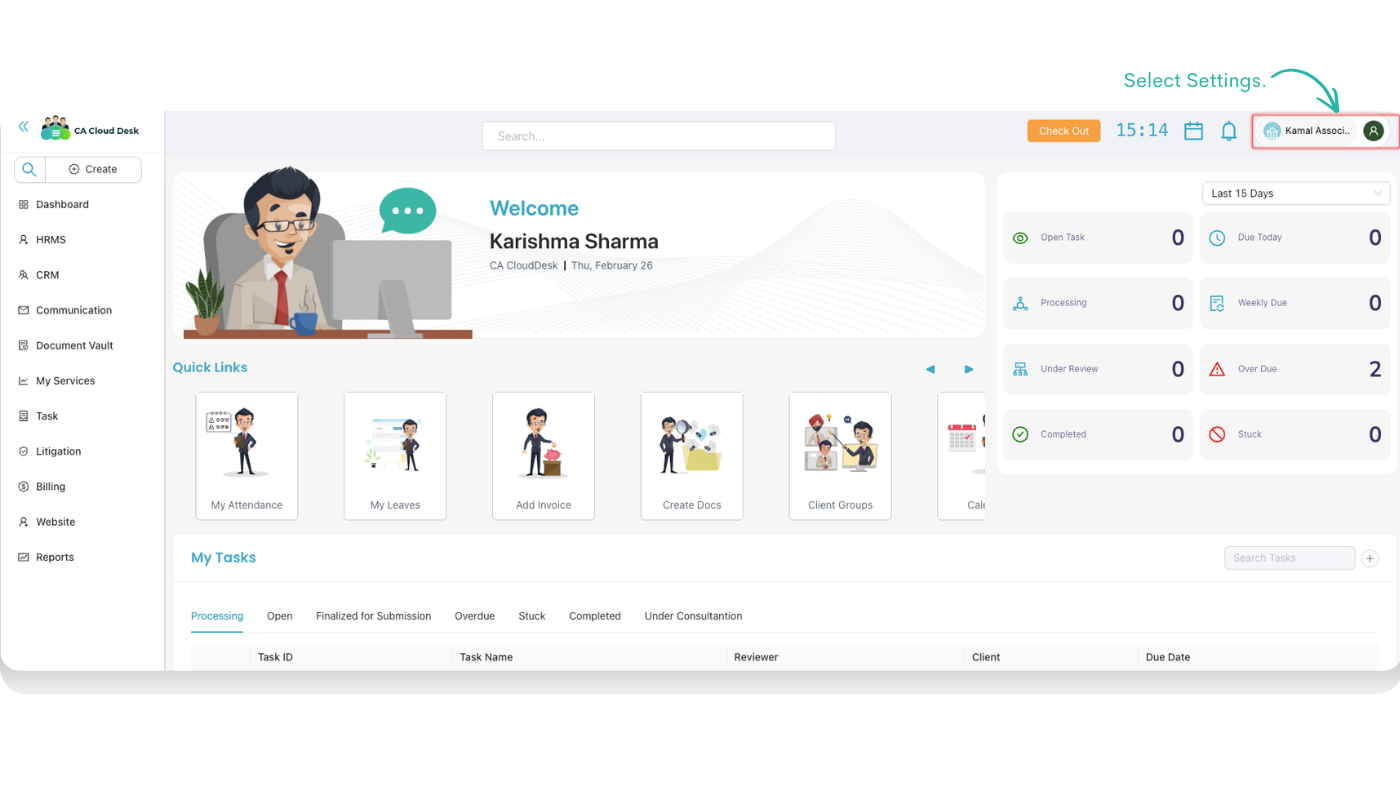
From the left panel select CRM to open the CRM home screen. From the top‑right side, use the profile/firm menu and click Settings.
Step 2: Open Import Utility & Document Vault
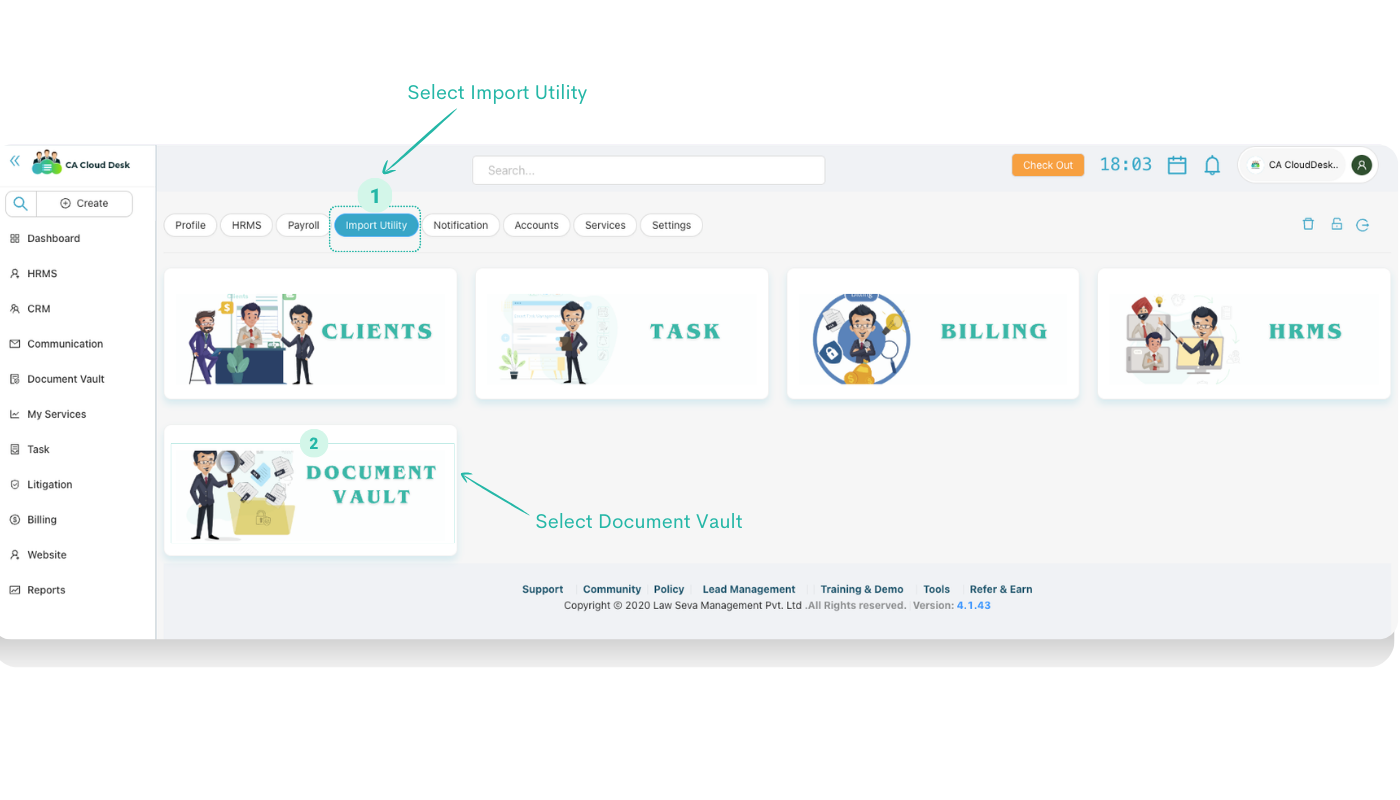
On the Settings screen click the Import Utility tab from the top tab list.
Inside Import Utility you will see multiple tiles. Click on Document Vault to see all import options related to documents, DSC and passwords.
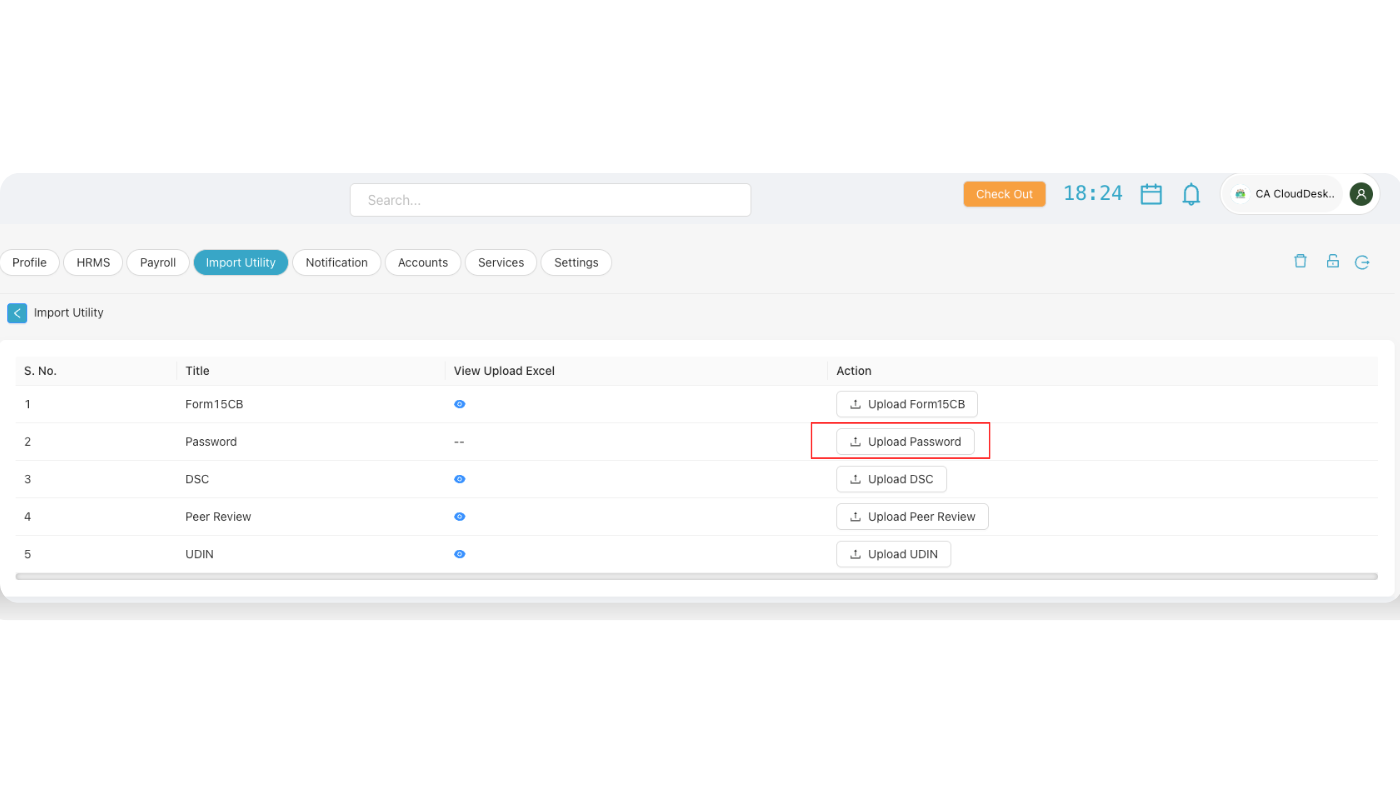
In the Document Vault import options, locate the row for Password and click the Upload Password button. This opens the bulk password upload screen.
Step 3: Upload Password with Excel
The Add Bulk Password screen works similar to DSC upload. You first download a sample format, prepare the data and then upload the Excel file.
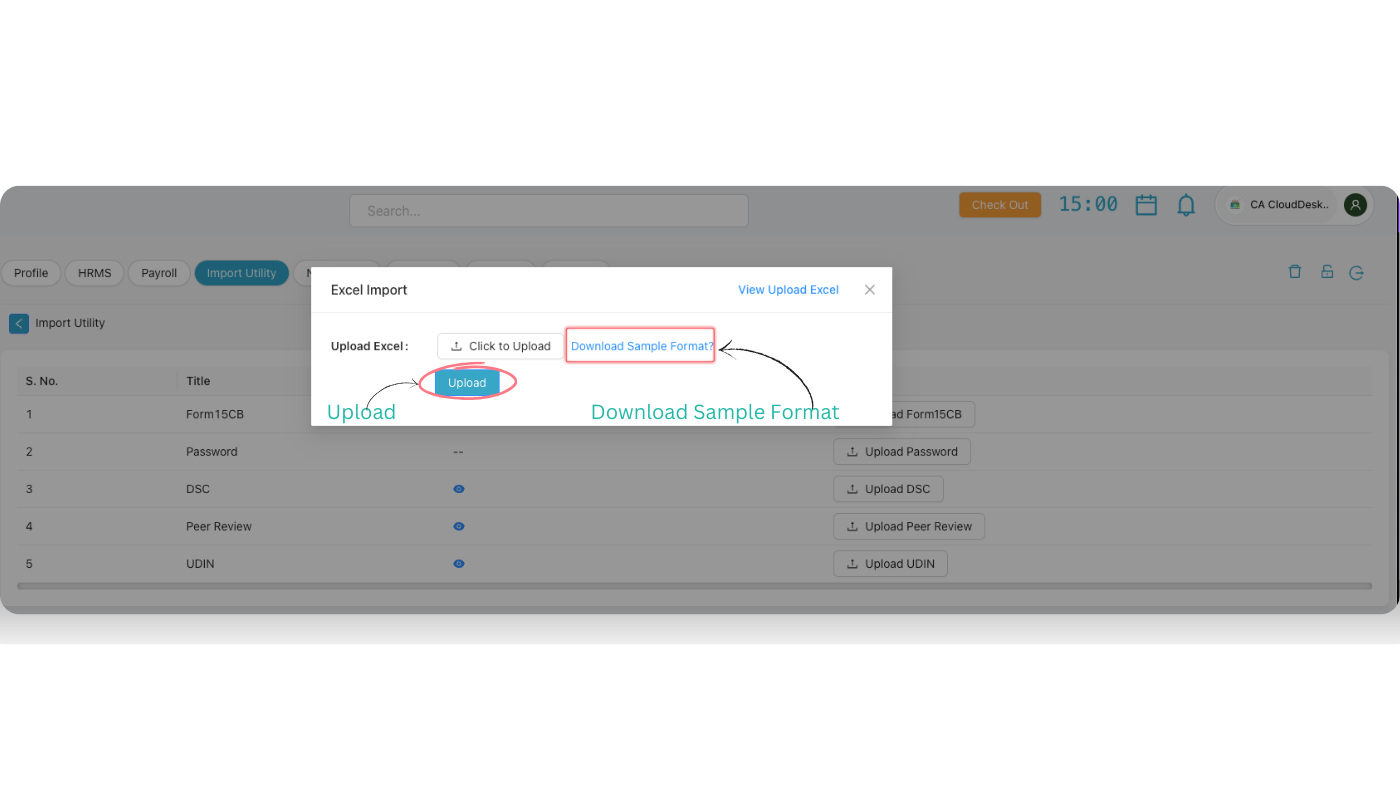
Click on Download Sample Format. This Excel file contains the correct structure and headings for bulk password upload (for example Client, Portal Name, Username, Password, Remarks, etc.).
Open the sample format and fill in the password details for each client row by following the instructions and examples mentioned in the sample file.
After completing the file, click Click to Upload and select your prepared Excel. The system reads the data and stores it for processing.
From View Upload Excel you can open and verify the Excel file that was uploaded. Use this when you want to reconfirm which file was used or quickly check the uploaded data.
Best practices for bulk passwords
Follow the sample format strictly
- Do not rename or delete columns provided in the sample format.
- Enter data exactly in the same column where it is expected (Client, Username, Password, etc.).
Handle passwords securely
- Prepare and store the Excel file only on secure systems.
- Delete or move the file to a safe location after the upload is complete.
Use View Upload Excel for checks
- If any client password looks incorrect inside CA CloudDesk, use View Upload Excel to cross-check the original file.
- For large corrections, update the Excel and re‑upload using the same process.
Once the bulk upload completes successfully, the passwords become available in the relevant sections of Document Vault for each client so your team can access them whenever required.