
Add Client Group (CRM)
Use Client Group to club multiple clients under one group name (for example: Company, Family, or Business Group). It helps in reporting, bulk task assignment and viewing all work of a relationship manager at one place.
Overview
A Client Group is a collection of clients that share a common relationship—like Customer Family, Corporate Group, or Industry wise group. From CRM you can add the group once and then attach multiple clients under it. This guide explains:
- How to open CRM and choose the Client Group option.
- How to fill Group Type, Relationship Manager, Group Name and Client.
- How to search and view existing client groups by name and type.
Steps 1–2: Login, open CRM & choose Client Group
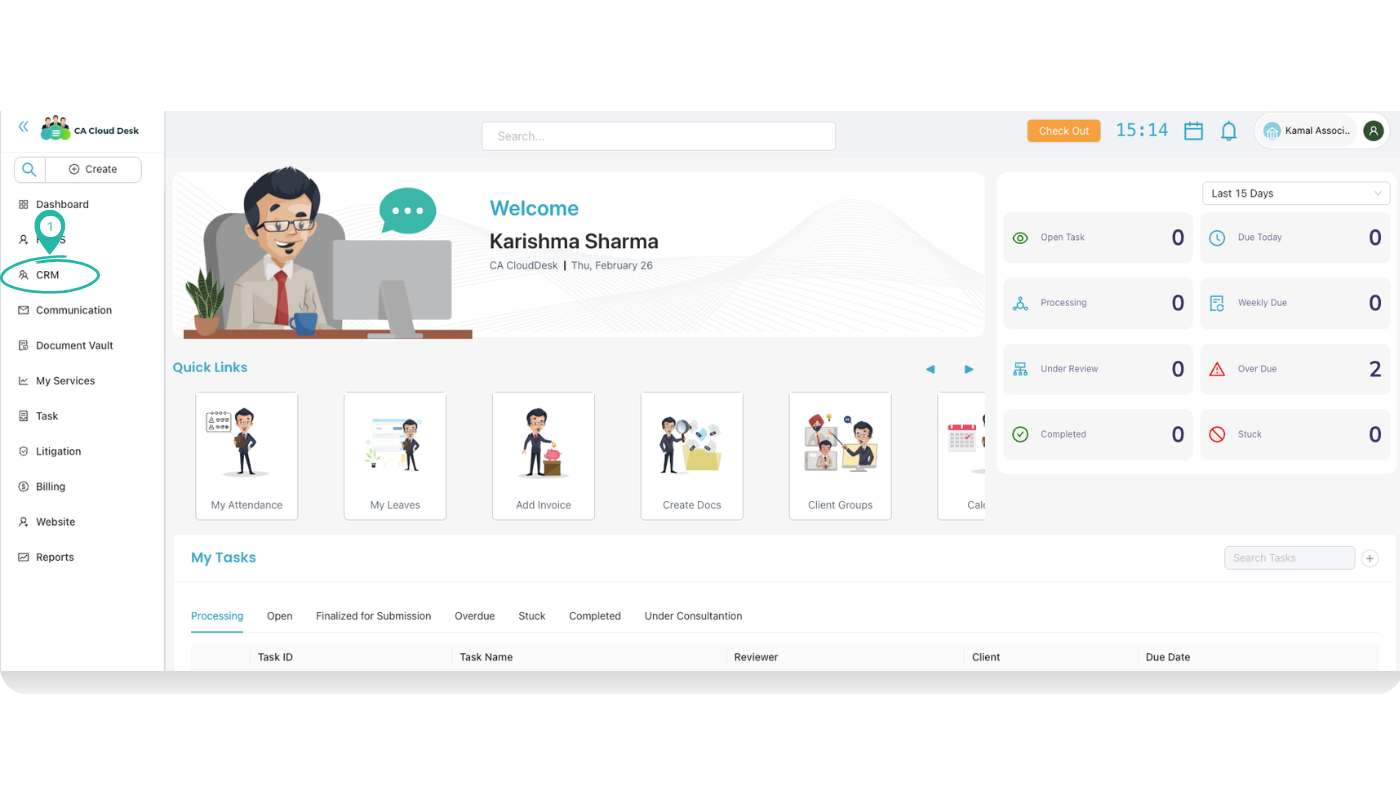
Login to CA CloudDesk Partnerdesk. From the left side menu, click CRM. The client dashboard with Quick Links and client list opens.
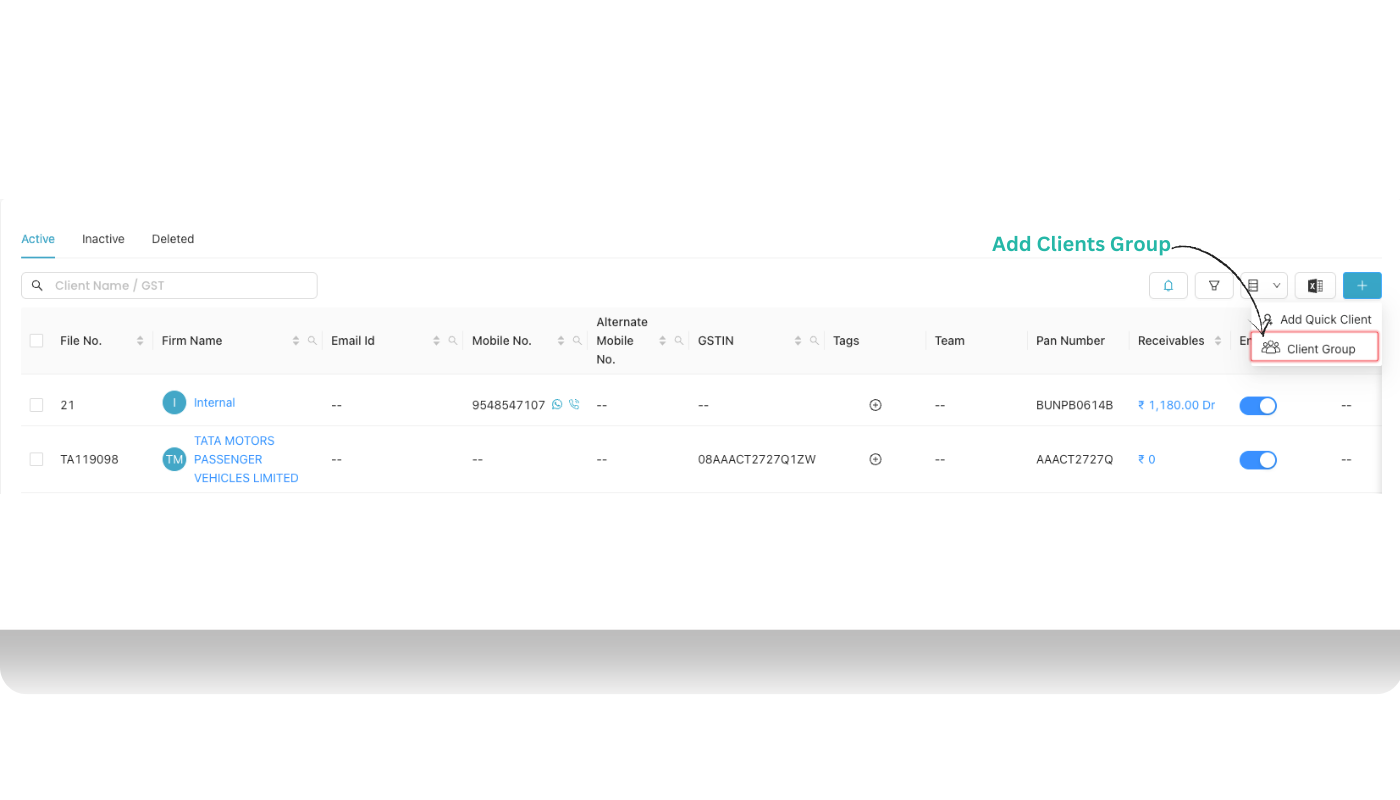
On the top‑right of the client list, click the (+) icon. From the dropdown, two options appear — Add Quick Client and Client Group. Click Client Group to open the group creation screen.
Step 3: Fill Client Group details and create group
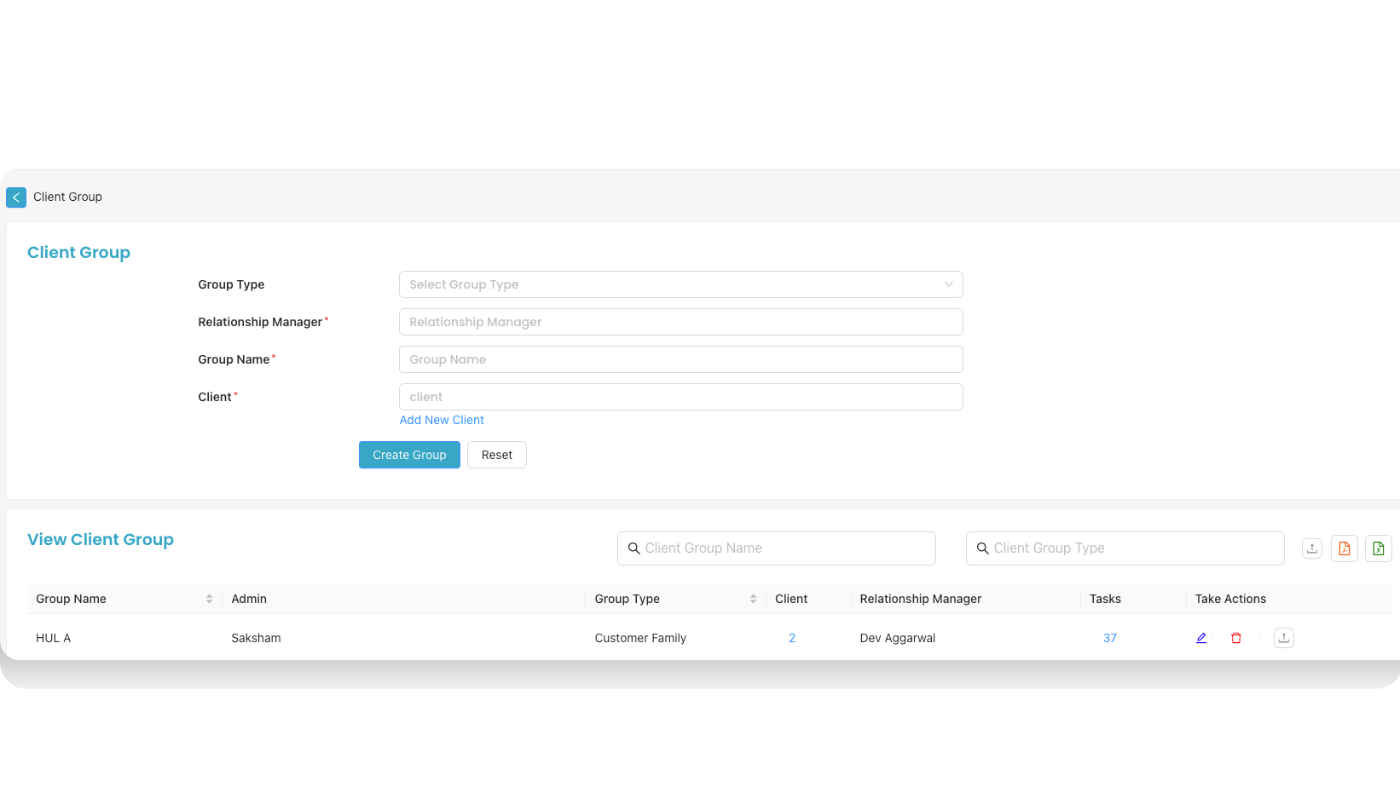
On the Client Group page, fill in all mandatory details and then click Create Group.
| Field | What to enter |
|---|---|
| Group Type * | Select the type of group from the dropdown — for example Customer Family, Company Group, Industry etc. This helps in filtering and reporting by group type. |
| Relationship Manager | Choose the staff member who owns or manages this group. All clients in this group can then be tracked under that relationship manager. |
| Group Name * | Enter a clear name for the group, like HUL A, Tata Motors Group or Sharma Family. This is used when searching and in reports. |
| Client * | Start typing the client name to search and select one or more clients for the group. Use Add New Client if the client is not yet in CRM — this opens the client add screen so you can create it and then attach to the group. |
After filling all fields, click Create Group. Use Reset if you want to clear the form and start again. The new group appears immediately in the View Client Group list below.
Search and view Client Groups
In the lower part of the same screen, the View Client Group table shows all created groups. You can use the search boxes to quickly locate a group.
| Column | Meaning |
|---|---|
| Group Name | Name of the client group (for example: HUL A). |
| Admin | User who created or administrates this group. |
| Group Type | The type selected earlier, such as Customer Family or Corporate. |
| Client | Total number of clients attached to this group. |
| Relationship Manager | Assigned relationship manager responsible for this group. |
| Tasks | Number of tasks linked to the group; helpful for workload and follow‑up tracking. |
| Take Actions | Icons to edit the group, delete it or open related records (depending on permissions). |
You can search by Client Group Name and Client Group Type using the search fields above the table. This is useful when you maintain many groups across industries or relationship managers.
Best practices for Client Groups
Use clear group names
- Include company or family name plus a short identifier (e.g. HUL A, Sharma Family GST).
- This makes it easy for everyone in the team to recognise the group.
Assign a Relationship Manager
- Always select a relationship manager so responsibilities are clear.
- Helps in performance review and follow‑up planning.
Keep clients updated
- Whenever you add a new client related to the same company or family, attach it to the correct group.
- This keeps group‑wise reports, tasks and receivables accurate.