
Add Quick Client (CRM)
Use Add Quick Client to create a client in seconds—only the key details like GSTIN, contact and social handle. You can complete the full client profile later.
Overview
The CRM module stores all your client masters. Add Quick Client lets you quickly register a client with basic details— perfect when you are on a call or want to note a lead and complete remaining information later.
Steps 1–2: Open CRM & Add Quick Client
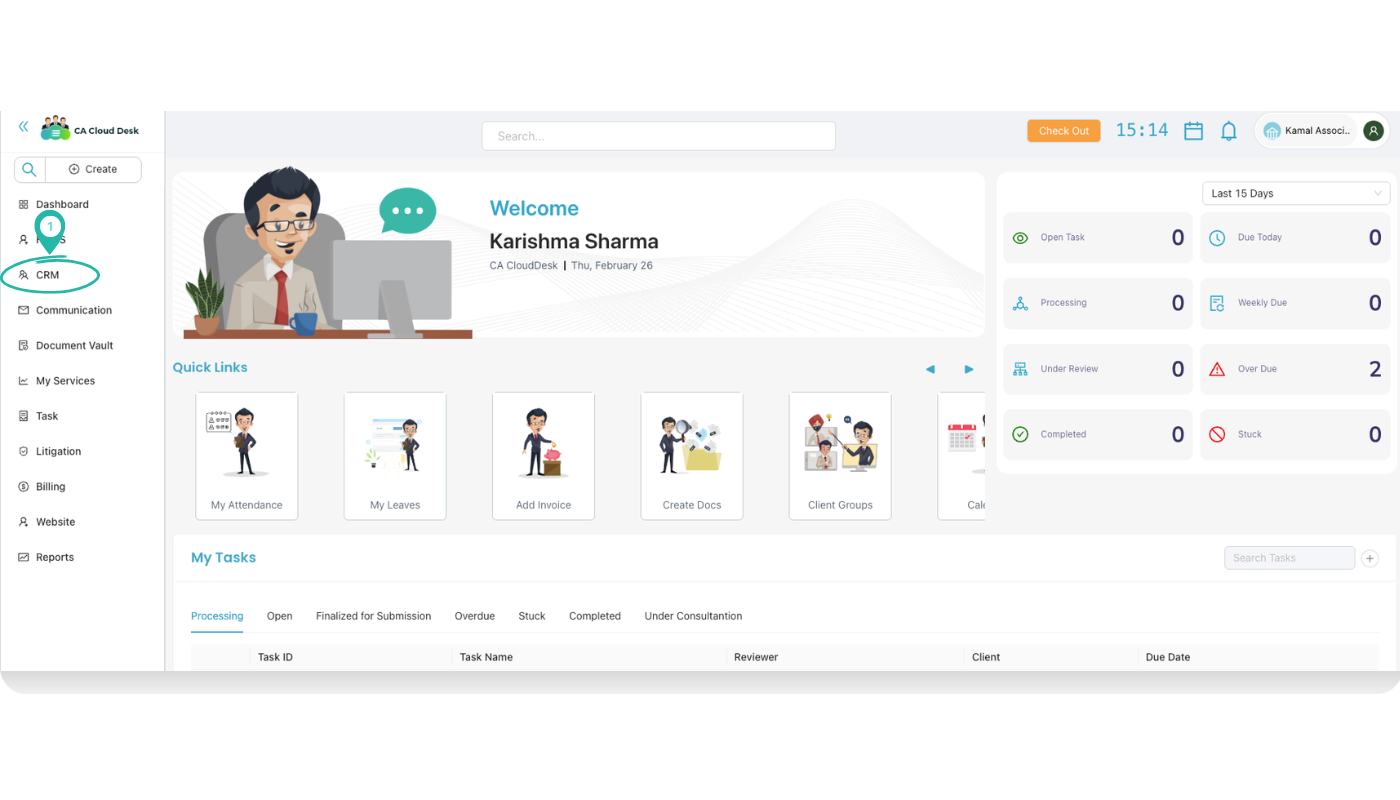
Login to CA CloudDesk Partnerdesk. From the left panel, click CRM to open the client list (Active / Inactive / Deleted).
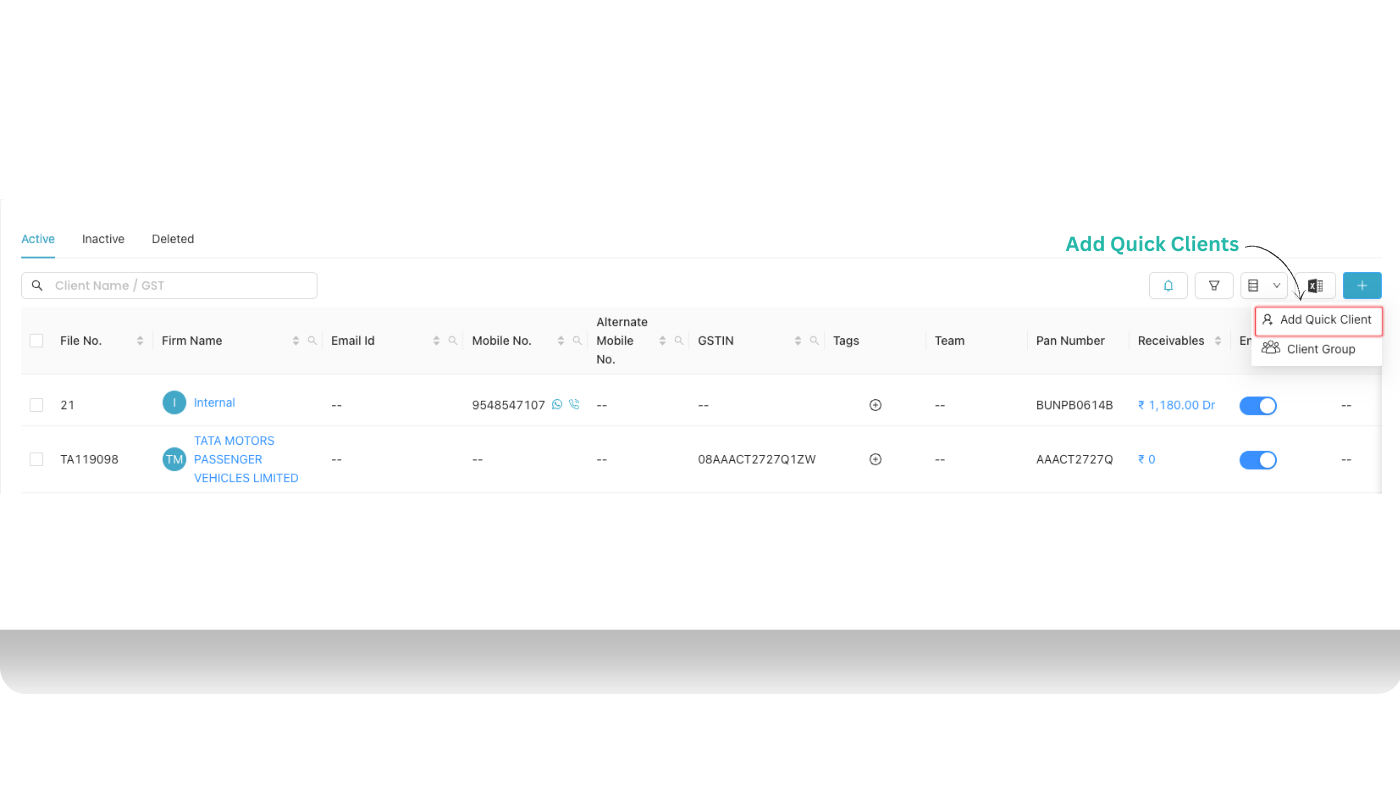
On the top‑right of the client list, click the (+) icon. From the dropdown, choose Add Quick Client (choose Client Group only when you want to create a group of clients).
Step 3: Fill Quick Client Details
Fill the fields in the Quick Client Add popup with short, correct information.
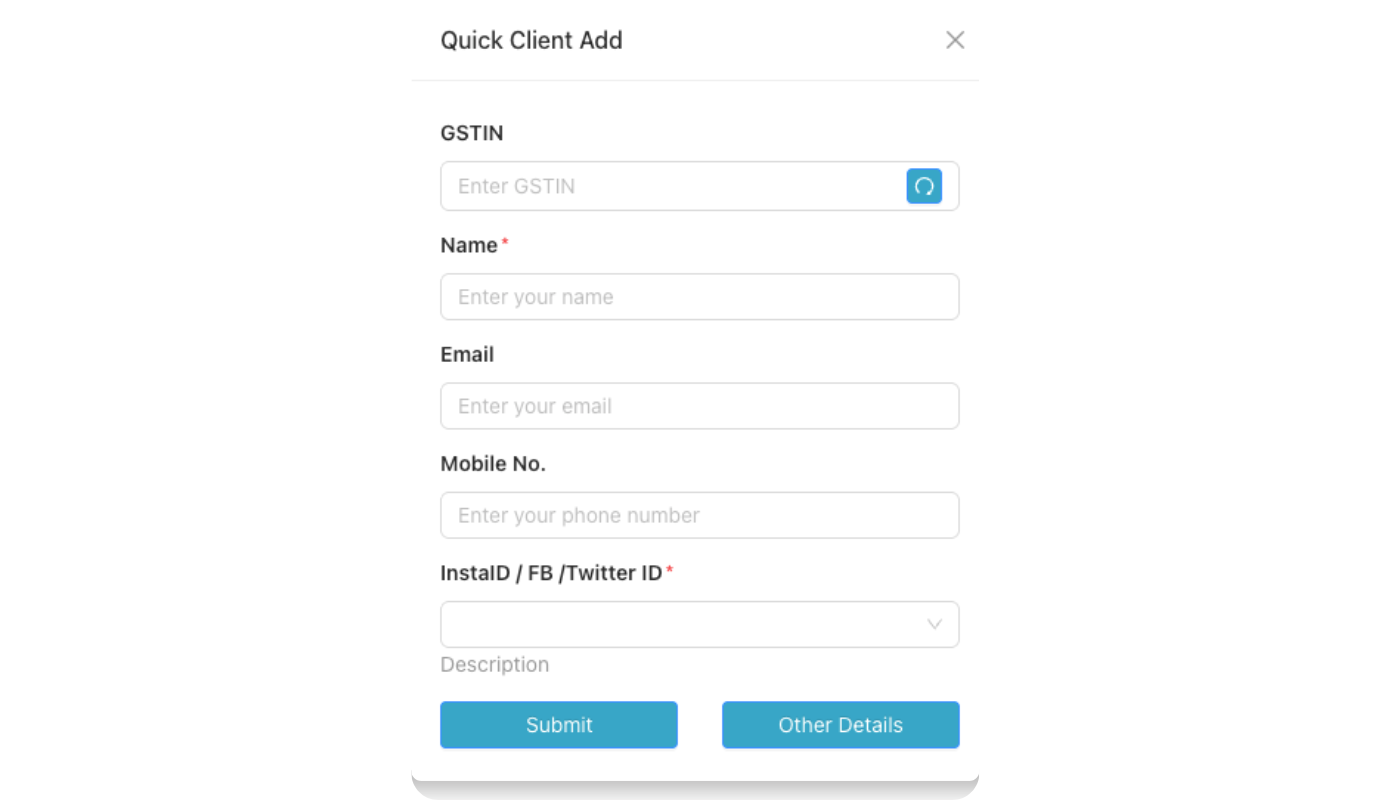
| Field | What to enter |
|---|---|
| GSTIN | Client’s GST Identification Number. Use the refresh/search icon (if visible) to validate or auto‑fetch data. |
| Name * | Client or firm name as per PAN / GST. This name appears in GST, Billing and Litigation modules. |
| Primary email for communication, invoices and reminders. | |
| Mobile No. | Main mobile number for calls, WhatsApp or OTPs. |
| InstaID / FB / Twitter ID * | Select the correct platform (Instagram / Facebook / Twitter) if there is a dropdown, then enter the handle or page name. |
| Description | Notes such as “GST monthly return client”, “GST litigation – transport”, or any extra information you want to remember. |
Keep it concise but accurate
Quick Client captures only core information. Correct GSTIN, name and mobile help you avoid issues when linking this client with GST and Litigation modules later.
Step 4: Save the Client
- Click Submit to save the Quick Client and return to the CRM list.
- (Optional) Click Other Details if you want to immediately open the full client form and capture more information.
Result
The new client now appears in the Active tab of CRM and can be selected in GST, Litigation and Billing wherever a client is required.
Tips
GST & Litigation linkage
- Always enter GSTIN for registered clients so GST and litigation modules can pick the same master.
- Wrong GSTIN can cause mismatches in returns and notices.
Use Description smartly
- Mention work type (GST, Income Tax, Audit, Litigation) and any important note.
- This helps you and your team when assigning tasks or filtering clients.
Convert to full client later
- From the CRM list, open the client and complete full details whenever you are free.
- Quick Client ensures you never lose a lead while still keeping the process simple.