
Client Desk (CRM)
Use Client Desk to see your complete client list in one screen—status, receivables, tags, team, services and more—so you can quickly search, filter and decide the next action.
Overview
The Client Desk screen is the dashboard of your CRM module. It lists every client with key fields like contact details, compliance identifiers, receivables and tags so that partners and team members can take decisions without opening the detailed client master.
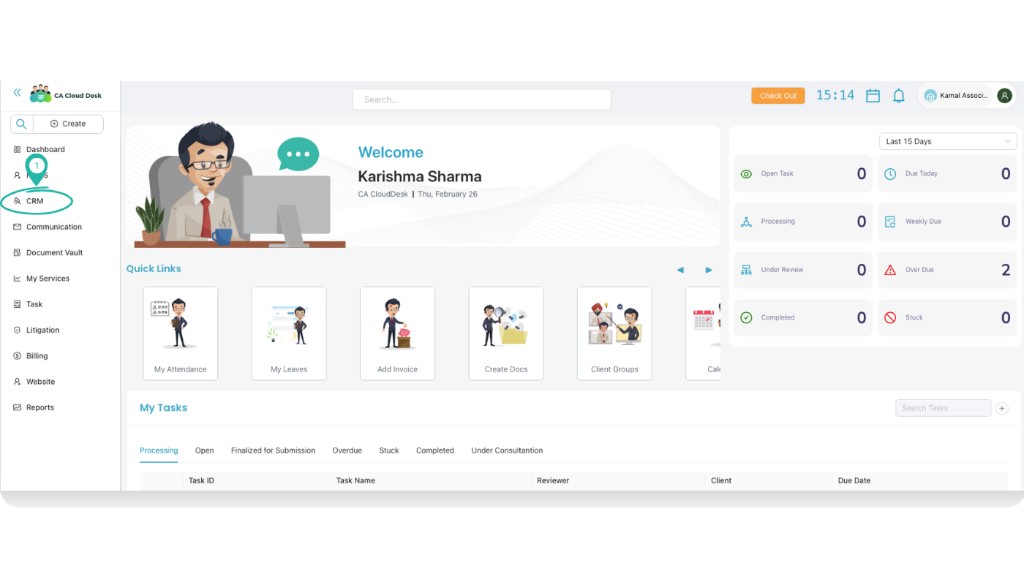
Steps: Open Client Desk
- Login to CA CloudDesk Partnerdesk.
- From the left panel, click CRM.
- The Client Desk tab opens with the client list and three status tabs — Active, Inactive, Deleted.
Active, Inactive, Deleted clients
At the top of Client Desk you will see three tabs that control which clients are shown:
- Active – all currently working clients. This is the default tab and should be used for day‑to‑day work.
- Inactive – clients where work has been stopped or paused but records are kept for reference.
- Deleted – clients marked as deleted. Used mainly for audit trail; actions are restricted as per rights.

Client Desk columns
Each row in Client Desk represents one client. The main columns are:
| Column | What it shows | How you use it |
|---|---|---|
| File No. | Internal file number allotted to the client. | Match with your physical / legacy file numbers for easy reference. |
| Firm Name | Name of the client or firm. Usually clickable to open detailed screens. | Click to open the client profile or View Client screen when you need more details. |
| Email Id | Primary email ID saved in the client master. | Verify or copy while sending e‑mails, notices or portal registrations. |
| Mobile No. | Main mobile number of the client / contact person. | Confirm contact details before calling or creating WhatsApp groups. |
| Alternate Mobile No. | Second mobile number, if maintained. | Use when the primary number is not reachable. |
| GSTIN | GST registration number linked to the client. | Cross‑check while filing returns or downloading data from GST portal. |
| Tags | Custom labels such as “Priority”, “High Receivable”, “Group A”. | Filter or visually identify special category clients. |
| Team | Name of team / partner / owner responsible for this client. | Quickly see ownership and workload distribution. |
| PAN Number | PAN of the client or proprietor / company. | Use while filing income tax returns or verifying compliance. |
| Receivables | Outstanding balance from this client (for example ₹ 1,180.00 Dr). | Identify clients with pending amounts before taking new assignments or giving discounts. |
| Enable | A toggle indicating whether the client is enabled for operations. | Switch off to temporarily stop tasks / billing for that client as per your rights. |
| Authorized signatory | Name of the authorized signatory saved in the master. | Refer while preparing letters, resolutions or filings that require signatory details. |
| Services | Summary of services mapped to this client. | Understand at a glance which services are running before opening detailed screens. |
| Constitution | Type of entity – Individual, Partnership, Company, Trust, etc. | Ensure you are applying correct compliance rules based on entity type. |
| City | Client’s city as per address. | Filter for city‑wise communication or partner allocation. |
| DSC Expiry Date | Next expiry date of client’s digital signature certificate (if linked). | Proactively plan DSC renewals and reminders. |
| Notes | Short internal note or icon indicating that notes exist. | Hover or open to read important internal instructions about the client. |
Actions column
The Actions column (usually at the right side) provides shortcuts as per your user rights, such as:
- Open full client profile or View Client screen.
- Start a new task or service request for the selected client.
- Edit basic information or change status (Active / Inactive) where permitted.
Use these actions from Client Desk itself so that you spend less time searching and more time executing work.