
Custom Field in Client Form (CRM)
Use Custom Field to add extra fields in the Customer or Task form so that you can capture information specific to your firm such as social media IDs, internal codes or any special remarks.
Overview
From CRM you can define Custom Fields once and then use them across client (Customer) and Task forms. This guide explains:
- How to login to CA CloudDesk Partnerdesk and open the Custom Field settings.
- How to choose whether the field is for Customer or Task.
- How options like Add Details, Duplicate, Required, Unique and Delete work.
Steps 1–3: Login, open CRM & Custom Field settings
Login to CA CloudDesk Partnerdesk. From the left side menu, click CRM to open the CRM dashboard.
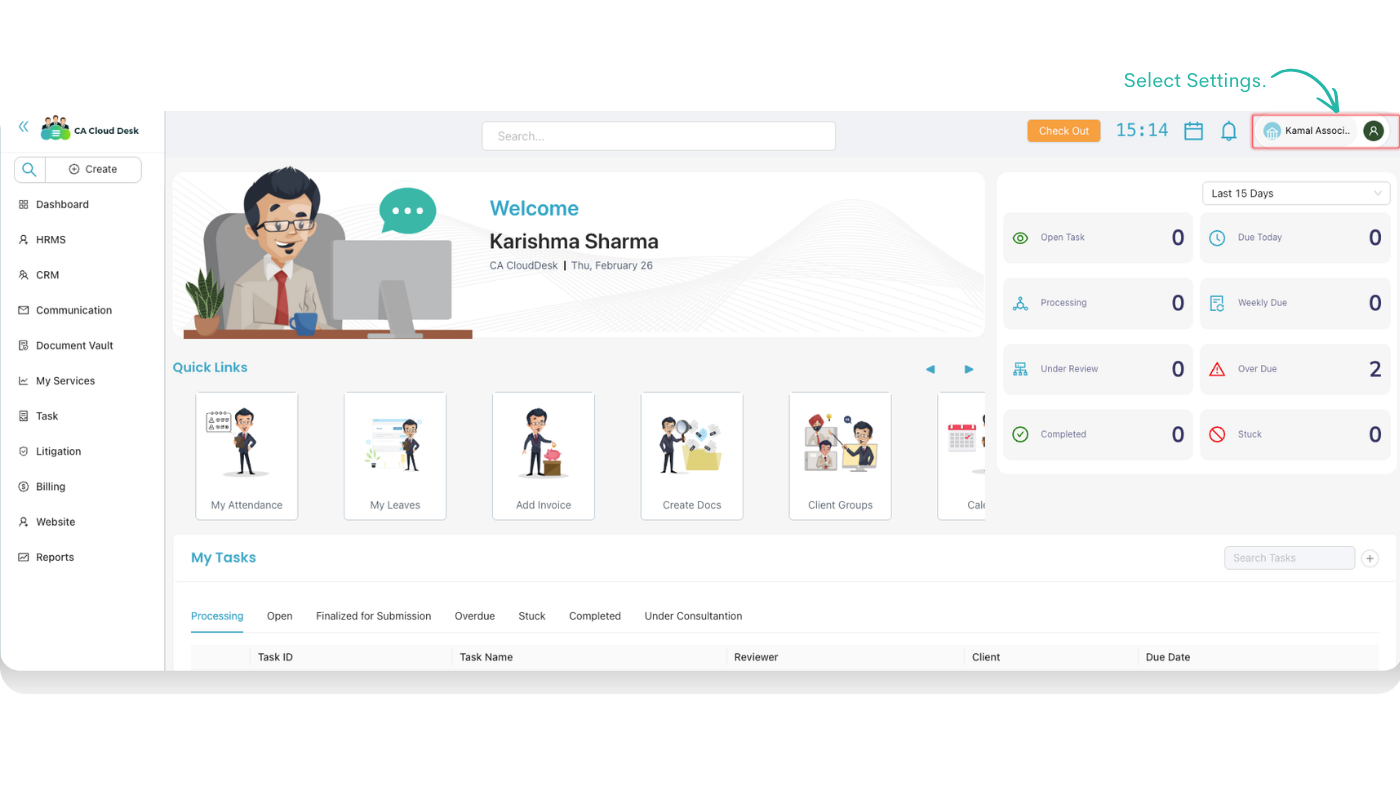
After selecting Settings, the firm settings screen opens. From the tabs at the top, click the Settings tab (if not already selected).
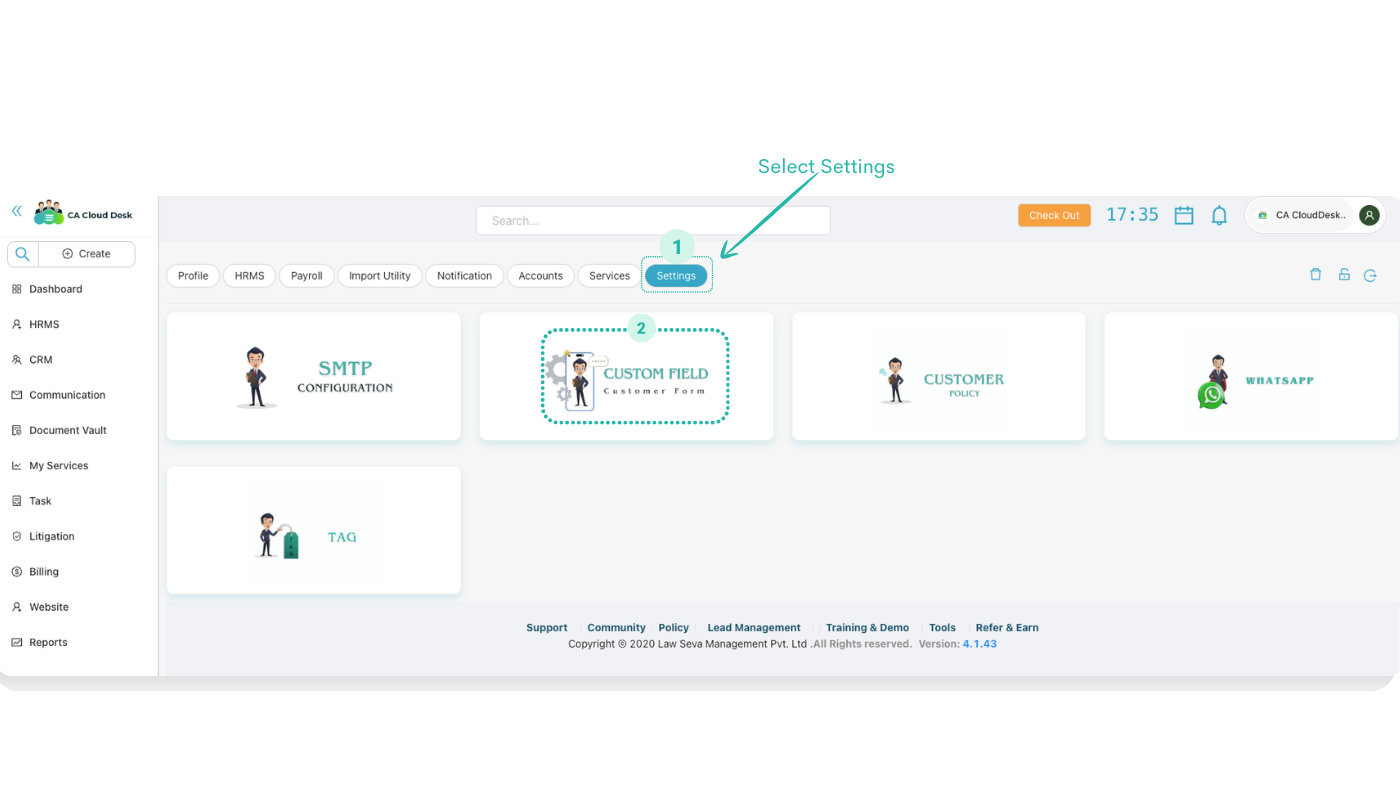
Click on Custom Field to open the page where you can add fields for Customer and Task.
Step 4: Configure Customer / Task custom field
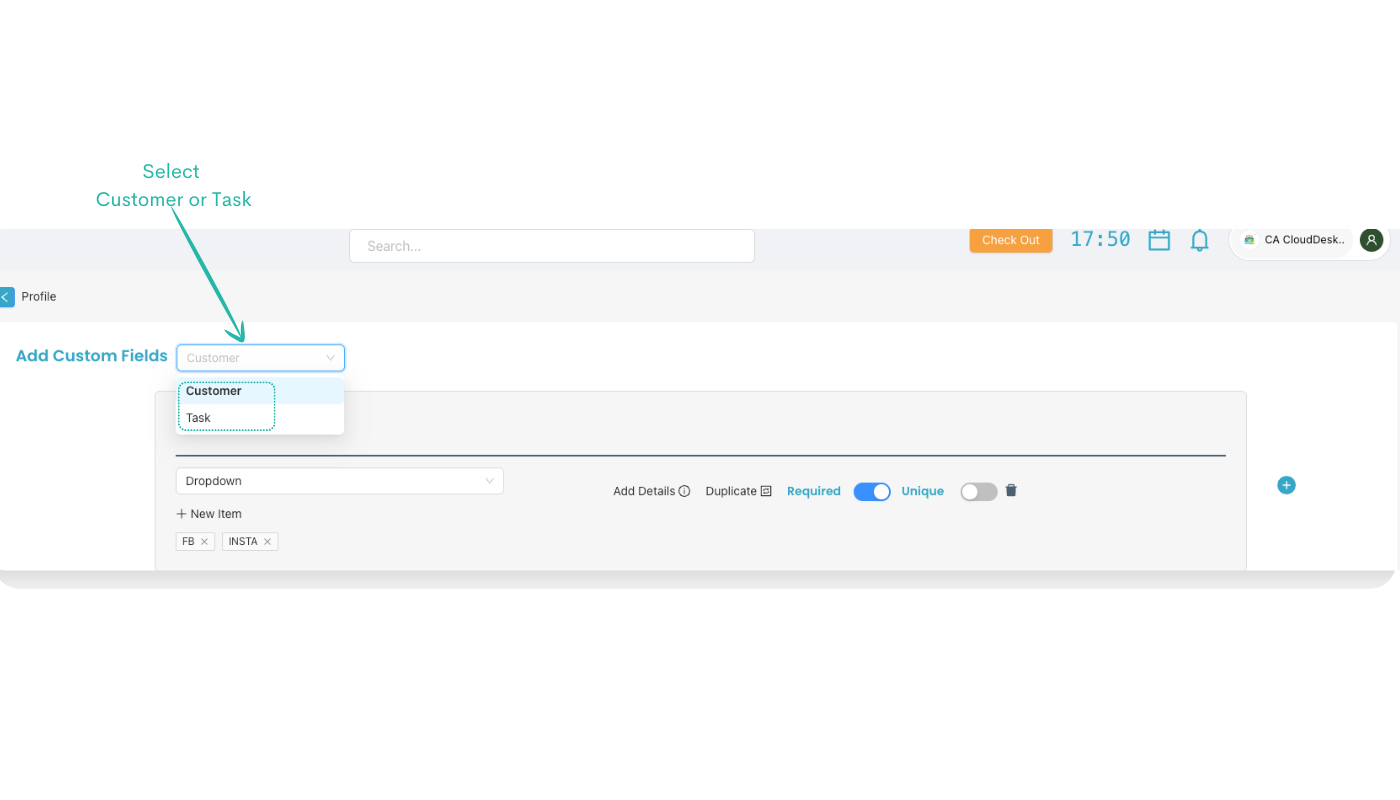
On the Custom Field page you can define how the field will behave in the Customer or Task form.
| Option | How it works |
|---|---|
| Add Custom Fields — Customer / Task | From the dropdown at the top, select whether you want to add the field for Customer or for Task. The field will then appear only in that selected form. |
| Field Type & New Item | Choose the input type (for example Dropdown) and add the list values using + New Item. These values will be available when filling the client or task. |
| Add Details | Click Add Details to write a short description or help text for this field. This description helps users understand what information to enter. |
| Duplicate | Turn on the Duplicate option if you want to duplicate this custom field quickly. This is useful when you need similar fields with small changes. |
| Required | Click Required if the field must be mandatory. Users will not be able to save the Customer or Task without filling this field. |
| Unique | Turn on Unique if the value in this field should be unique (for example, an internal client code that should not repeat). |
| Delete | Use the Delete icon to remove the custom field when it is no longer required. Deleted fields will not appear in new entries. |
After configuring all options, save the field. The new custom field will now appear in the respective Customer or Task form and work according to the Required, Unique and other settings you selected.
Best practices for Custom Fields
Name fields clearly
- Use clear names like Facebook ID, Internal Client Code or Priority Level.
- This helps every team member understand what to fill without confusion.
Use Required and Unique carefully
- Mark a field as Required only when you truly need it for every record.
- Use Unique for codes or IDs that must not repeat across customers or tasks.
Review fields periodically
- Remove or modify fields that are no longer used so your forms stay clean.
- Duplicate existing fields when introducing similar new requirements.