
View Client (CRM)
Use View Client to see everything about one client in a single screen—profile, services, tasks, documents, ledger, groups, notes, DSC, passwords and litigation.
Overview
The View Client screen is your single place to read everything related to one client—no need to move between modules. Each tab (Details, Service, Task, Documents, Ledger, Groups, Notes, DSC, Password, Litigation) shows one type of information.
Steps: Open View Client
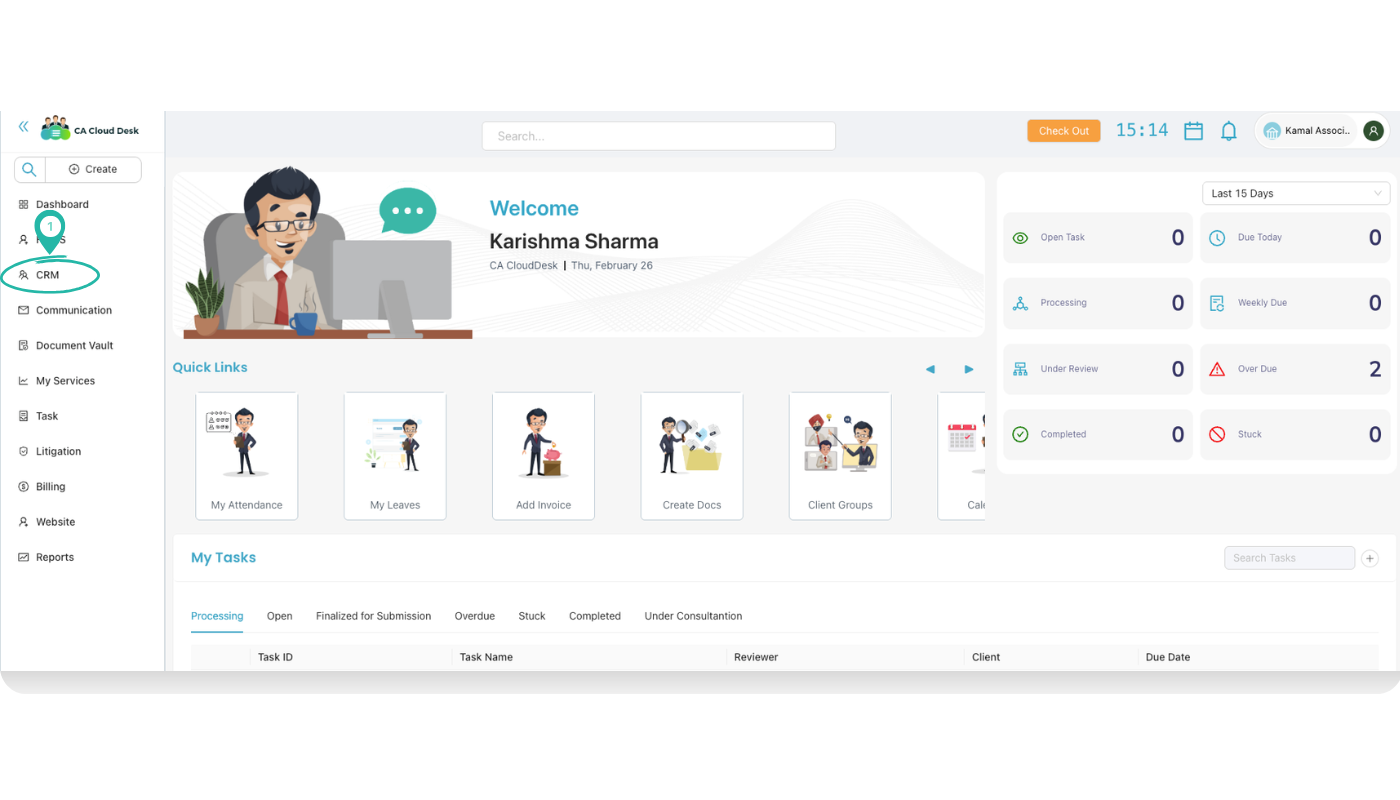
- Login to CA CloudDesk Partnerdesk.
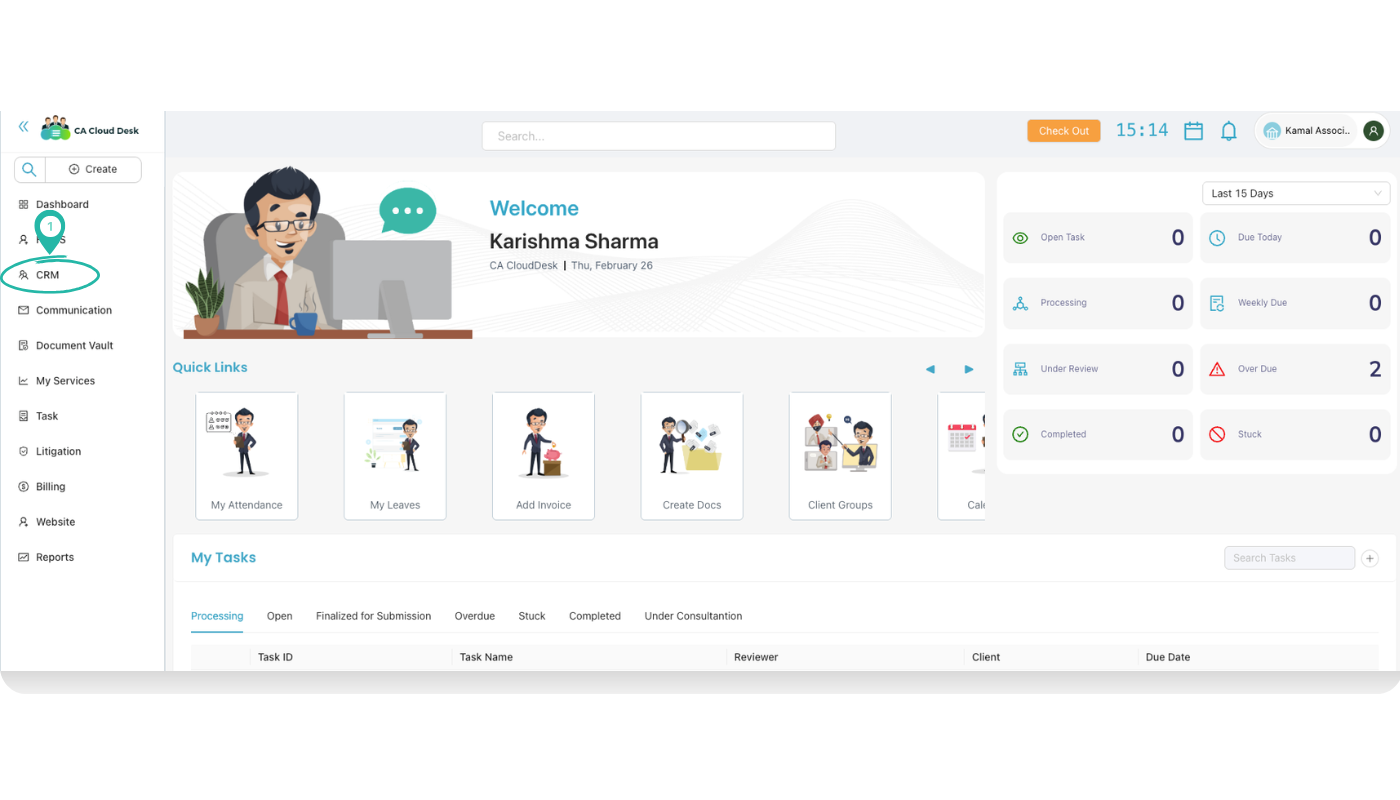
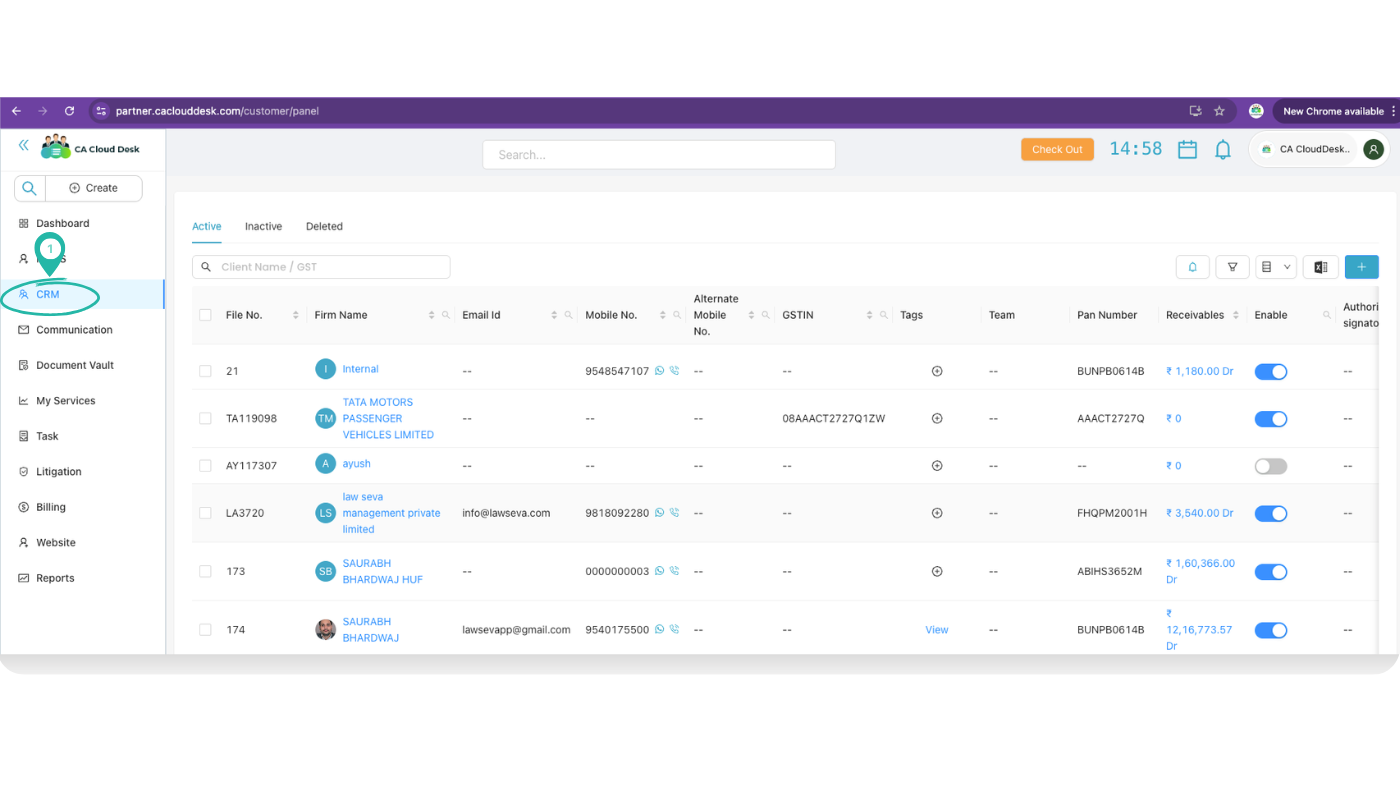
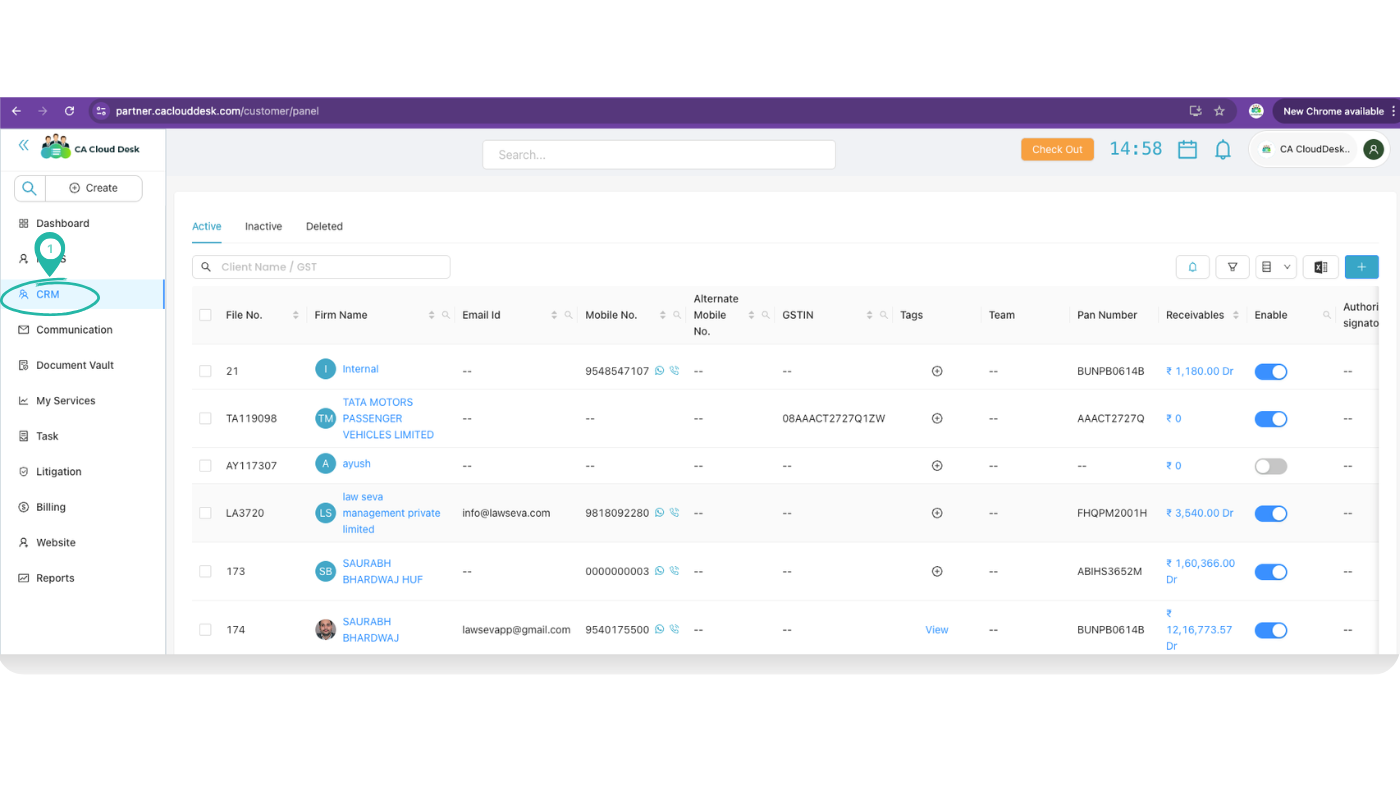
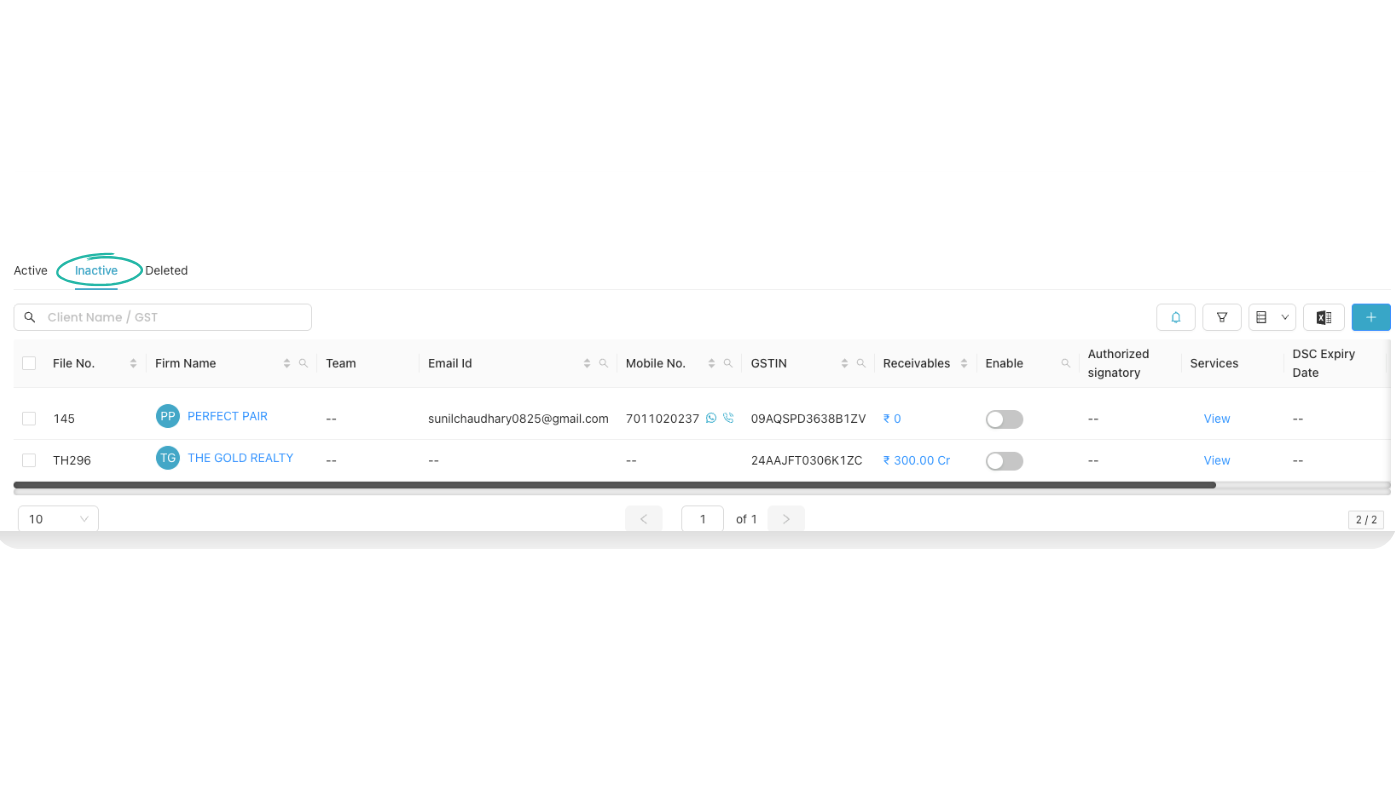
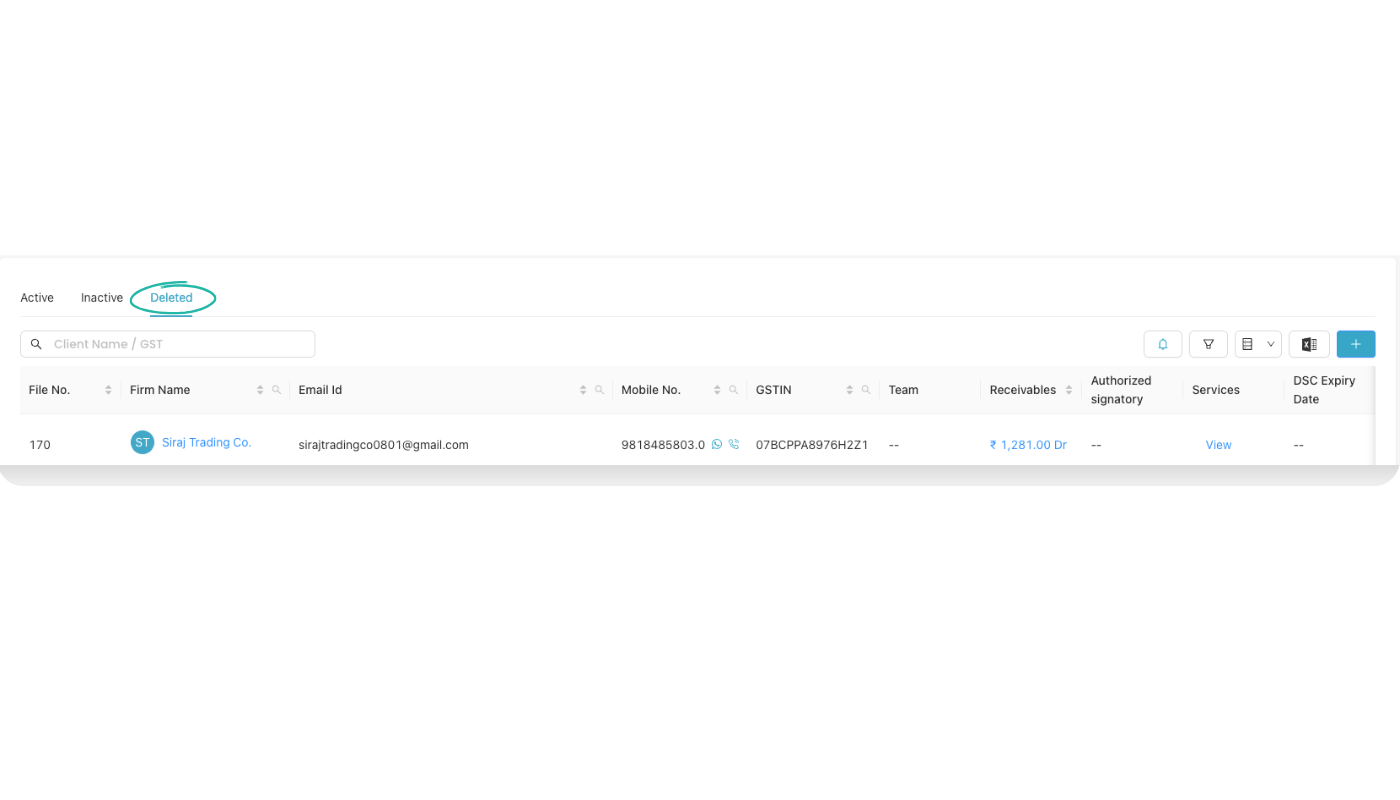
- From the left panel, click CRM to open the client list.
- In the list, click the Firm name of the client whose details you want to see.
The system opens the View Client screen with multiple tabs at the top.
Details tab – client profile
The Details tab shows the full profile of the selected client.
| Information | What you see | How you use it |
|---|---|---|
| Basic info | Client / firm name, client type, contact person, mobile, email, address. | Confirm you are working on the correct client before you start any work. |
| Registration details | PAN, GSTIN and other registration numbers (as maintained in CRM). | Use these values while filing returns or drafting replies; no need to search in files. |
| Other settings / tags | Custom flags, categories or tags configured in the client master. | Understand special behaviour for this client—for example billing terms or risk level. |
Service & Task tabs – work overview
Service tab
The Service tab lists all services you provide to this client.
| Column | Meaning |
|---|---|
| Service Name | Type of service (e.g. GST Return, Income Tax Return, Audit). |
| Frequency | How often work is done—Monthly, Quarterly, Yearly or One‑time. |
| Created By | User who added this service for the client. |
Use this tab to confirm which services you are responsible for and plan periodic work.
Task tab
The Task tab shows all tasks created for this client.
| Column | Meaning |
|---|---|
| TASK ID / Task Name | Unique ID and short title of the task. |
| Assignee / Reviewer | Who is doing the work and who will review it. |
| Status / Priority | Current stage (Open / In Progress / Completed etc.) and urgency level. |
| Service / Sub Service | Which service this task belongs to. |
| Due Date | Last date to complete the task. |
| Actions | Open, edit or update status (as per your rights). |
Use this tab to track all work for the client and see who is responsible for each item.
Documents & Ledger tabs – records & billing
Documents tab
The Documents tab stores all documents uploaded for this client.
| Element / Column | Purpose |
|---|---|
| Search Document | Search by file name, tag or other keyword. |
| Location | Folder path such as /, /GST, /ITR. |
| File Name | Actual document name stored for this client. |
| Expiry | Valid till date (useful for agreements, registrations, licenses). |
| Tags | Keywords like “GST”, “PAN”, “Agreement” for faster filter. |
| Client Access | Indicates whether the file is shared with client portal (if enabled). |
| Actions | View / download / edit / delete / change sharing (as permitted). |
Use this tab as the single storage for all client‑wise documents instead of scattered folders.
Ledger tab
The Ledger tab shows the financial history of this client.
| Column | Meaning |
|---|---|
| Date / Branch | When and from which branch the bill or receipt was recorded. |
| Receipt / Invoice No. | Reference number of the document. |
| Particular | Short description of the transaction. |
| Credit / Debit | Credit = money received, Debit = amount billed to client. |
| Status | Paid, Partially Paid, Pending, etc. |
| Balance | Running balance after that entry. |
| Remarks | Notes like “TDS adjusted”, “Advance received”, “Cheque bounced”. |
Before starting new work or giving a discount, quickly check the ledger to see any pending balance.
Groups & Notes tabs – grouping & internal notes
Groups tab
The Groups tab shows which client groups this client is part of.
| Column | Meaning |
|---|---|
| Group Name | Name of the group (for example, “GST Monthly Clients”, “Transport Sector”). |
| Admin | User responsible for this group. |
| Customers | Number of clients inside the group. |
| Tasks / Service Requests | Work count relating to that group. |
| Take Actions | Open group or perform allowed bulk actions. |
Use groups to understand if the client is part of any special category or bulk communication list.
Notes tab
The Notes tab is for internal notes about the client (not printed on invoices).
Use it for:
- Important discussion points or commitments made to the client.
- Special instructions such as preferred contact time or communication channel.
- Risk notes or history that team members should remember.
DSC, Password & Litigation tabs
DSC tab
- Shows counters like Active, Expiring in 15 Days, Expired.
- Columns include Created Date, Expiry Date, DSC Number, Handed Over, Receiver, Services, Branch and whether DSC is handed over to client.
- Use this tab to track DSC renewals and who currently holds the token.
Password tab
- Header actions: Saved Passwords, Excel Import, Add Password.
- Columns: Portal, Username, Passwords, Last Updated, Updated By, Remarks, Actions.
- Use it as a secure, central list of all client portal logins (GST, Income Tax, MCA etc.).
Litigation tab
- Columns: Client Name, Financial Year, Hearing Date, Service Category, Case No, Description, Court Name, Hearing Details, Next hearing Date, Action.
- Use it to see all litigation matters and their next dates for this client.
- Open a row from the Action column to update outcome after each hearing.