GST (Litigation)
Use the GST section under Litigation to link client GSTINs with CA CloudDesk PartnerDesk and automatically receive GST notices so you can track all GST litigation from one place.
Path
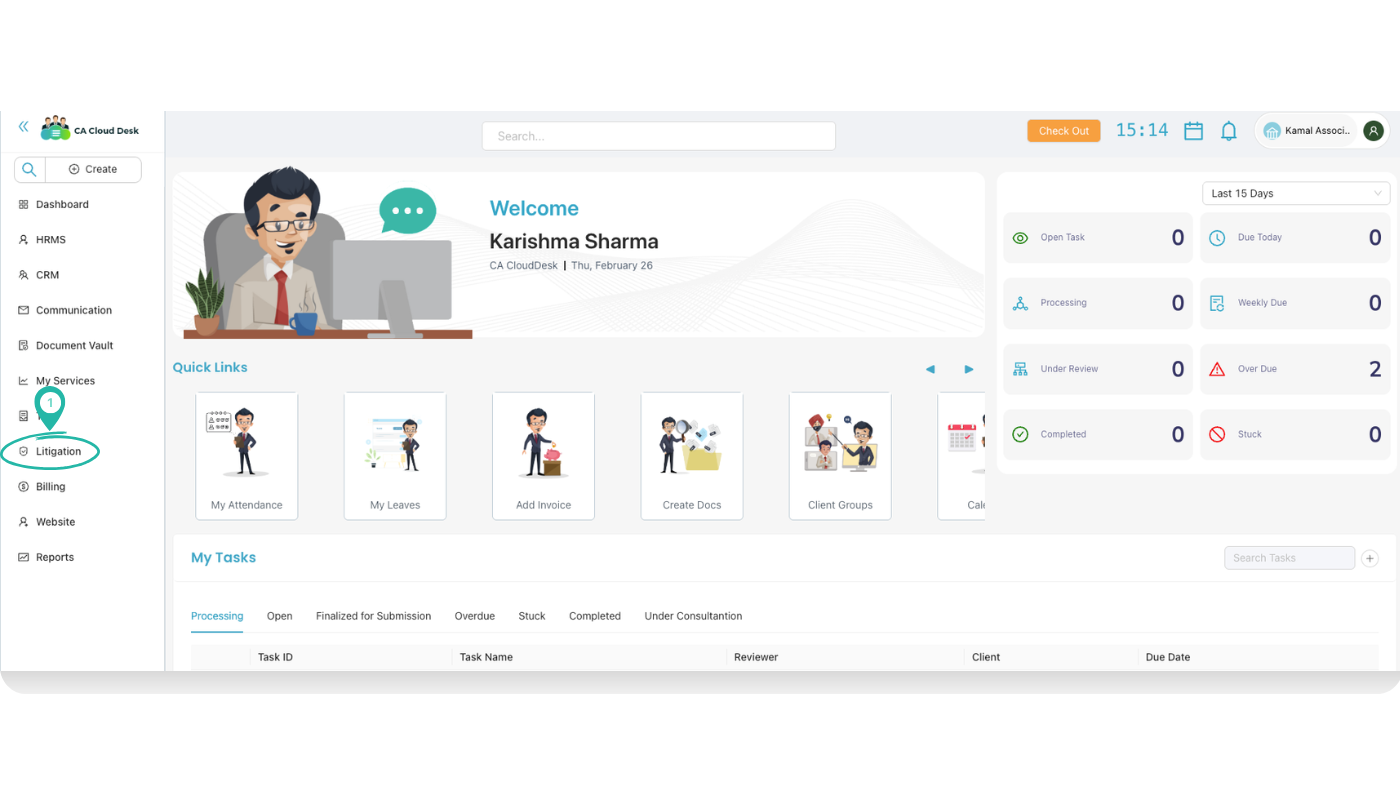
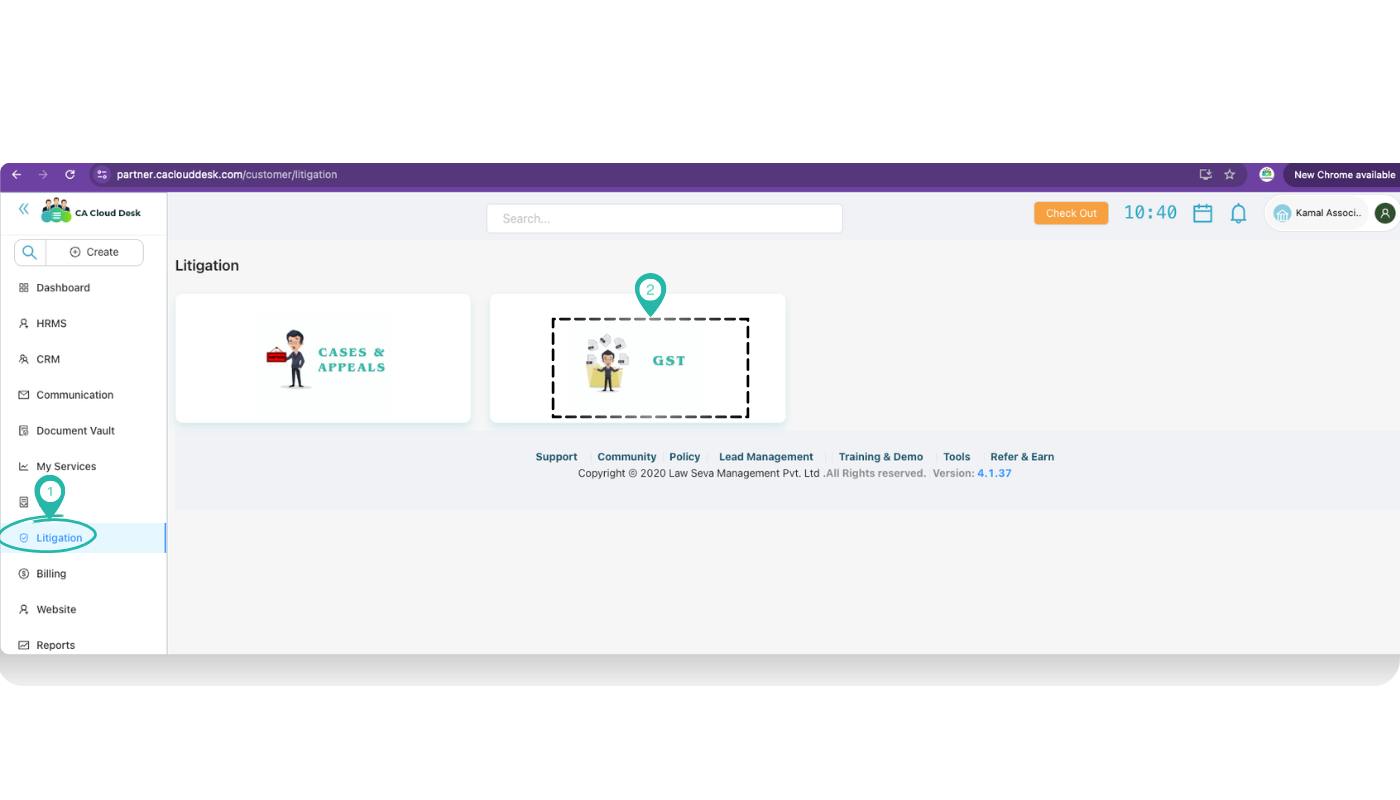
Log in to your CA CloudDesk Partner Desk account. From the left panel, click Litigation, then choose the GST tile. This opens the Client GST list where you can enable GST for clients and view their notices.
GST screen at a glance
The Client GST screen lists all clients along with their GST numbers, token status, and whether GST is linked. From here you can enable GST for a client and view GST notices fetched from the GST portal.
Step 1 — Enable GST for a client
Open Add Client GST
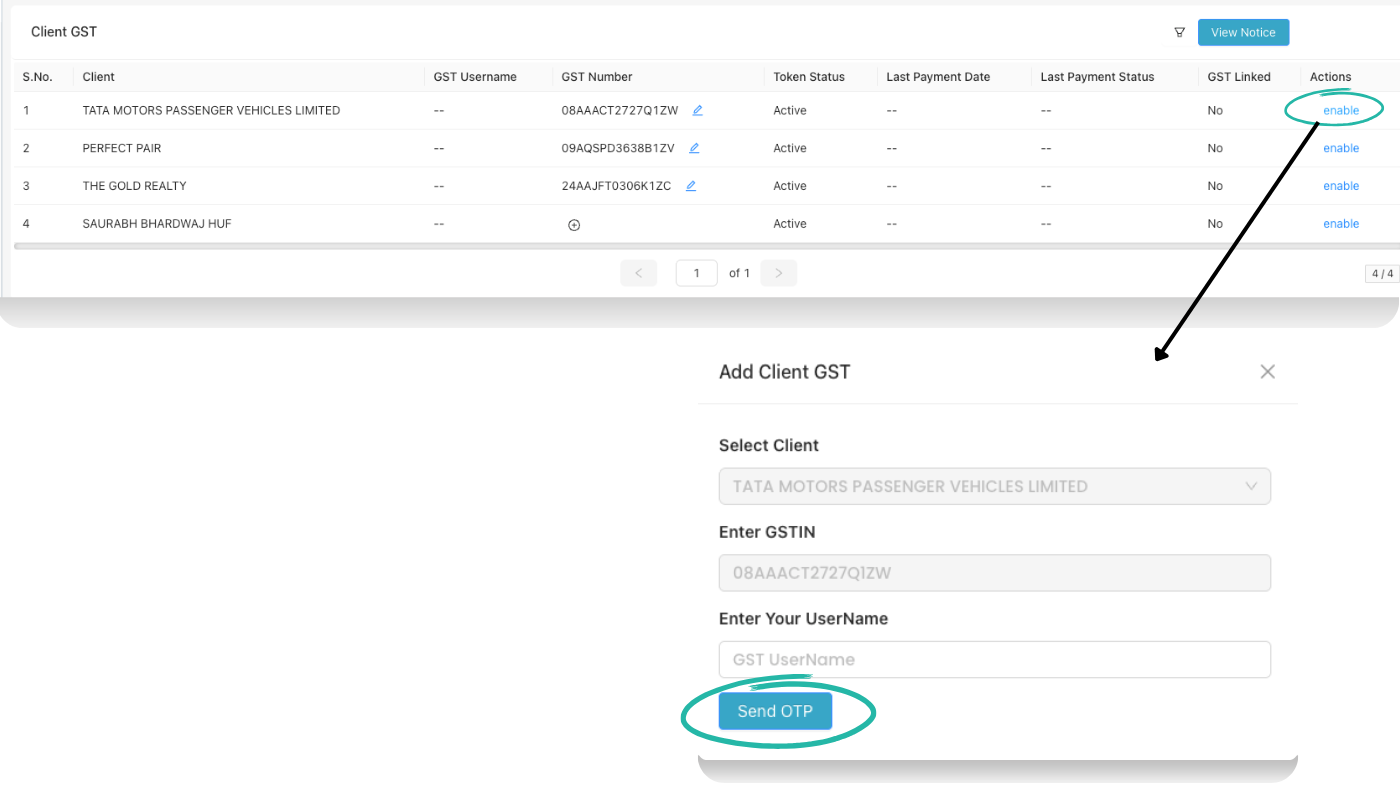
On the Client GST list, locate the required Client. In the Actions column, click enable to open the Add Client GST window.
Fill GST details
In the Add Client GST form, fill the fields carefully so the GST account links correctly.
Required inputs:
- Select Client — confirm the correct client is selected.
- Enter GSTIN — type the 15‑digit GSTIN exactly as on the GST portal.
- Enter Your UserName — enter the GST portal username for this GSTIN.
Send and confirm OTP
Click Send OTP. An OTP is sent to the mobile or email registered with that GSTIN. Ask the user for the OTP, enter it when prompted, and submit. Once validated, the GST for that client is linked and CA CloudDesk can start fetching notices.
Step 2 — View GST notices
Open the Notice list
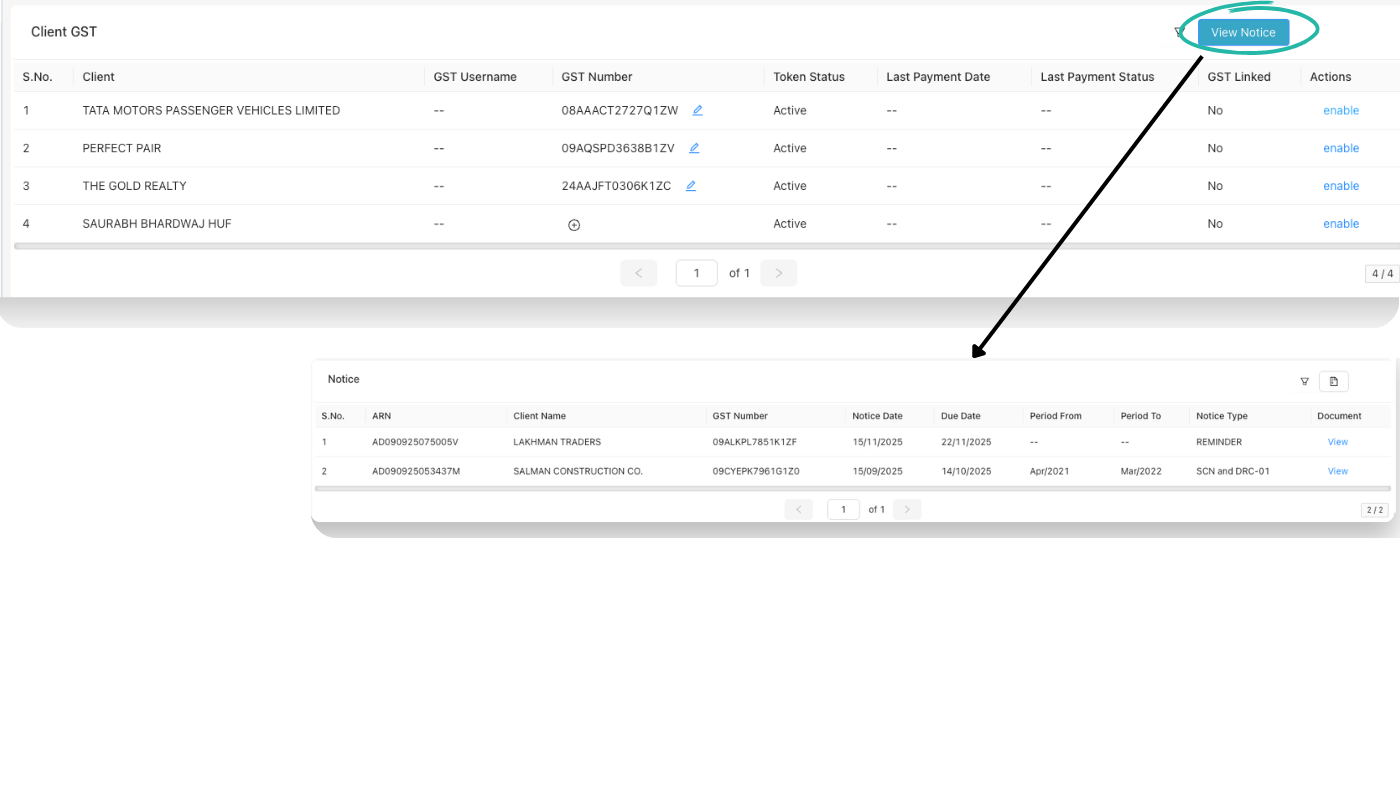
After GST is linked, stay on the Client GST screen and select the client. Click the View Notice button on the top-right to open the Notice list for that client.
Review notice details
The Notice table shows key details such as ARN, Client Name, GST Number, Notice Date, Due Date, Period From / Period To, Notice Type and a Document link. Use this to track which notices are pending and which are close to the due date.