
Create Task — CA Cloud Desk
Step-by-step instructions to create and manage tasks in CA Cloud Desk for CAs and tax professionals. Covers task setup, adding new tasks, and recurring task configuration.
Path
Task Setup, Add Task & Recurring Task
Task Setup: Configure task module settings, default values, and practice-wide task preferences.
Add Task: Create new tasks, assign them to team members, and set priorities and deadlines.
Recurring Task: Set up tasks that repeat automatically on daily, weekly, monthly, or custom schedules.
Overview
In CA Cloud Desk, a Task is a structured work item used to track client work such as ITR filing, GST returns, audits, and compliance activities. Tasks help tax professionals break work into clear, assignable items with due dates and priorities.
Using the Task Module, partners and team members get a single view of all open work, who is responsible, and what is due when. This is critical during peak seasons when you need to manage hundreds of client deliverables without missing a deadline.
Stay on top of deadlines
Track due dates for every client task in one place.
Assign ownership
Delegate work to team members with clear responsibility.
Maintain audit trail
View full task history, comments, and document changes.
Step-by-Step Guides
Use the dedicated guides below for PDF-accurate, screenshot-based instructions.
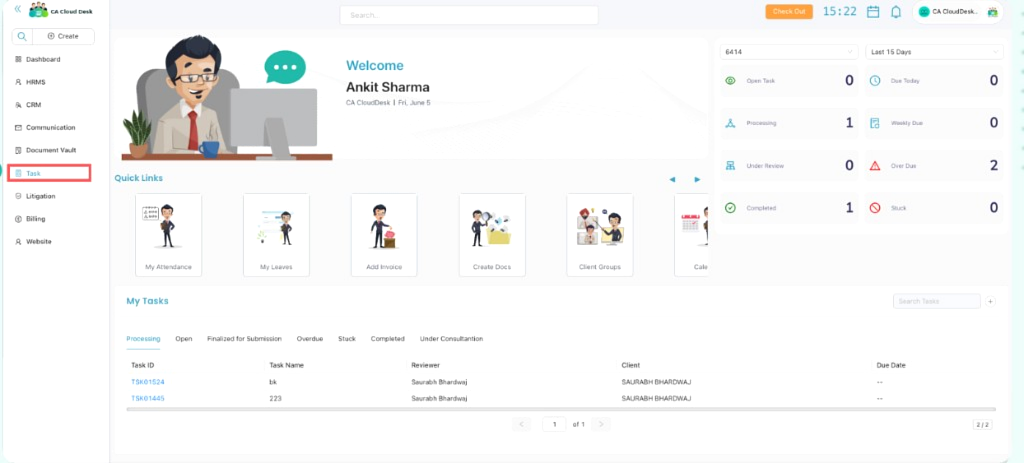
Configure Master Services and Sub-Services with workflow stages, billing settings, and notification preferences. Open Task Setup guide →
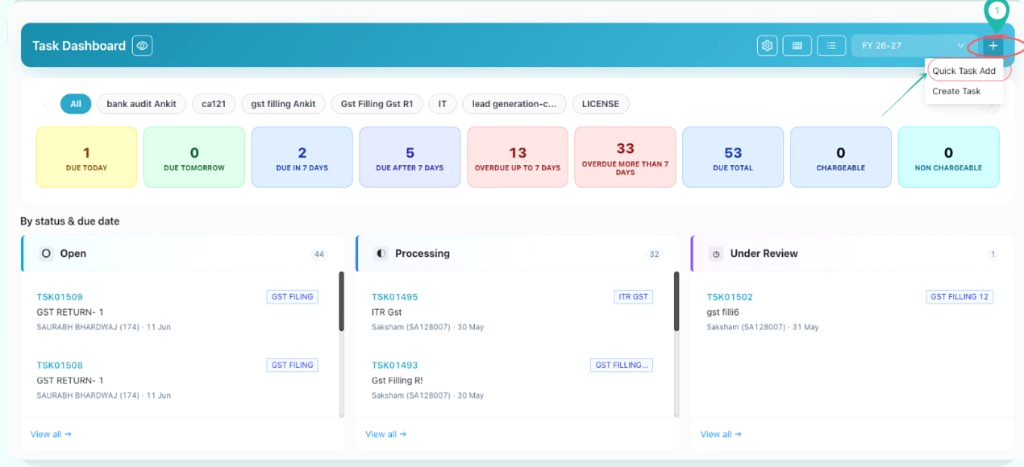
Create new tasks using Quick Task Add or the full Create Task form. Open Add Task guide →
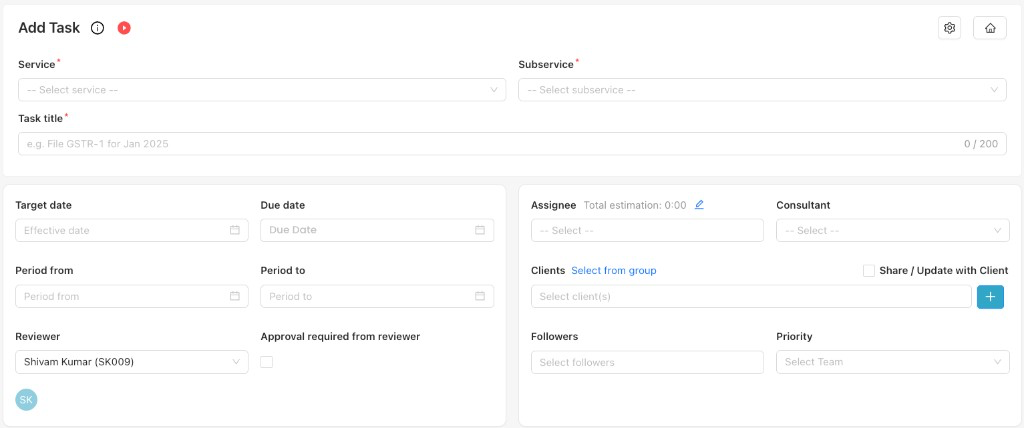
Set up tasks that repeat on Daily, Weekly, Monthly, Quarterly, Half-Yearly, or Yearly schedules. Open Recurring Task guide →
Choose the right guide
Start with Task Setup if services are not configured yet. Use Add Task for one-time tasks and Recurring Task for scheduled automation.
Best Practices
FAQs
To edit an existing task, see the full Edit Task guide. In brief:
- Method A — Bulk Edit: Click View All from the Task Dashboard, select tasks using checkboxes, click the Edit icon, enter your password, and click Confirm.
- Method B — Single Task: Open the Task Dashboard or Table View, click the task, then click Edit.
- Update the required fields and click Update task to save.
Each task maintains a full history so you always know who did what and when:
- Open the task from the Task Module.
- Go to the Activity or History tab within the task details.
- Review entries for creation, status changes, reassignment, due date updates, and comments.
- Use filters (where available) to show only comments, status changes, or file updates.
Common issues and their solutions:
- Due date cannot be in the past — Select today or a future date; back-dating may be restricted by your admin.
- File size exceeds limit — Compress large PDFs or split files; consider linking to a shared drive for very large data sets.
- Assignee not found — Ensure the user is active in CA Cloud Desk and has access to the workspace/client.
- Task not visible to team member — Check filters, status (e.g., Closed), and whether the user has permission for that client or project.
- Notifications not received — Confirm the Notify Assignees option and verify the user's email notification settings.