
How to Create a Client in CA Cloud Desk
A comprehensive guide to creating clients individually or through bulk onboarding. Includes quick client creation, detailed client information setup, and Excel-based bulk upload.
Path
Alternative Path for Bulk Onboarding
Profile Setting → Import Utility → Clients → 1. Client → Upload Client → Sample Excel File
Part A: Create Client 1 by 1
Follow these steps to create clients individually with comprehensive details.
Step A1
- Select CRM in the left panel
Step A2
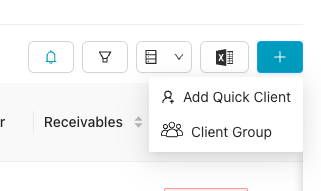
- Click on the "+" (add icon)
- Select "Add Quick Client" from the dropdown
Quick Client Form
Fill in the basic information to quickly create a client:
After Filling Quick Client Form
You have two options:
- Click Submit to add the quick client immediately
- Click Other Details to add comprehensive information through a 6-step process
Detailed Client Information (6 Steps)
If you clicked "Other Details", you'll proceed through these 6 sequential steps:

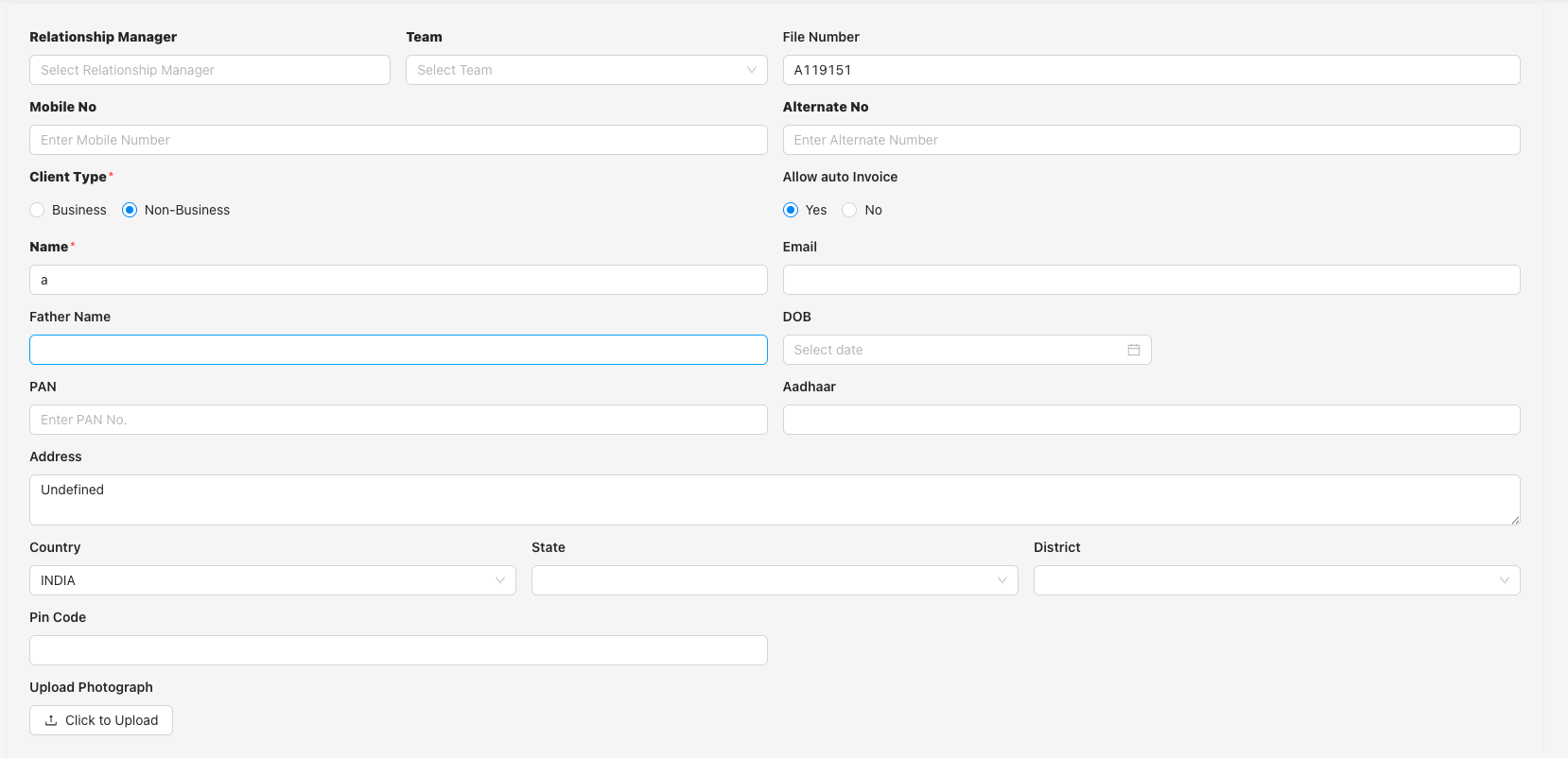
Step 1: Basic Information Mandatory
Enter the fundamental client details:
Client Setup & Contact
- Relationship Manager: Select from dropdown
- Team: Select from dropdown
- File Number: Auto-generated (e.g., A119151)
- Mobile No: Enter mobile number
- Alternate No: Enter alternate contact
- Client Type: Business or Non-Business
- Allow auto Invoice: Yes or No
Personal Details
- Name: Enter client name
- Email: Enter email address
- Father Name: Enter father's name
- DOB: Select date of birth
- PAN: Enter PAN number
- Aadhaar: Enter Aadhaar number
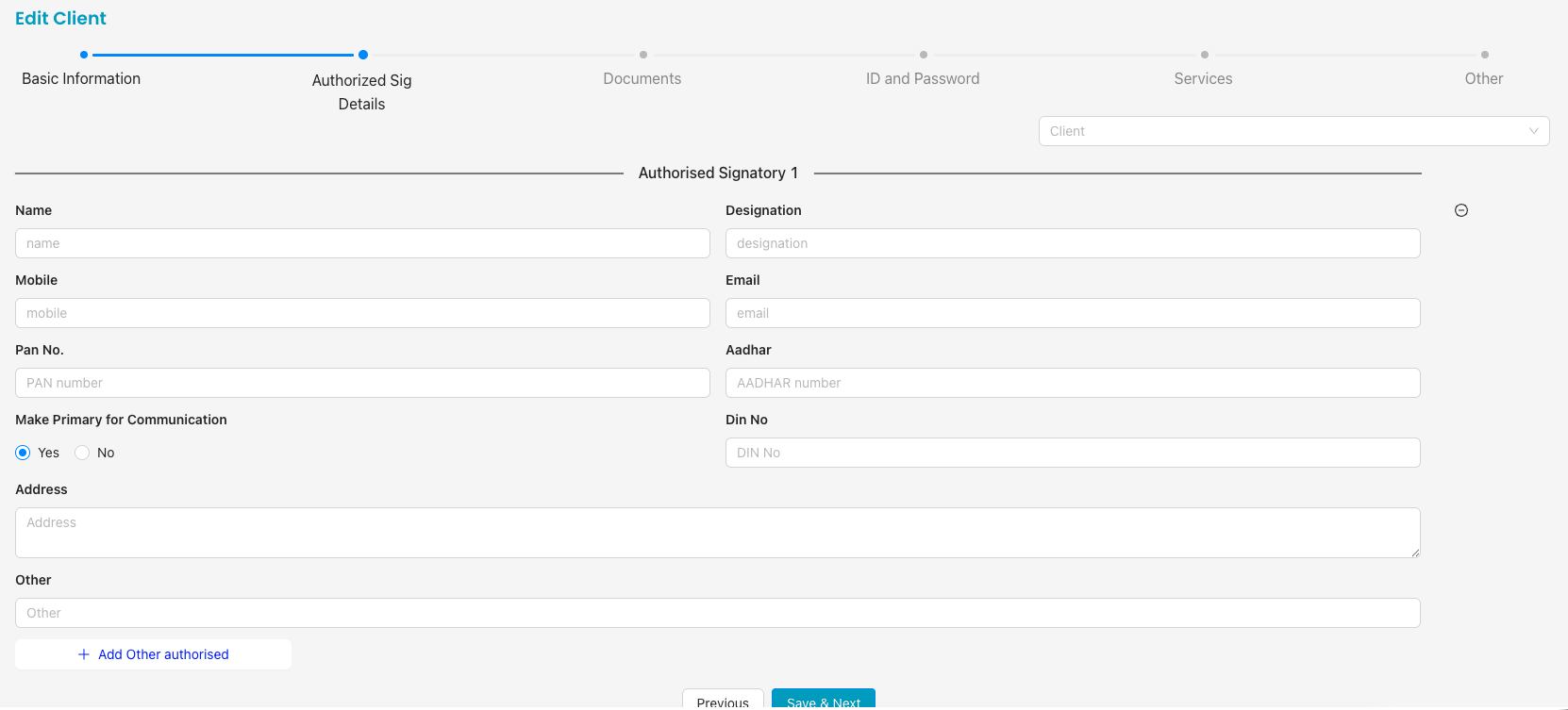
Step 2: Authorized Sig Details Optional
Enter details for authorized signatories:
Add More Signatories
You can add additional authorized signatories by clicking the "+ Add Other authorised" button.
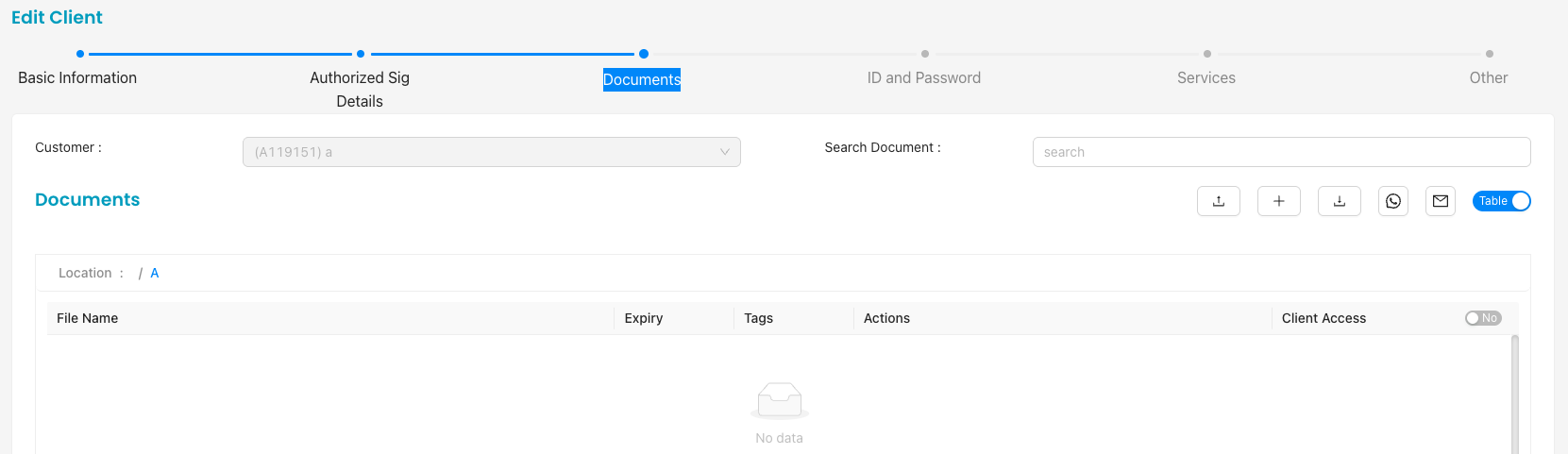
Step 3: Documents Optional
Upload and manage client documents:
Document Table Columns
- File Name
- Expiry
- Tags
- Actions
- Client Access
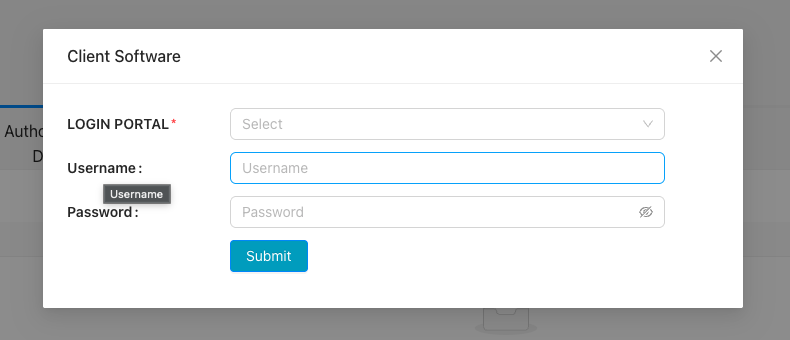
Step 4: ID and Password Optional
Set up client portal login credentials:
Submit Credentials
Click Submit to save the login credentials for the client portal.
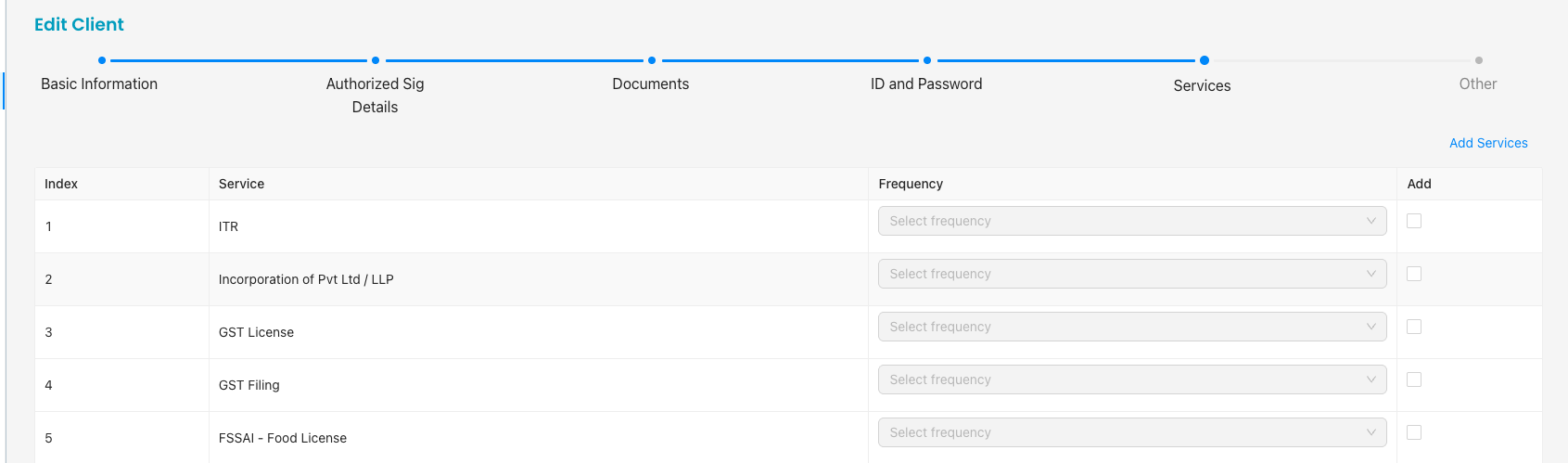
Step 5: Services Optional
Select and configure services for the client:
Available Services Include
- ITR
- Incorporation of Pvt Ltd / LLP
- GST License
- GST Filing
- FSSAI - Food License
- And more...
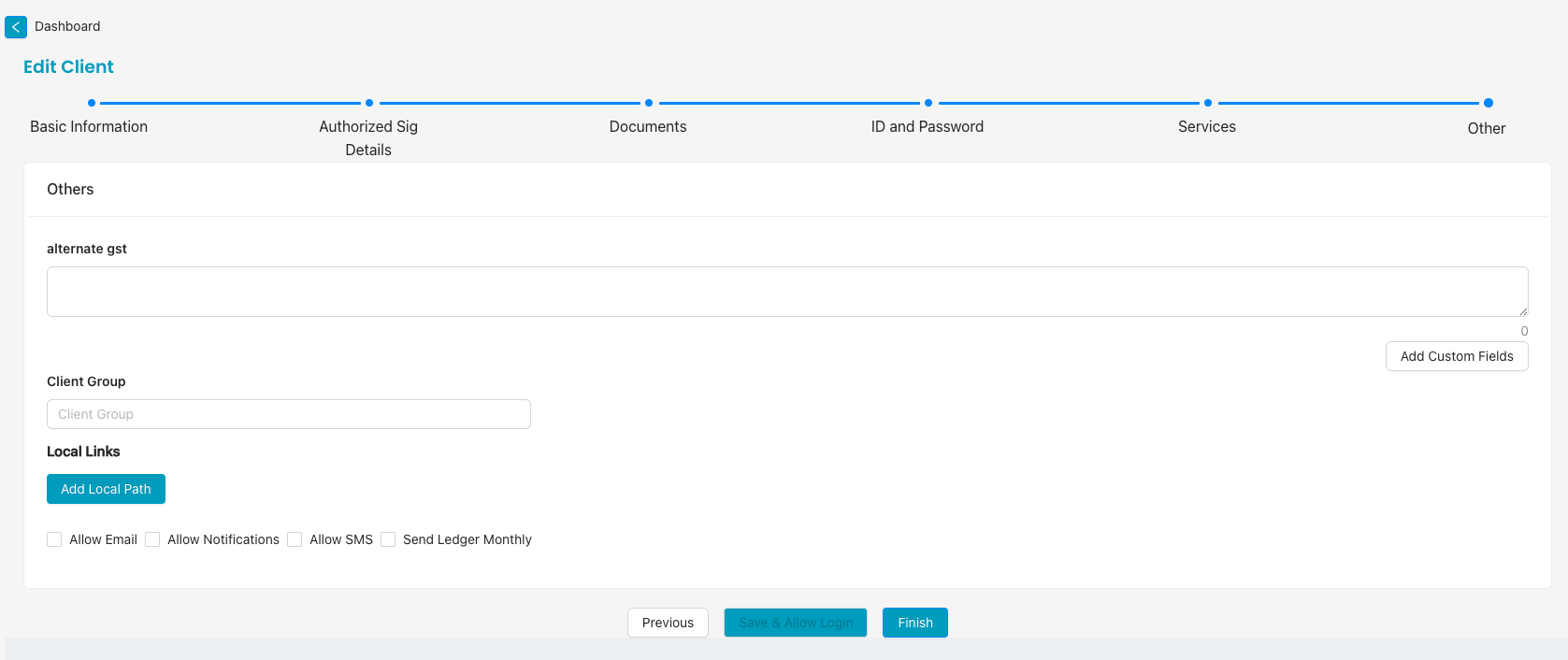
Step 6: Other Optional
Additional settings and preferences:
Action Buttons
- Previous: Go back to Services step
- Save & Allow Login: Save and enable client login
- Finish: Complete the client creation process
Part B: Bulk Onboarding
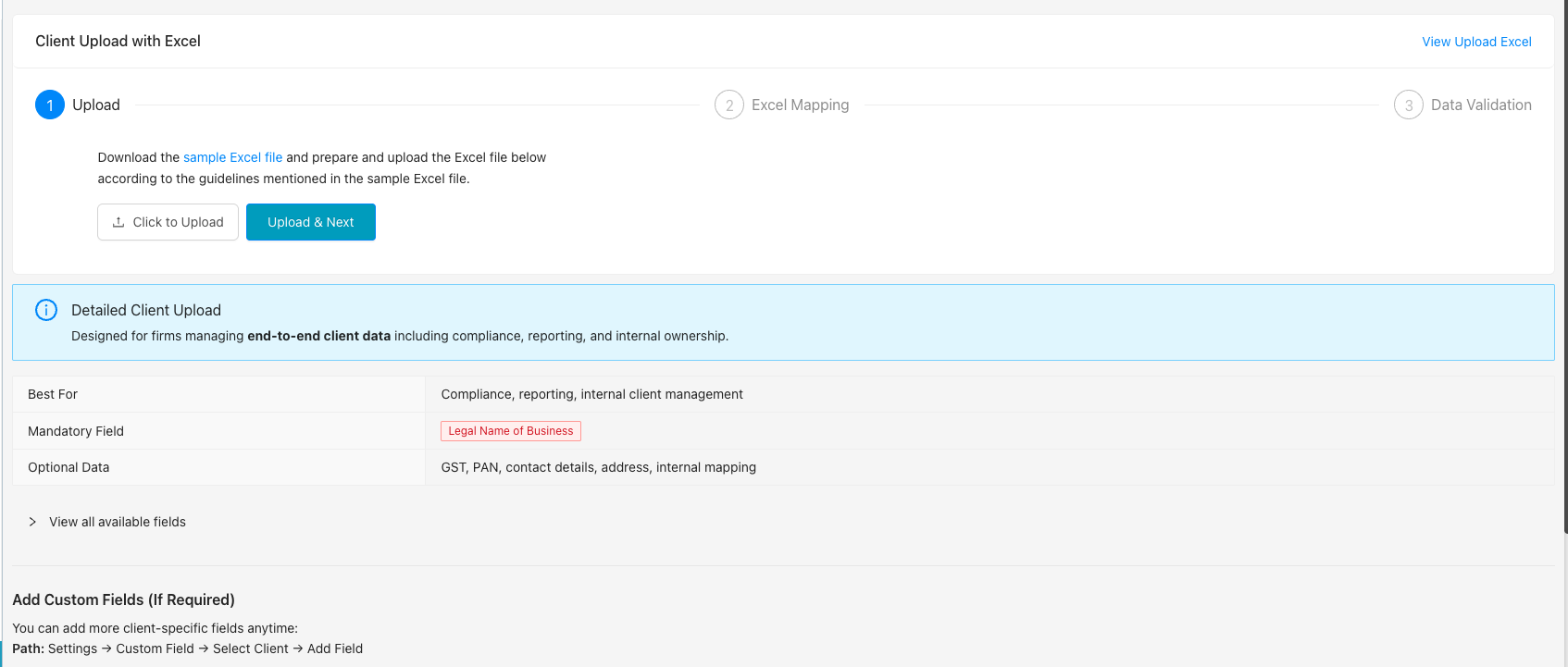
Upload multiple clients at once using an Excel file:
Detailed Client Upload Information
- Best For: Compliance, reporting, internal client management
- Mandatory Field: Legal Name of Business
- Optional Data: GST, PAN, contact details, address, internal mapping
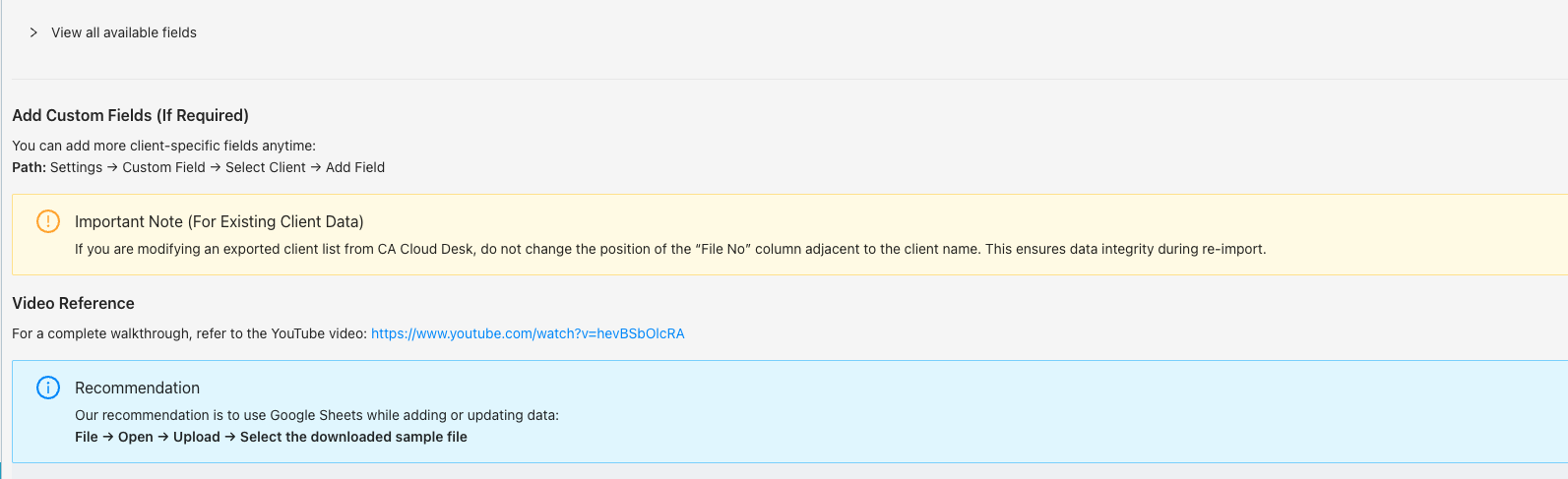
- Click "View all available fields" to see the complete list
Important Note (For Existing Client Data)
If you are modifying an exported client list from CA CloudDesk, do not change the position of the "File No" column adjacent to the client name. This ensures data integrity during re-import.
Add Custom Fields (If Required)
You can add more client-specific fields anytime:
Recommendation
Our recommendation is to use Google Sheets while adding or updating data:
File → Open → Upload - Select the downloaded sample file
Video Tutorial
Description: For a complete walkthrough of the bulk onboarding process, refer to the YouTube video: