
Employee Hierarchy
View the organizational hierarchy by designation and create teams. Go to Dashboard → HRMS → Employee Hierarchy; use the Hierarchy and Team tabs, then the + icon to create teams and add members.
Path
Use this path to open the Employee Hierarchy screen: from the dashboard, select HRMS in the left panel, then select Employee Hierarchy from the HRMS cards.
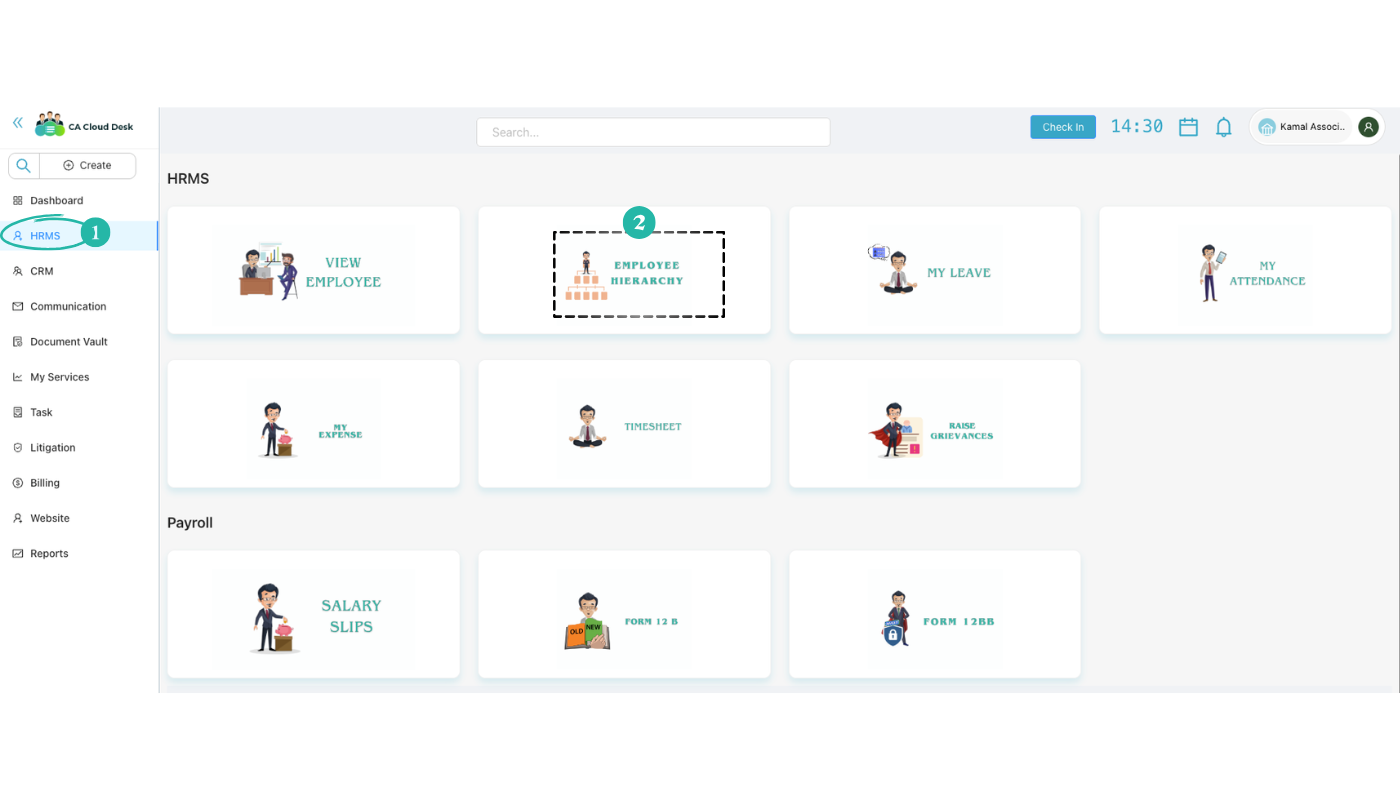
Step 1: Go to dashboard, select HRMS, then Employee Hierarchy
From the CA Cloud Desk dashboard, open the left navigation and click HRMS. On the HRMS page, click the EMPLOYEE HIERARCHY card to open the Employee Hierarchy screen.
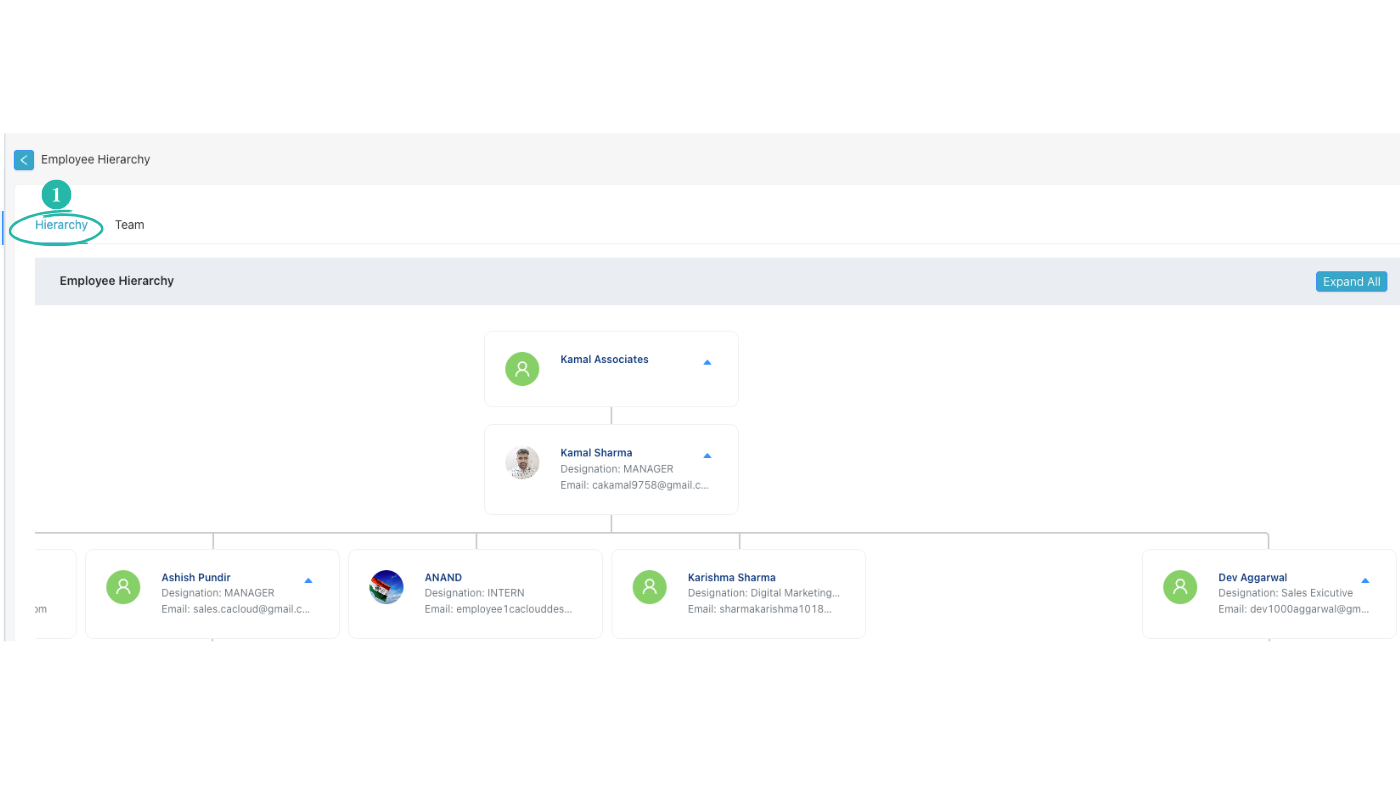
Step 2: Employee Hierarchy
On the Employee Hierarchy screen you can switch between the Hierarchy and Team tabs. In the Hierarchy view, employees are shown according to the designation provided to them, in an organizational chart. Use Expand All to see the full tree.
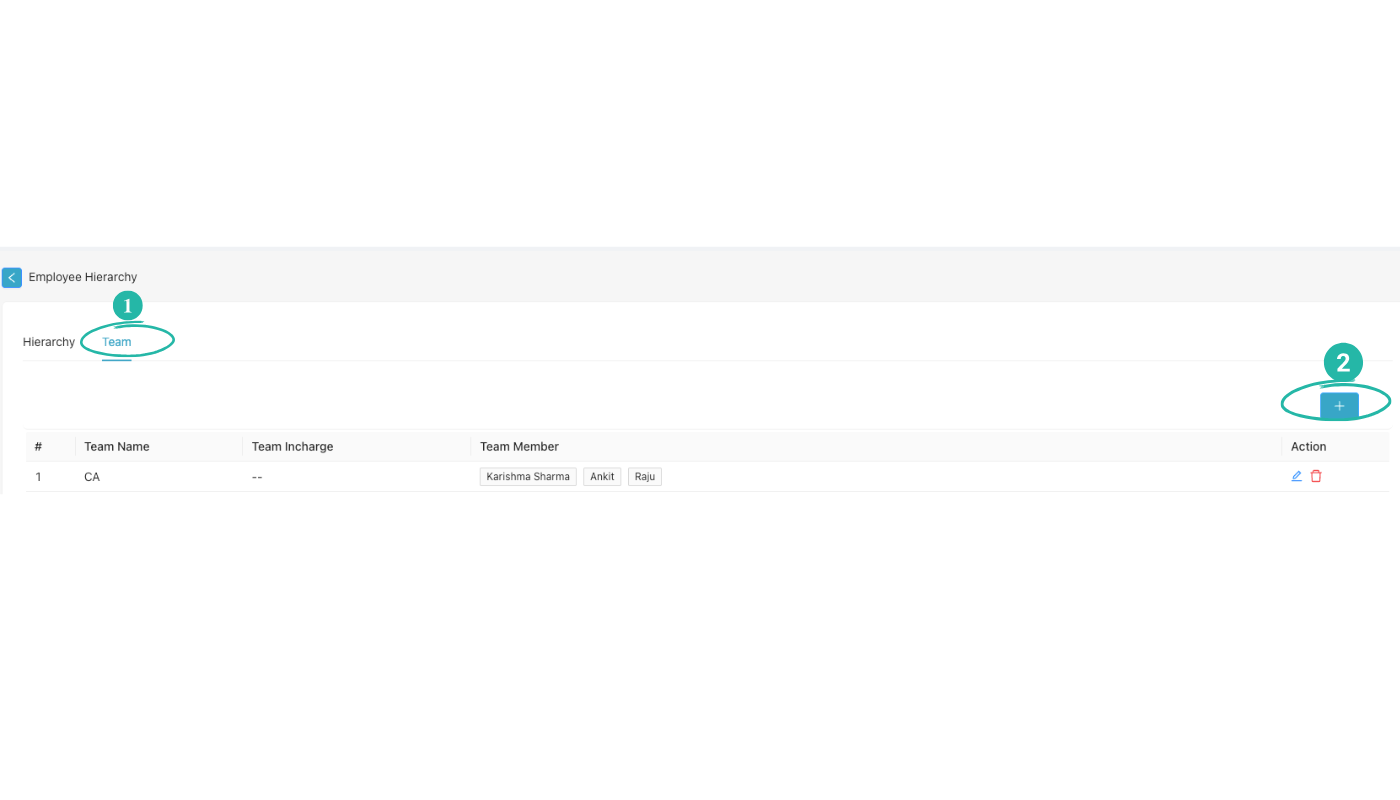
Step 3: Create Team, add team members (use + icon)
Switch to the Team tab to see the list of teams (Team Name, Team Incharge, Team Members, Action). To create a new team, click the blue + icon at the top right. You can also add more team members to existing teams using the same + icon or the edit (pencil) action for that team.
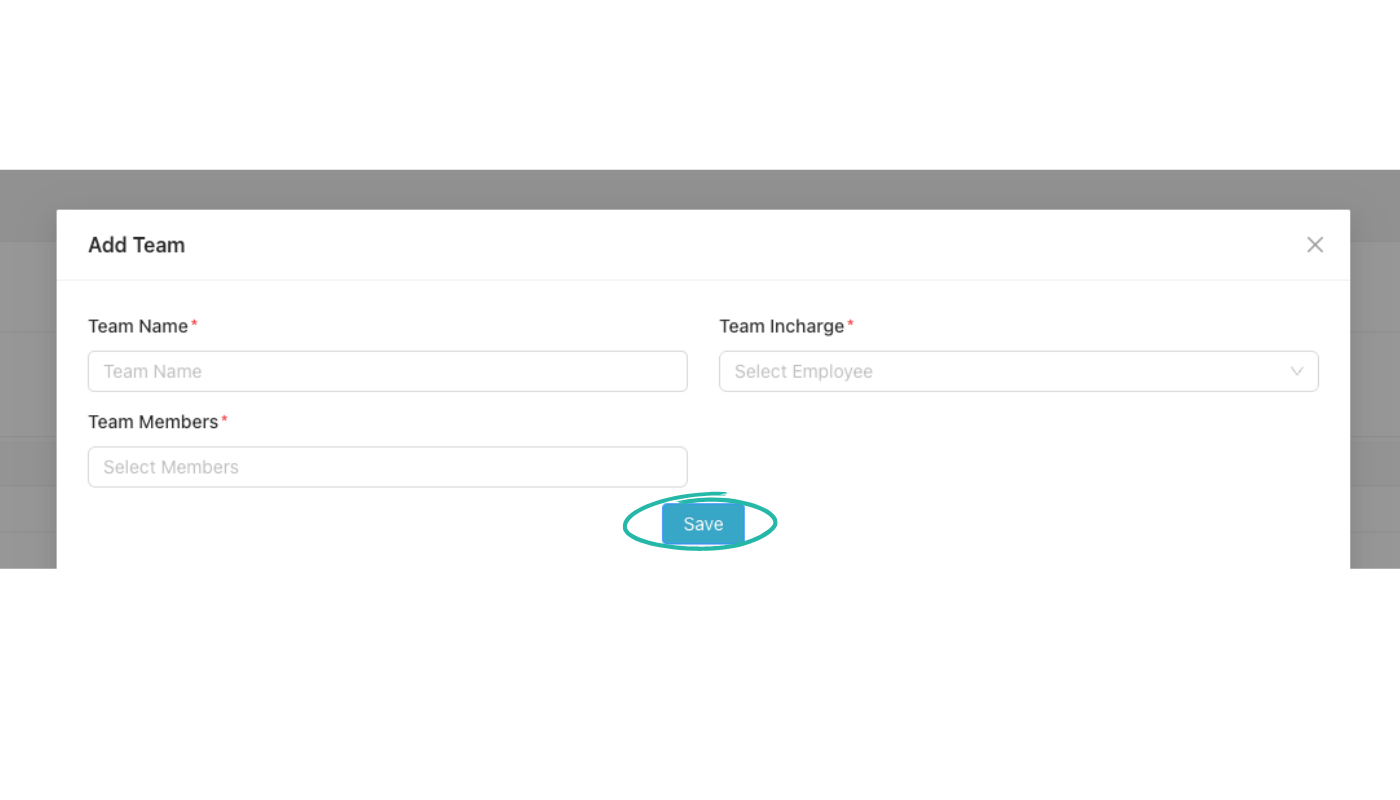
Step 4: Fill details to add team member, then Save
In the Add Team dialog, fill in the required fields and click Save:
Video Tutorial
Watch a walkthrough of Employee Hierarchy in CA Cloud Desk: navigating to HRMS → Employee Hierarchy, viewing the hierarchy by designation, and creating teams with the + icon and the Add Team form.