
HR Probation Approval
Approve or extend employee probation from PartnerDesk. Log in, open Profile Settings, then select HR Probation Approval. Review Pending Probation and Approved/Rejected Probation, then use Approve or Extend for the required employee.
Path
PartnerDesk → Profile Settings → HR Probation Approval
Step-by-step instructions
1
Log in to CA Cloud Desk PartnerDesk and open Profile Settings
After login, click Profile Settings from the top/right area of the screen (or your profile menu) to open the settings section.
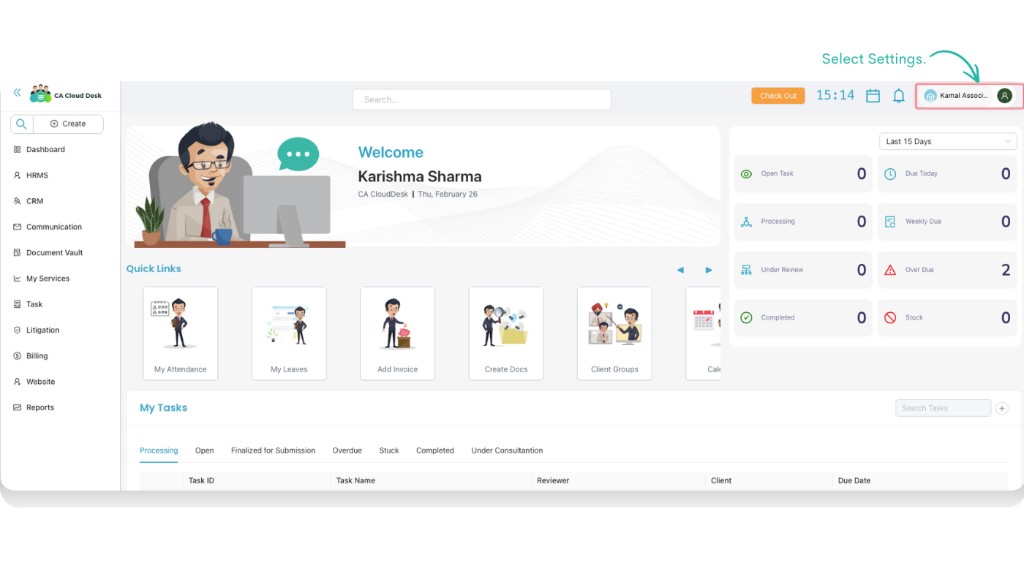
PartnerDesk — open Profile Settings.
2
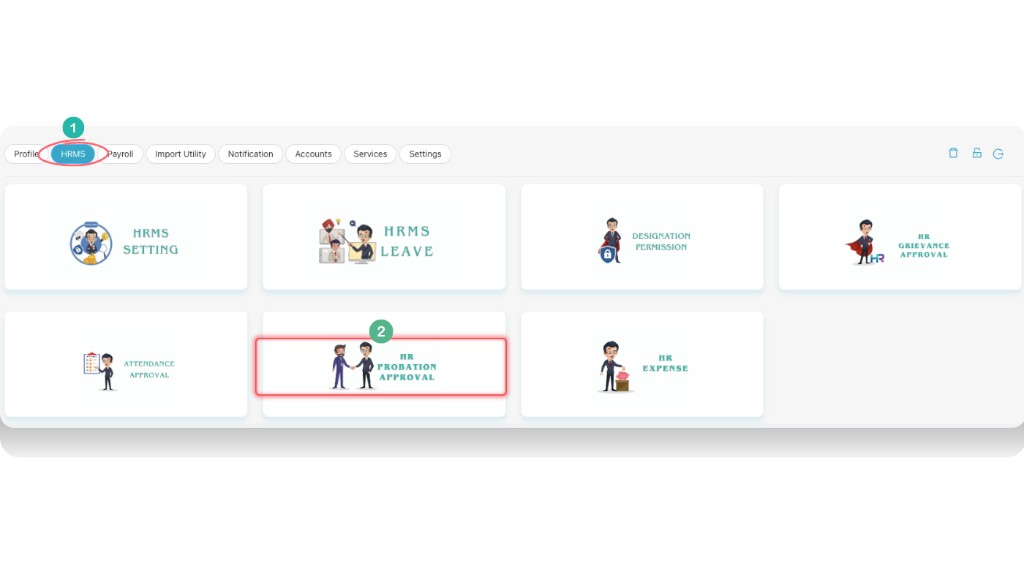
From Profile Settings, select HR Probation Approval
In Profile Settings, click the HR Probation Approval tile to open the probation approval screen.
Profile Settings — select HR Probation Approval.
3
Review probation requests and take action
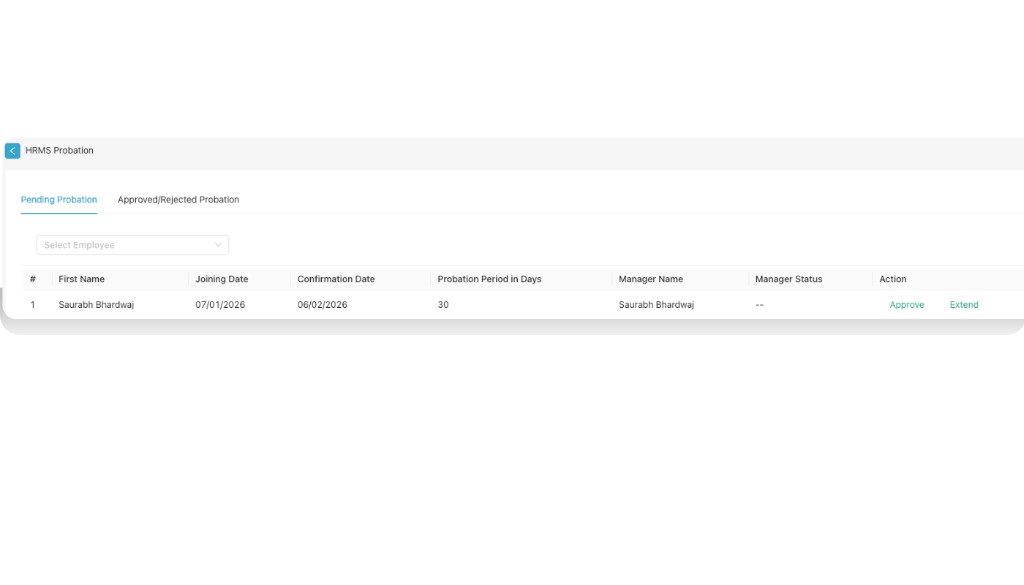
Use the two tabs to view requests, then click Approve or Extend in the Action column for the selected employee.
HR Probation Approval — view list and use Approve/Extend.
Pending & Approved/Rejected Probation
Approve & Extend
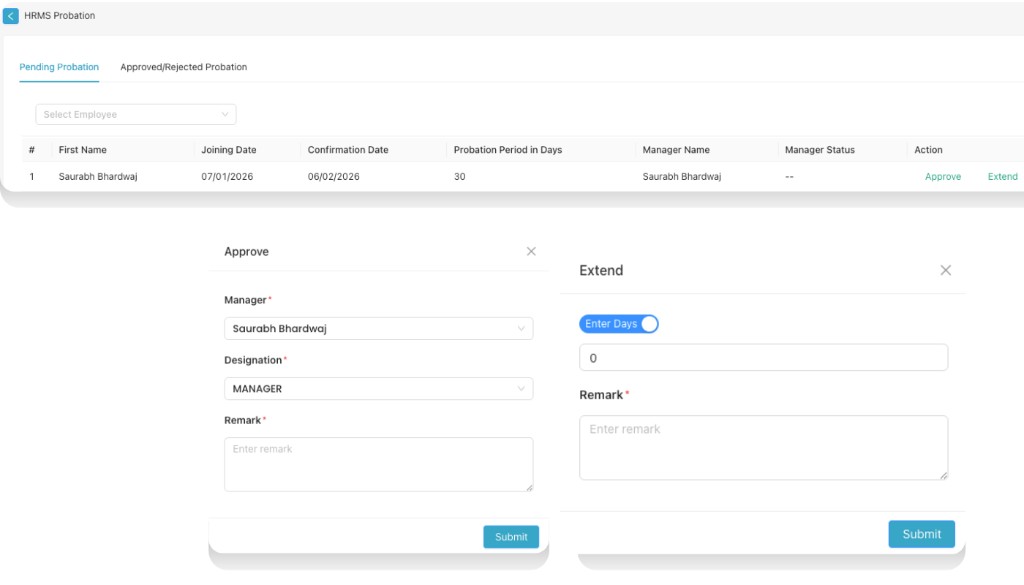
Approve or Extend — fill details and Submit.