
HRMS Settings
Configure HRMS policies and setup options for your practice. Log in to CA Cloud Desk PartnerDesk, open Profile Settings, then select HRMS Settings to access Holiday, Shift, Leave, Blacklist Leave, Leave Quota, Club Rules, HR Attendance, Summary, View-Lock, Unlock Timesheet, and No Dues Form.
Path
PartnerDesk → Profile Settings → HRMS Settings
Step-by-step instructions
1
Log in to CA Cloud Desk PartnerDesk and open Profile Settings
After login, click Profile Settings from the top/right area of the screen (or your profile menu) to open the settings section.
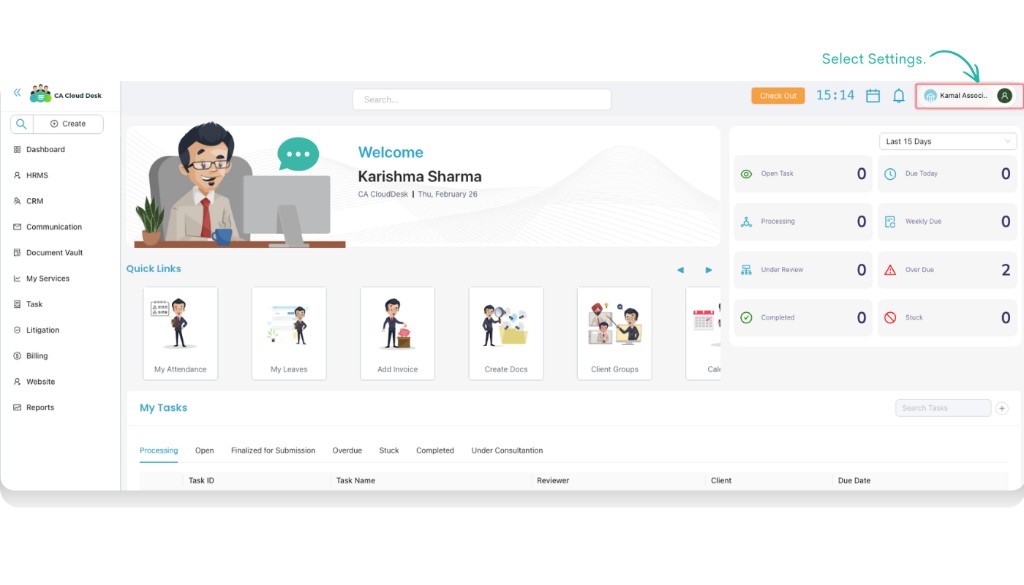
PartnerDesk — open Profile Settings.
2
From Profile Settings, select HRMS Settings
In Profile Settings, click the HRMS Settings tile/tab to open the HRMS configuration page.
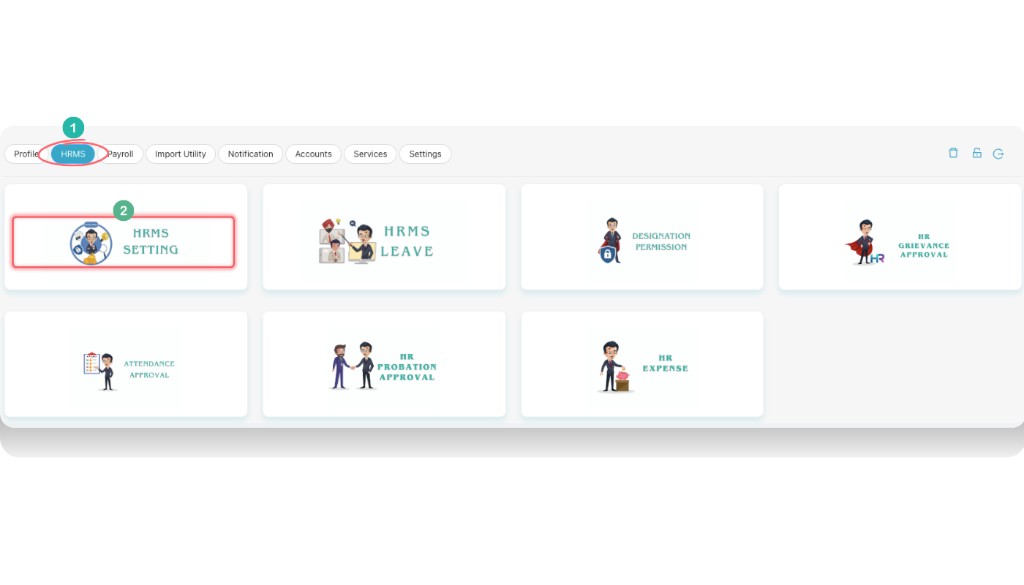
Profile Settings — select HRMS Settings.
3
Review the HRMS Settings tabs and configure as needed
After opening HRMS Settings, you’ll see multiple tabs. Use each tab to review and configure the relevant policies and options.
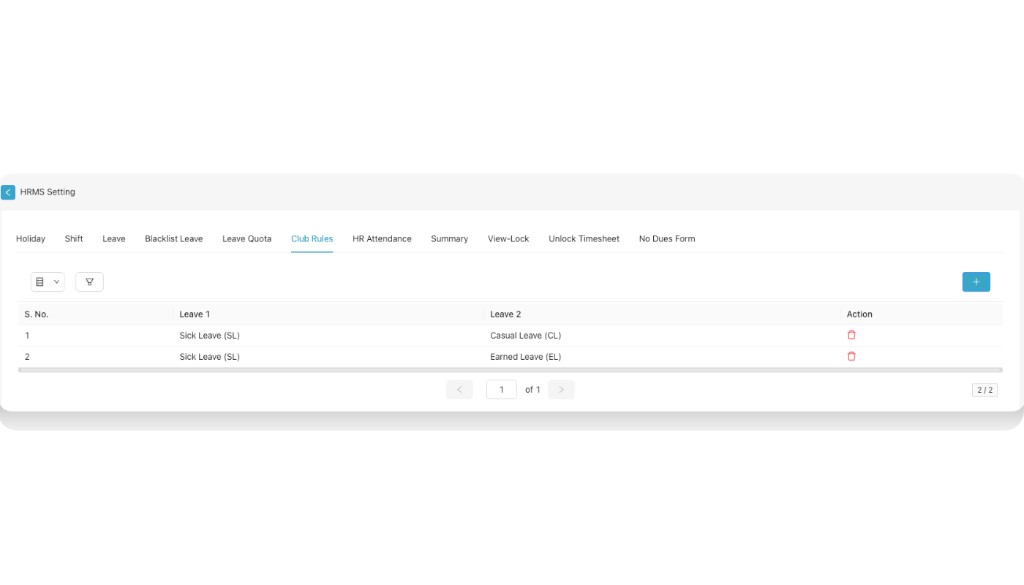
HRMS Settings — tabs and options.
HRMS Settings tabs
These are the sections available inside HRMS Settings: