
Salary Slips
Employees can view their monthly salary slips from HRMS. Log in to CA Cloud Desk PartnerDesk, open HRMS from the left panel, then go to Payroll → Salary Slips to preview and download your payslip.
Path
PartnerDesk → HRMS → Payroll → Salary Slips
Step-by-step instructions
1
Login to CA Cloud Desk PartnerDesk and select HRMS
After login, use the left panel and click HRMS to open the HRMS module.
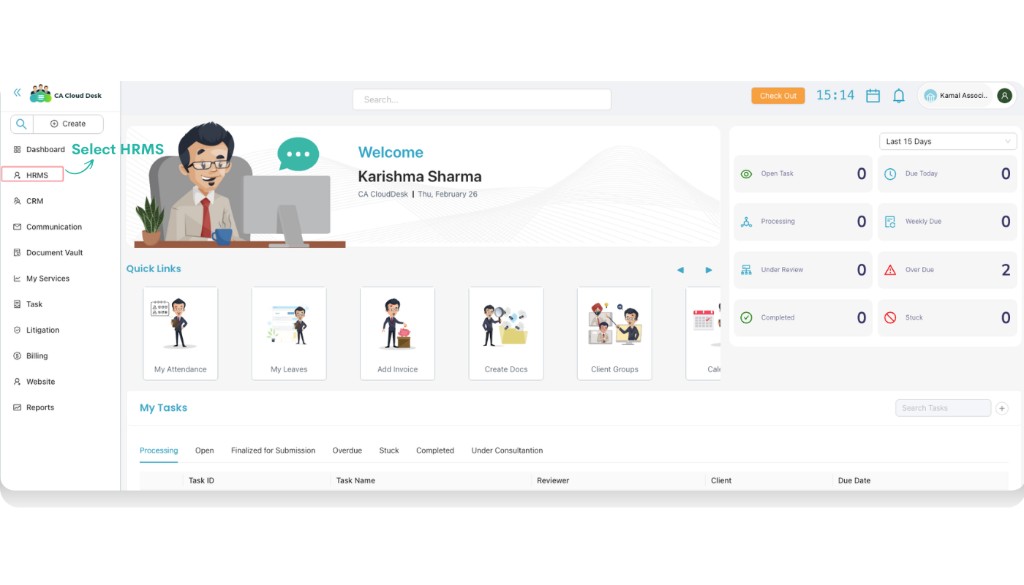
PartnerDesk — select HRMS from the left panel.
2
From Payroll, open Salary Slips
Inside HRMS, go to the Payroll section and click Salary Slips.
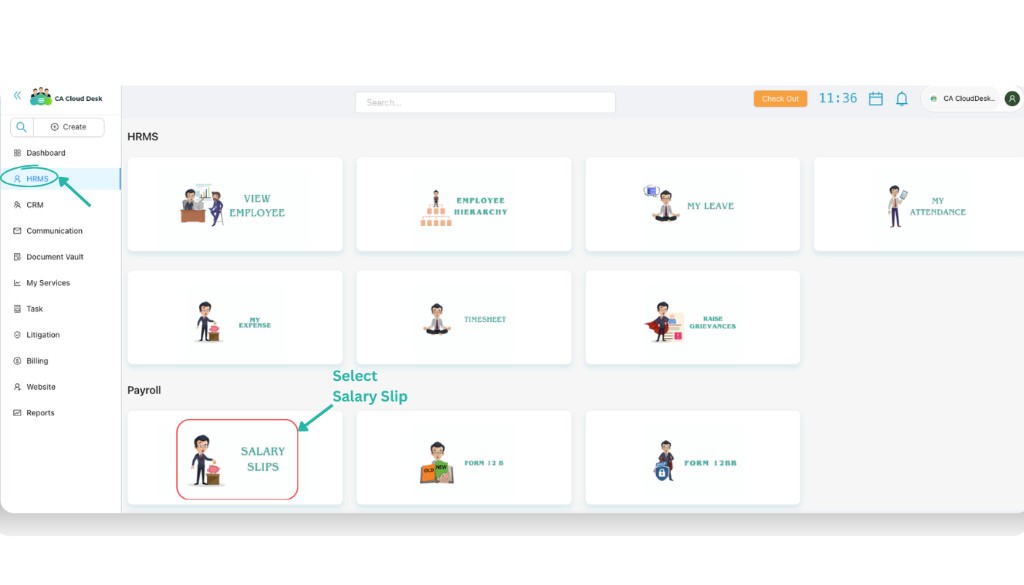
HRMS → Payroll — select Salary Slips.
3
View your salary slip
After opening Salary Slips, you can select the month and view the payslip preview on screen. Use the actions available on your screen to download or print, if enabled.
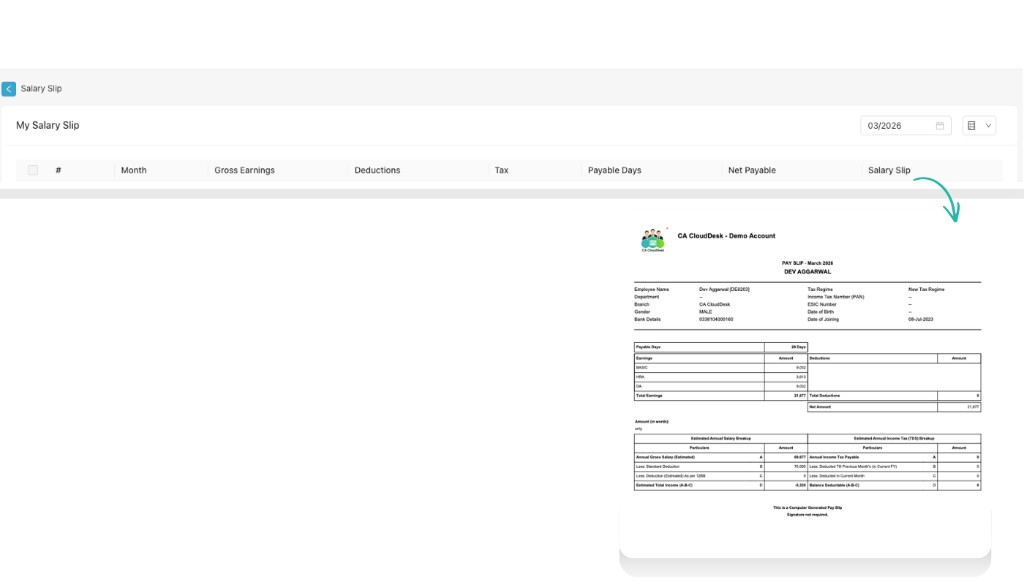
Salary Slips — select a month to preview your payslip.