
Notification (Marketing → Communication)
Use the Communication → Notification screen to send in-app notifications to individual clients or client groups, and review all notifications from the View Notification tab.
Path
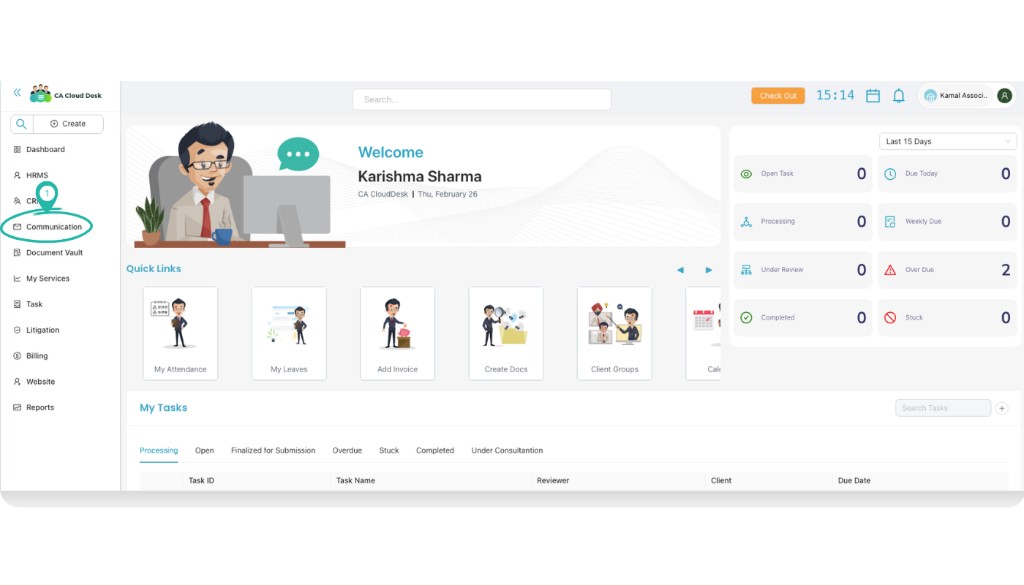
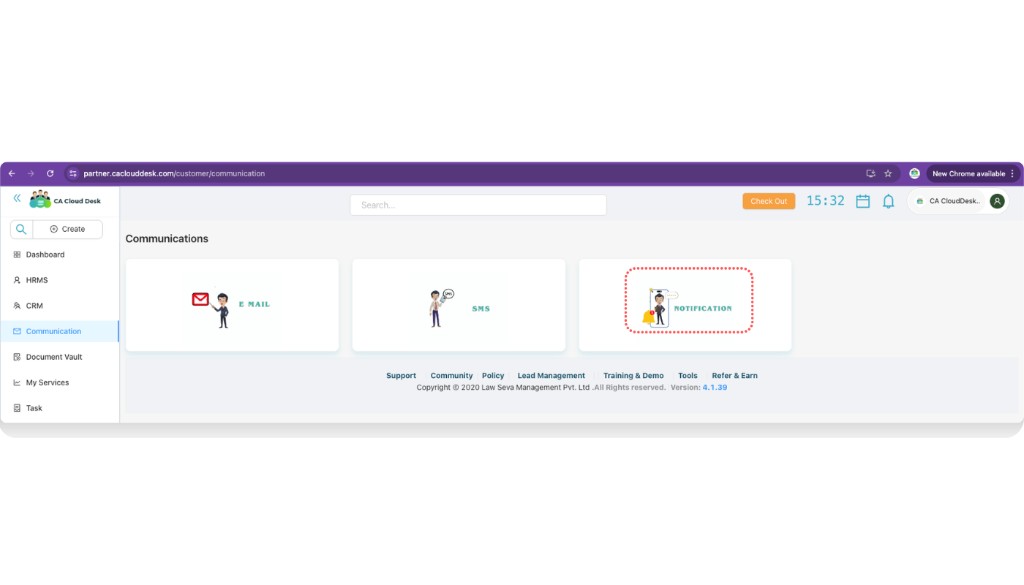
Log in to your CA CloudDesk Partner Desk account. From the left menu, click Communication, then select the Notification tile.
Notification screen at a glance
Inside the Notification screen you will see two tabs:
- Send Notification — compose and send a new notification to a client or client group.
- View Notification — list of notifications already sent from this screen.
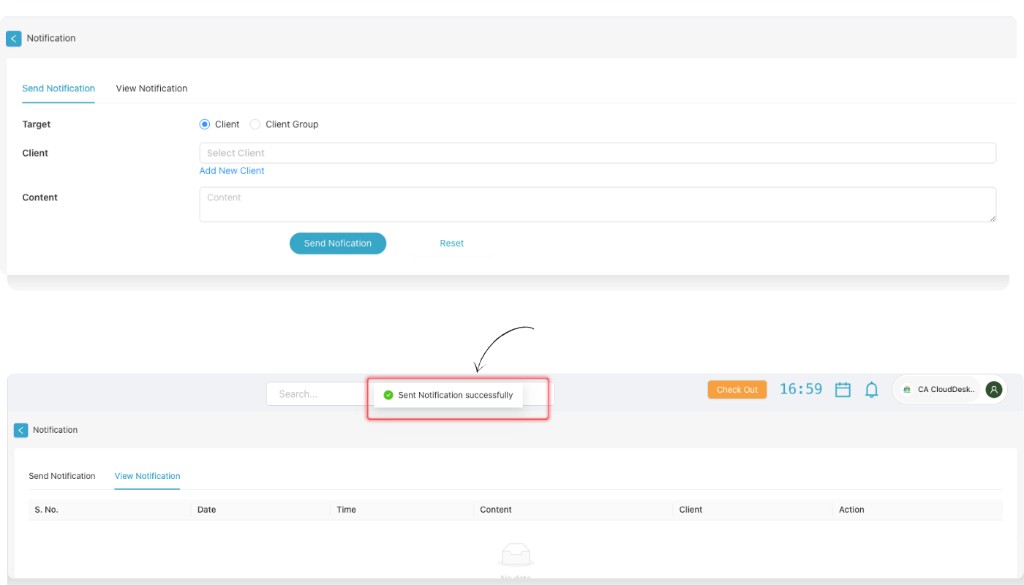
Step 1 — Send Notification
Open the Send Notification tab
In the Notification screen, stay on the Send Notification tab. This is where you prepare and send a new notification.
Select target client or client group
Choose whether you want to send the notification to a single Client or an existing Client Group.
Write the content and send
Type the notification Content and click Send Notification. Use Reset if you want to clear the form and start again.
Step 2 — View Notification history
Switch to the View Notification tab
Click the View Notification tab to see all notifications that have already been sent from this screen.
Review notification details
The table lists each notification with Date, Time, Content, Client and Action options so you can confirm what was shared.