CA CloudDesk Logo
CA Cloud Desk

Add Task Template

Create reusable task templates with estimated completion time, priority, assignee, service mapping, stages, SOPs, billing, and subtasks—so you can standardize and price client work consistently.

Path

Left PanelTaskSettingsAdd Template

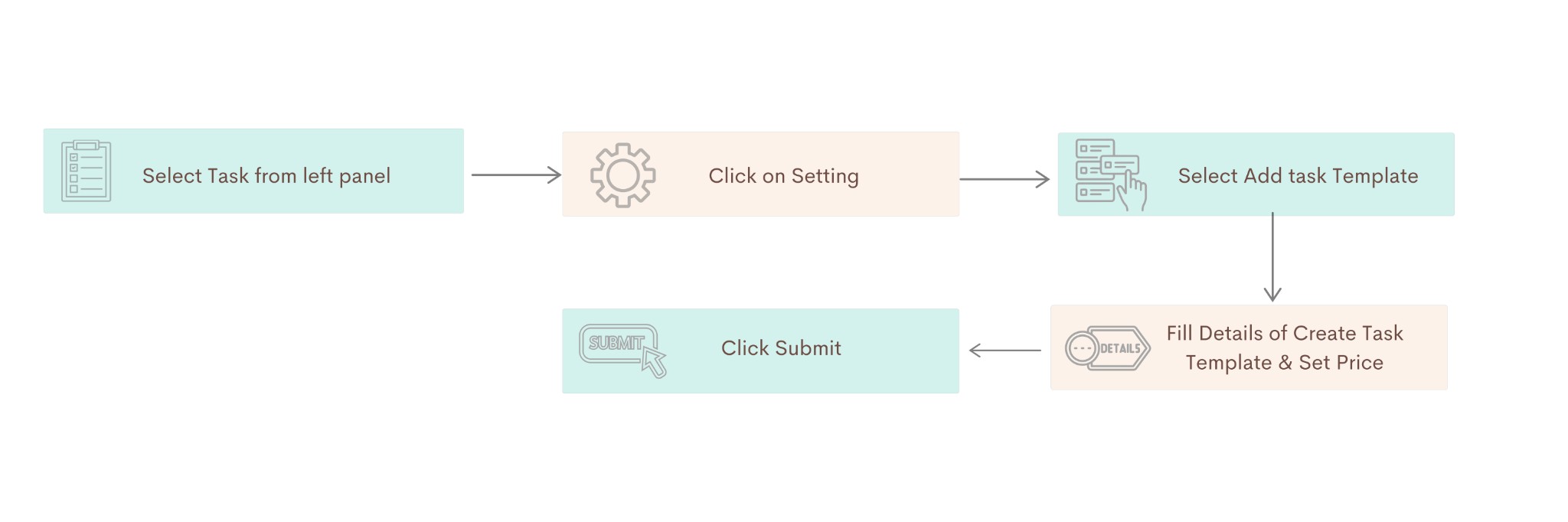
Flowchart: Create Task Template

The process flows as follows: Select Task from left panelClick on SettingSelect Add task TemplateFill Details of Create Task Template & Set PriceClick Submit.

Flowchart: Select Task from left panel, Click on Setting, Select Add task Template, Fill Details of Create Task Template & Set Price, Click Submit
Flow chart: Create Task Template — from selecting Task to Submit.

Part A: Create Task Template & Set Price

Follow these steps to open the Create Task Template form, then fill in the required and optional fields.

Step A1

  • Select Task from the left panel

Step A2

  • Click the Settings (gear) icon
  • Select Add Template from the dropdown
From the Settings icon

Click the Settings (gear) icon on the Tasks screen, then select Add Template from the dropdown to create a task template.
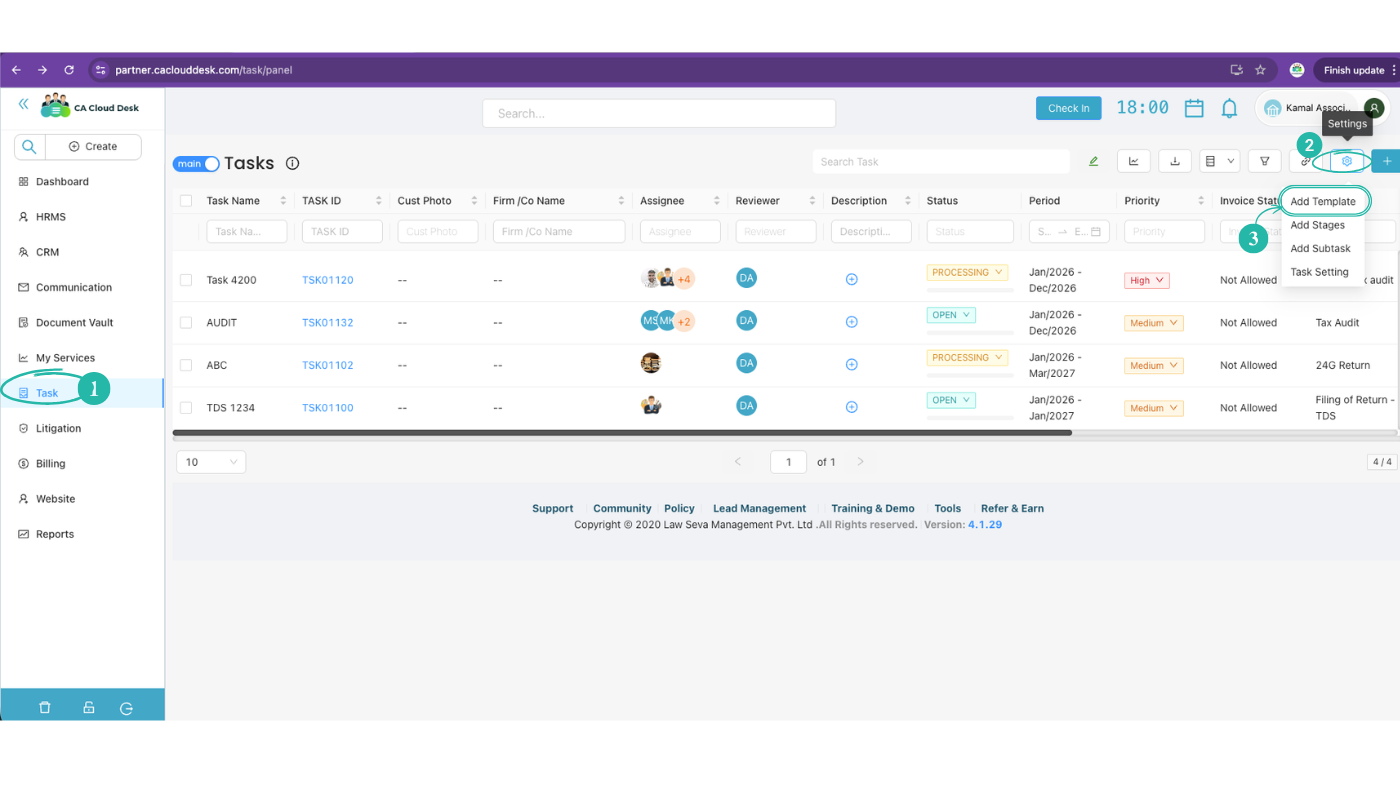
CA Cloud Desk Tasks screen: select Task in left panel; from the Settings icon select Add Template. Dropdown shows Add Template, Add Stages, Add Subtask, Task Setting
Tasks screen: select Task in the left panel; from the Settings icon (top right), select Add Template to open the Create Task Template form.

Create Task Template form — Basic information Mandatory

Fill in the following required fields to create a task template:

Task & timing

  • Task Name — Name of the task template
  • ECT (days) — Estimated Completion Time in days
  • ECT (hours) — Estimated Completion Time in hours
  • Priority — Set task priority (e.g. No Priority or other options from the dropdown)

Assignment & service

  • Assignee — Assign a user or role to the task
  • Service — Select the service category from the dropdown
  • Sub Service Name — Select the sub-service (dependent on the chosen Service)

Expandable sections Optional

You can expand and fill these sections as needed:
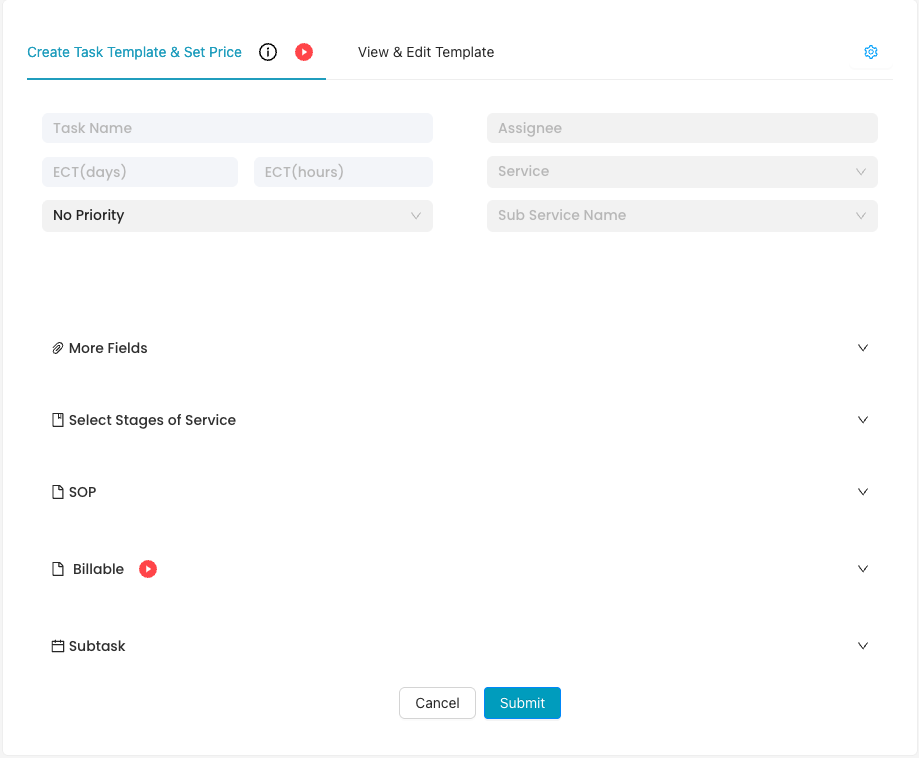
  • More Fields — Expand to add optional fields
  • Select Stages of Service — Add or select stages for the service workflow
  • SOP — Add Standard Operating Procedures for the task
  • Billable — Configure whether the task is billable and set price if needed
  • Subtask — Add subtasks to divide the task into smaller steps
Create Task Template & Set Price form with Task Name, ECT, Priority, Assignee, Service, Sub Service, More Fields, Stages, SOP, Billable, Subtask
Create Task Template & Set Price form with all sections.

Part B: View & Edit Template

Use the View & Edit Template tab (next to Create Task Template & Set Price) to see existing task templates, filter them, and edit them.
Filters

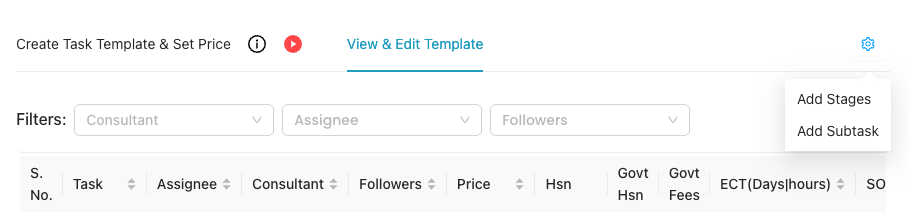
Use the filters to see which templates are linked to specific people:

  • Consultant — Filter task templates by consultant.
  • Assignee — Filter by assignee to see who is assigned to which templates.
  • Followers — Filter by followers to see who is following which templates.

From the Settings icon

On the View & Edit Template screen, the Settings (gear) icon lets you:

  • Add Stages — Add or manage stages of service for templates.
  • Add Subtask — Add or manage subtasks to divide a task template into smaller steps.

Table and editing

  • The table lists templates with columns such as S. No., Task, Assignee, Consultant, Followers, Price, Hsn, Govt Hsn, Govt Fees, ECT (Days|hours), and SOP. Columns are sortable where shown.
  • Edit — Open a template to change task name, ECT, priority, assignee, service, stages, SOP, billable settings, or subtasks, then save your changes.
View & Edit Template tab with Filters (Consultant, Assignee, Followers), Settings menu (Add Stages, Add Subtask), and task template table
View & Edit Template: filters, Settings (Add Stages, Add Subtask), and task template list.

Submit the task template

When you have finished entering the task name, ECT, priority, assignee, service, sub service, and any optional sections (More Fields, Stages, SOP, Billable, Subtask), click Submit to save the task template.

From the Settings icon: Add Stages and Add Subtask

From the same Settings (gear) icon you can also:
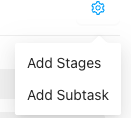
  • Add Stages — Define or add stages of service for the task workflow.
  • Add Subtask — Divide the task into subtasks for clearer tracking and assignment.
Settings menu with Add Stages and Add Subtask options
Settings icon menu: Add Stages and Add Subtask.

Video Tutorial

Watch this video tutorial for a step-by-step walkthrough of creating and editing task templates in CA Cloud Desk—including Create Task Template & Set Price, View & Edit Template, and using the Settings options (Add Stages, Add Subtask).
Video thumbnail
Tutorial: Add Task Template — Create, View & Edit in CA Cloud Desk Watch on YouTube

Task Template Guide PDF

If the PDF does not display below, use Open in new tab or Download PDF above.