
Manager Reports
Generate and view reports for Task, HRMS, Timesheet, and Attendance Summary. Select the report type, set filters, and click Generate Report.
Path
Step-by-step instructions
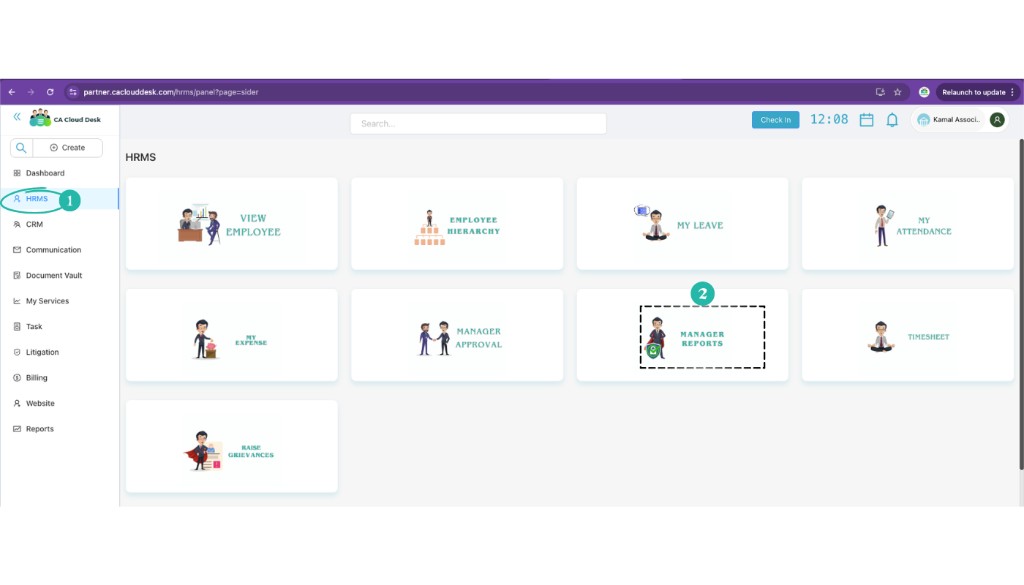
Go to Dashboard, select HRMS, then Manager Reports
From the Dashboard, open HRMS in the left menu. On the HRMS page, select the Manager Reports card to open the manager reports screen.
Select Report type
Reports are of four types: Task, HRMS, Timesheet, and Attendance Summary. Click the tab for the report type you want to generate.
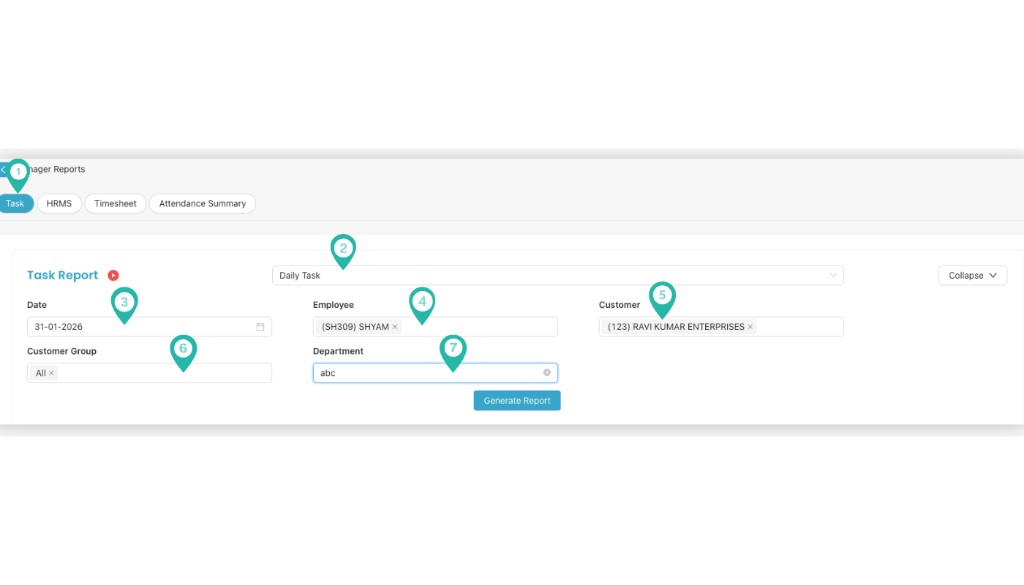
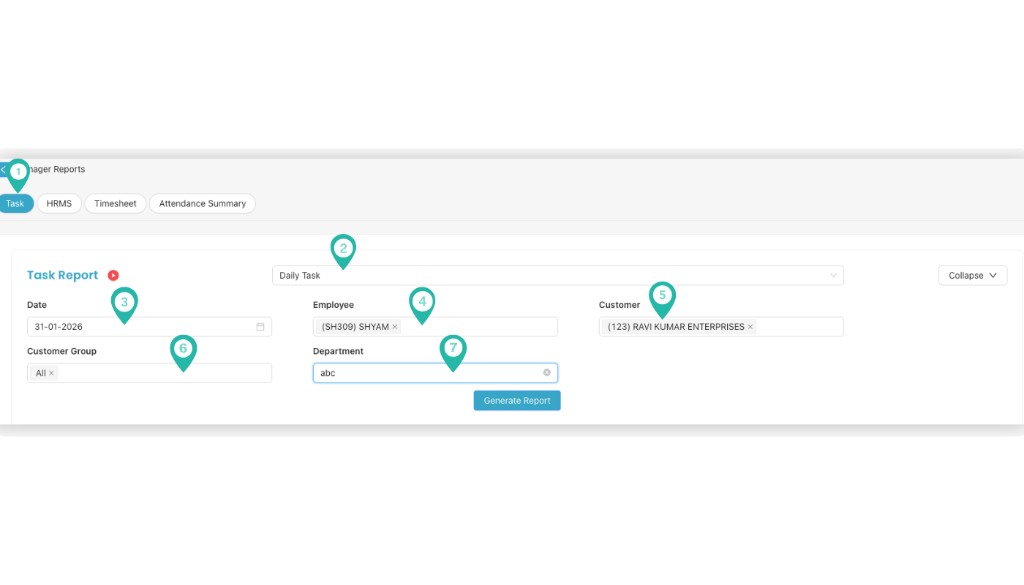
Task Report
Select Task Type, Date, Employee, Customer, Customer Group, and Department, then click Generate Report.
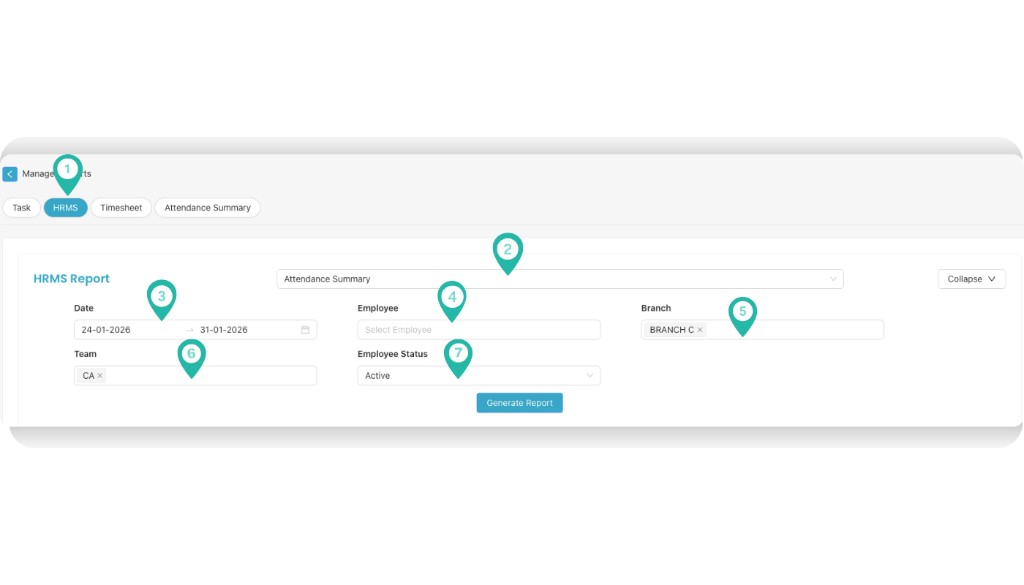
HRMS Report
Choose Date Range, Employee, Branch, Team, and Employee Status, then click Generate Report to view attendance-related data. Click Excel to download the HRMS report for offline use.
Timesheet Report
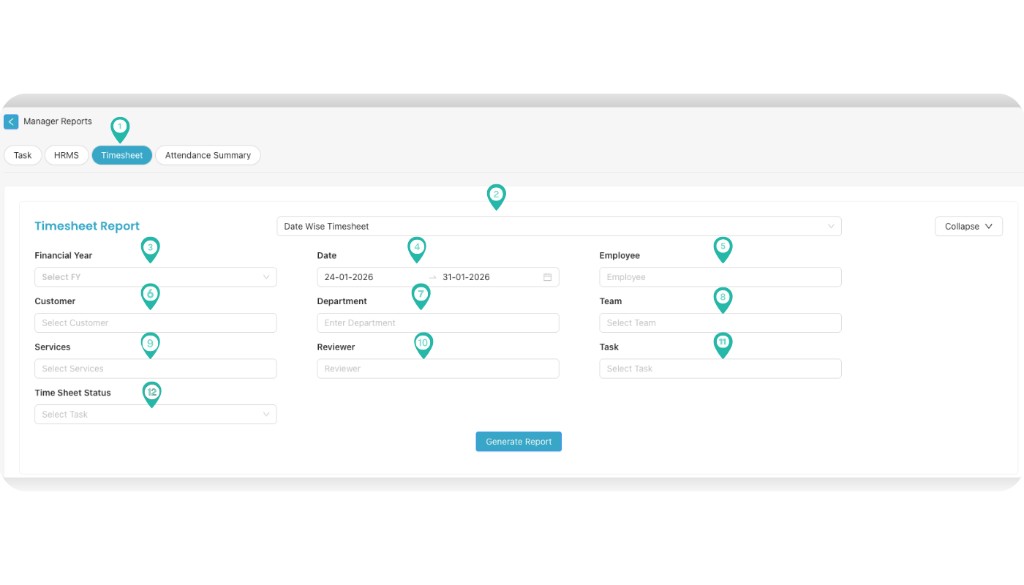
Select Financial Year, Date Range, Employee, Customer, Department, Team, Task, Reviewer, and Timesheet Status. Click Generate Report to view date-wise timesheet entries for employees.
Attendance Summary
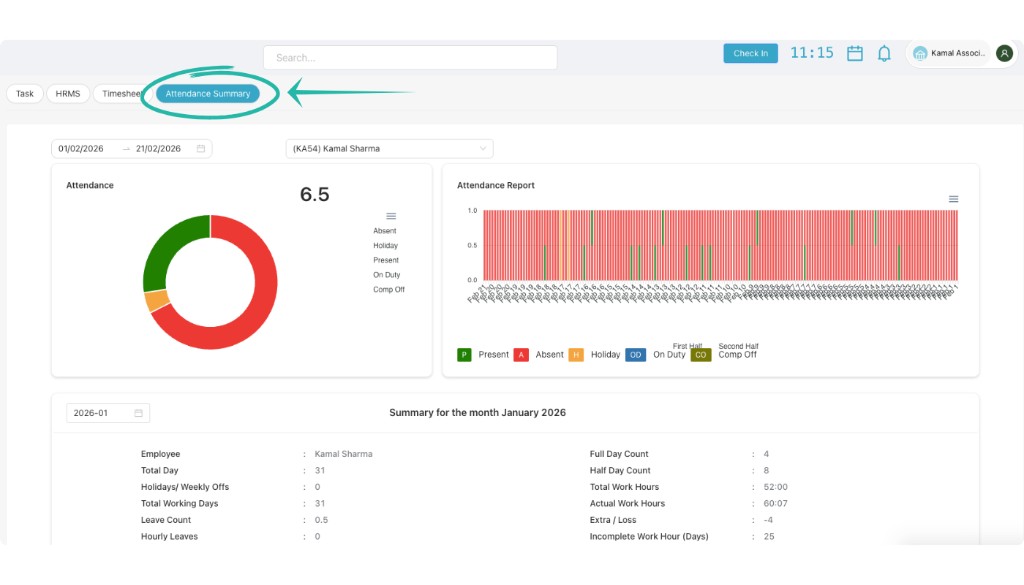
Select Date Range, Employee, and Year/Month. The Attendance Summary will be displayed with detailed attendance and work hour analysis.
Video Tutorial
Watch a step-by-step walkthrough of Manager Reports in CA Cloud Desk: Dashboard → HRMS → Manager Reports, select report type (Task, HRMS, Timesheet, Attendance Summary), set filters, and click Generate Report.