Payroll – Employee Declaration
Use Payroll – Employee Declaration to unlock Form 12B and Form 12BB for employees, allow them to submit declarations from HRMS, and then verify and track the approval status from the Approval screens.
Path
Step-by-step instructions
Open PartnerDesk Dashboard and go to Settings
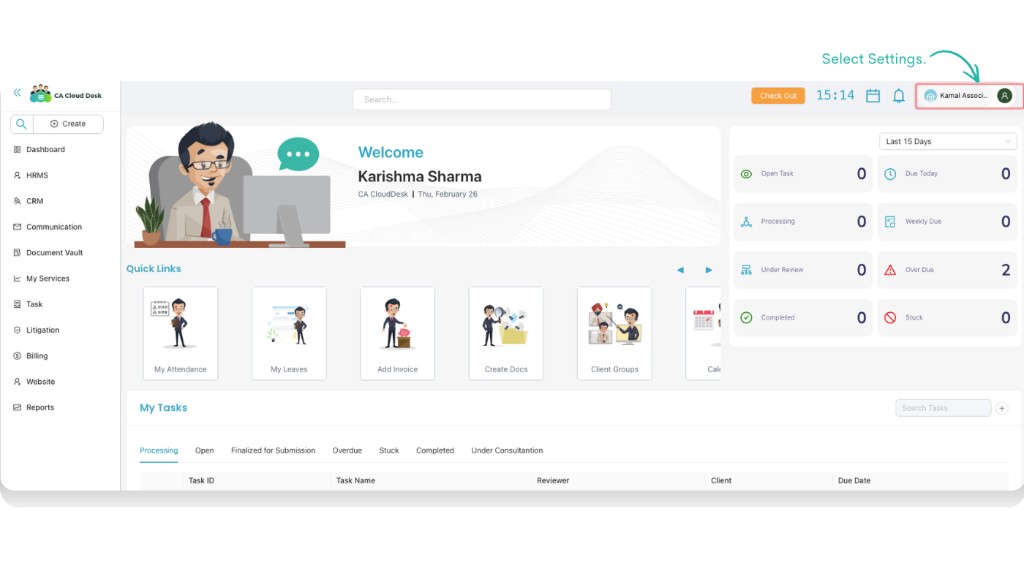
Log in to CA Cloud Desk PartnerDesk. On the Dashboard, use the top-right profile menu and select Settings.
Open Payroll and select Employee Declaration
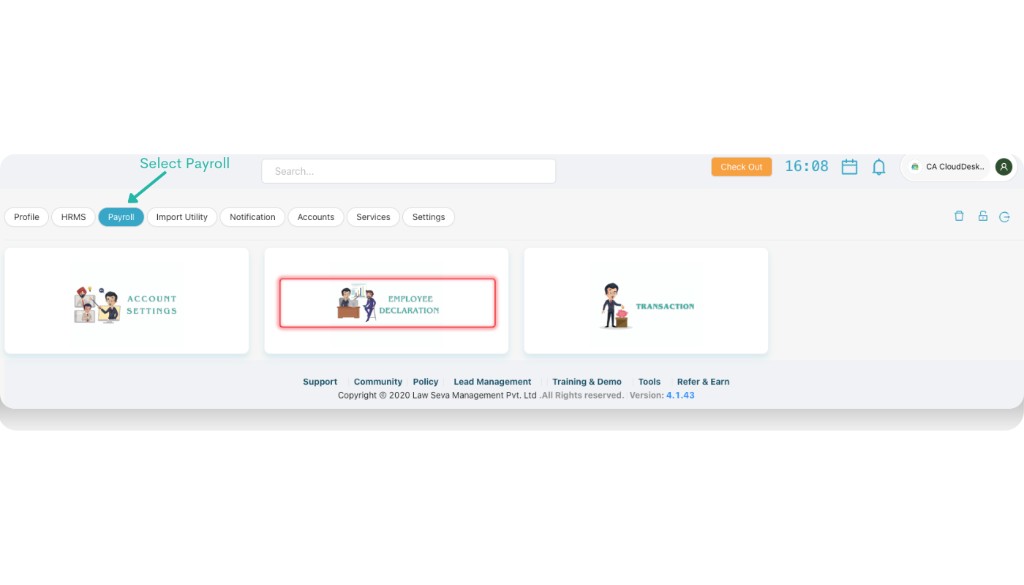
Inside Settings, click the Payroll tab and then open the Employee Declaration card.
Unlock Form 12B / 12BB for employees
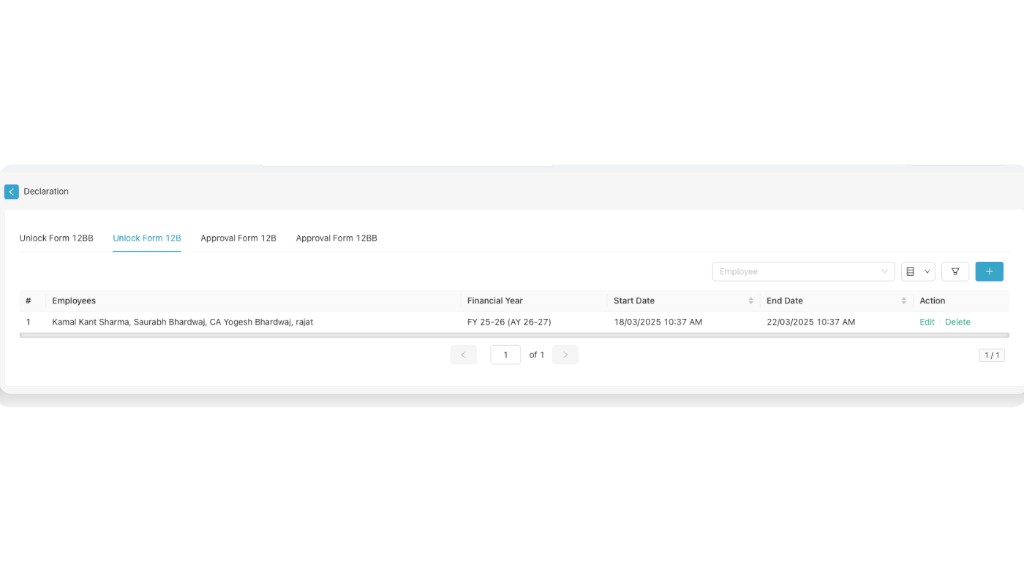
In Employee Declaration, use the Unlock Form 12B and Unlock Form 12BB tabs to unlock the respective forms for employees so they can submit their declarations for the selected financial year.
Employee fills Form 12B / 12BB from HRMS
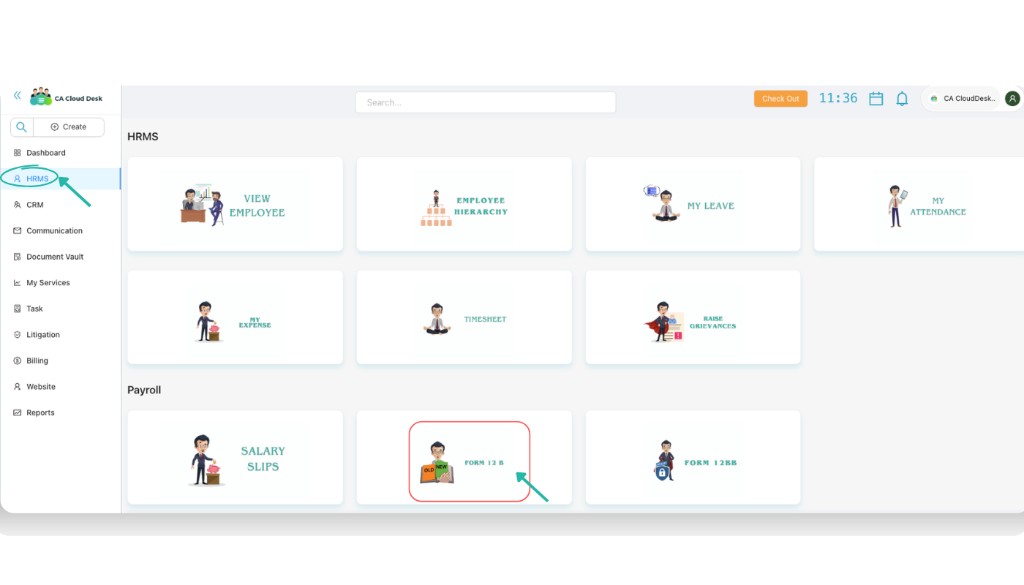
Once unlocked, employees can go to HRMS and open the Payroll section to access Form 12B and Form 12BB.
Employee completes Form 12B submission
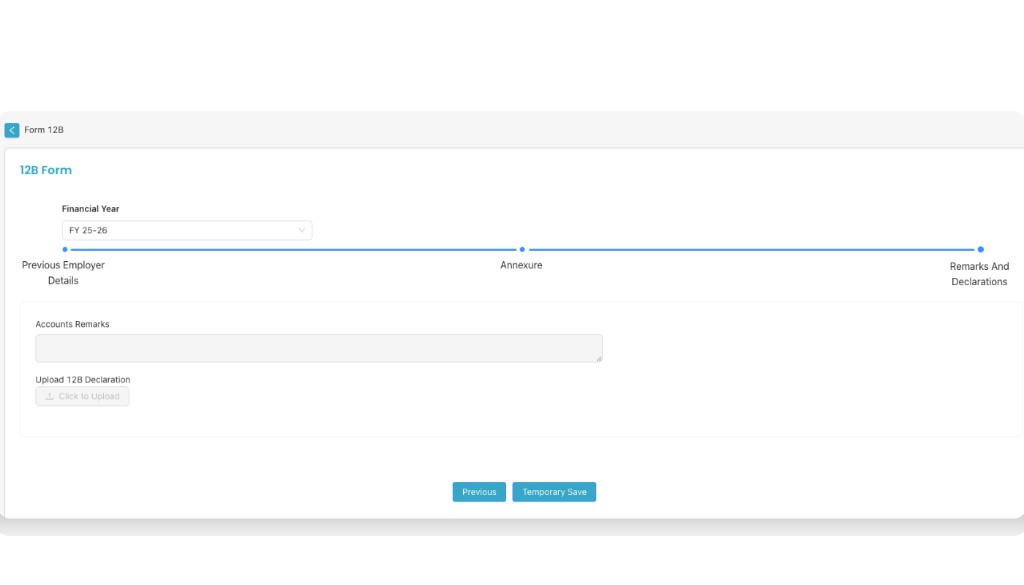
In Form 12B, the employee selects the financial year and fills the required details across the sections (Previous Employer Details, Annexure, and Remarks & Declarations), then saves the form.
Employee completes Form 12BB and selects Tax Regime
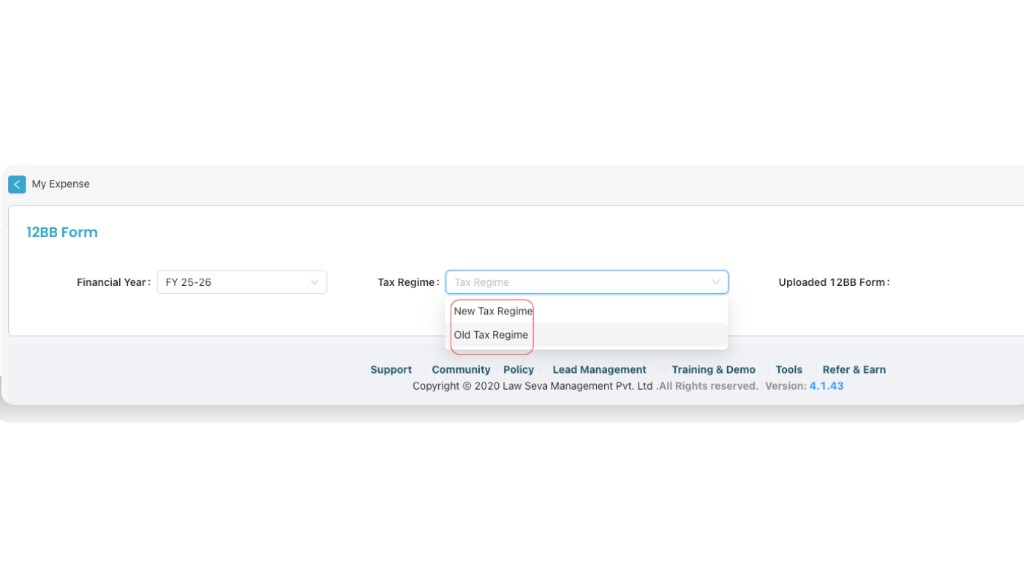
In Form 12BB, the employee selects the financial year and chooses the Tax Regime (New Tax Regime / Old Tax Regime), then uploads required proof and submits.
Check approval status from Approval tabs
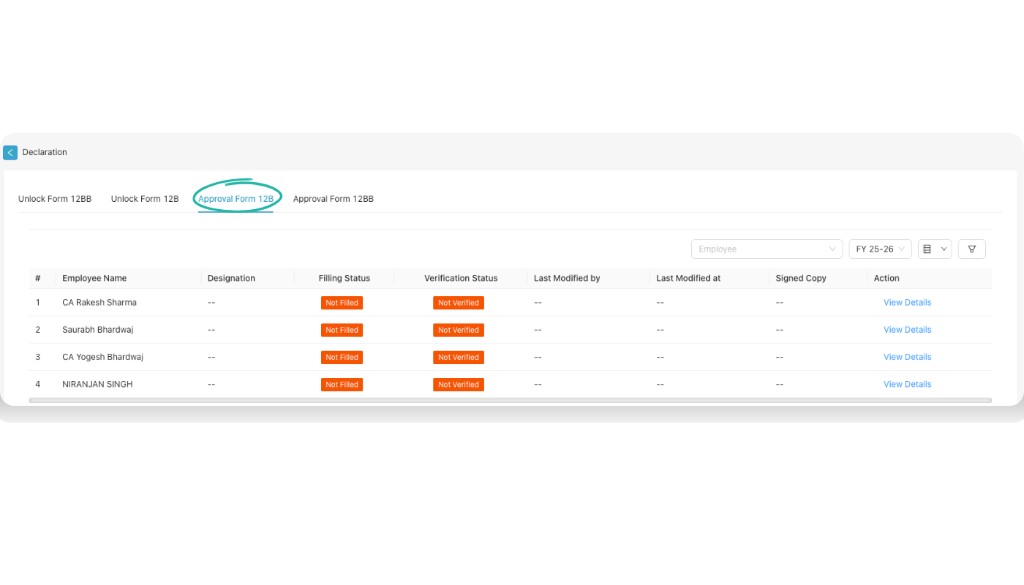
Back in Employee Declaration, open Approval Form 12B and Approval Form 12BB to review employee submissions and check whether each entry is approved.
Employee Declaration completed
You have completed the Payroll – Employee Declaration process: unlock the forms for employees, employees submit Form 12B/12BB from HRMS, and HR reviews approvals from the Approval tabs.
Key notes
Video Tutorial
Watch the Payroll walkthrough video. It includes the same Settings → Payroll navigation used for Employee Declaration.