
CA CloudDesk Logo
CA Cloud Desk

Payroll – Transaction

Use Payroll – Transaction to manage payroll transaction steps for employees. After opening Transaction in Payroll settings, you will see multiple tabs such as Payable Days, Variable Deduction, Additional Pay, Manual TDS, Hold, Generate, Release, Released, Arrear, and Tax Computation.

Path

DashboardProfile (top-right)SettingsPayrollTransaction

Step-by-step instructions

1

Open PartnerDesk Dashboard and go to Settings

Log in to CA Cloud Desk PartnerDesk. On the Dashboard, use the top-right profile menu and select Settings.
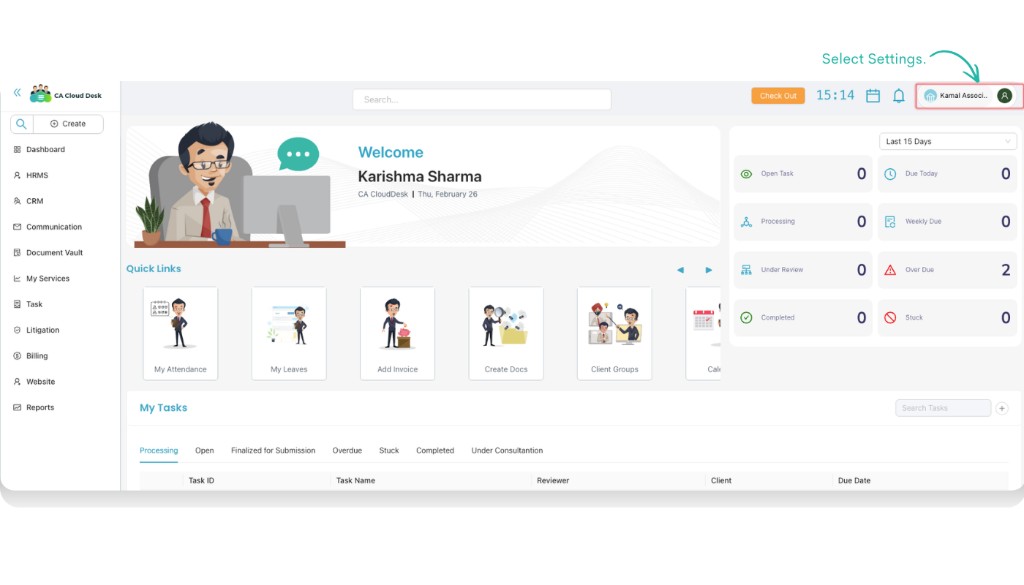
Dashboard with Settings highlighted on the top-right profile menu
Dashboard — select Settings from the top-right profile menu.
2

Open Payroll and select Transaction

Inside Settings, click the Payroll tab and then open the Transaction card.
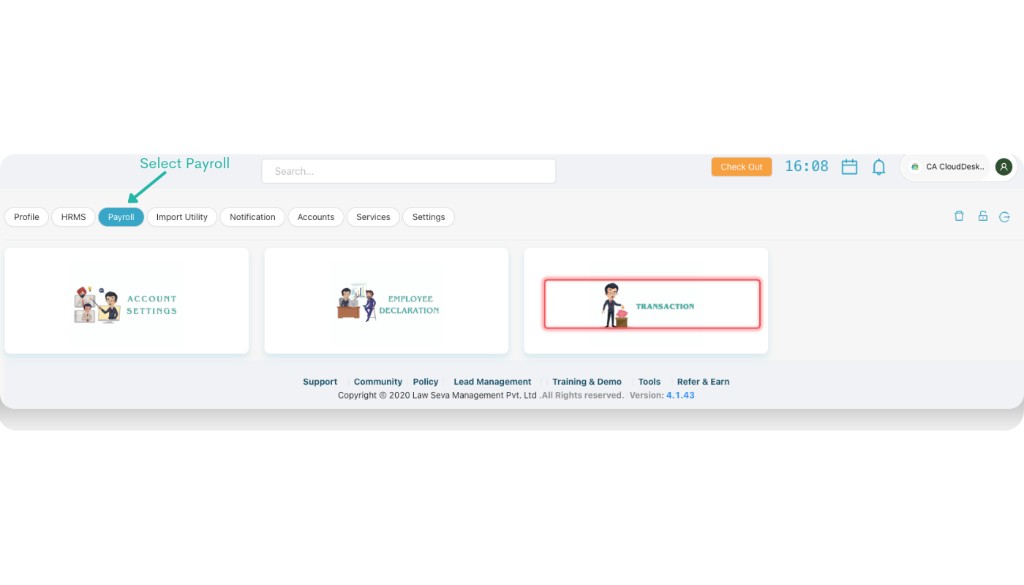
Settings with Payroll selected and Transaction card highlighted
Settings → Payroll — open Transaction.
3

Review the Transaction tabs

After opening Transaction, the module shows tabs that represent different payroll transaction actions, starting with Payable Days.
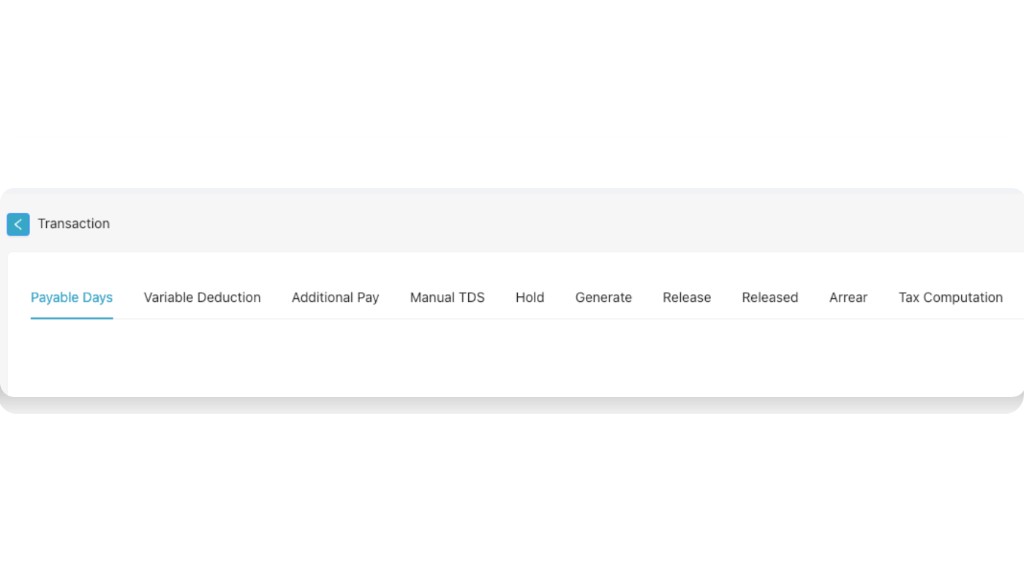
Transaction screen showing tabs like Payable Days, Variable Deduction, Additional Pay, Manual TDS, Hold, Generate, Release, Released, Arrear, Tax Computation
Transaction — tabs visible after opening the Transaction module.

Transaction tabs

Tabs available in Transaction

  • Payable Days
  • Variable Deduction
  • Additional Pay
  • Manual TDS
  • Hold
  • Generate
  • Release
  • Released
  • Arrear
  • Tax Computation

1. Payable Days

Start payroll processing from the Payable Days tab. Here you can add or update payable days for employees for a selected month.

1

Select Payable Days and click Add Payable Days

Open the Payable Days tab and click + Add Payable Days to create a new entry.
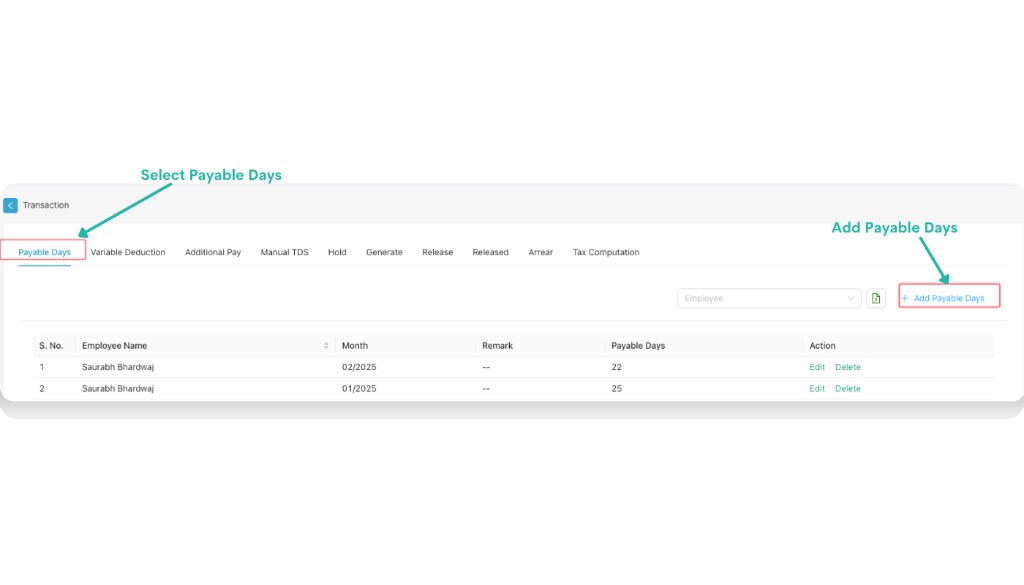
Transaction Payable Days tab with Add Payable Days button highlighted
Payable Days — select the tab and click + Add Payable Days.
2

Fill the Add Payable Days form and save

In the Add Payable Days popup, fill all required details and then click Save.
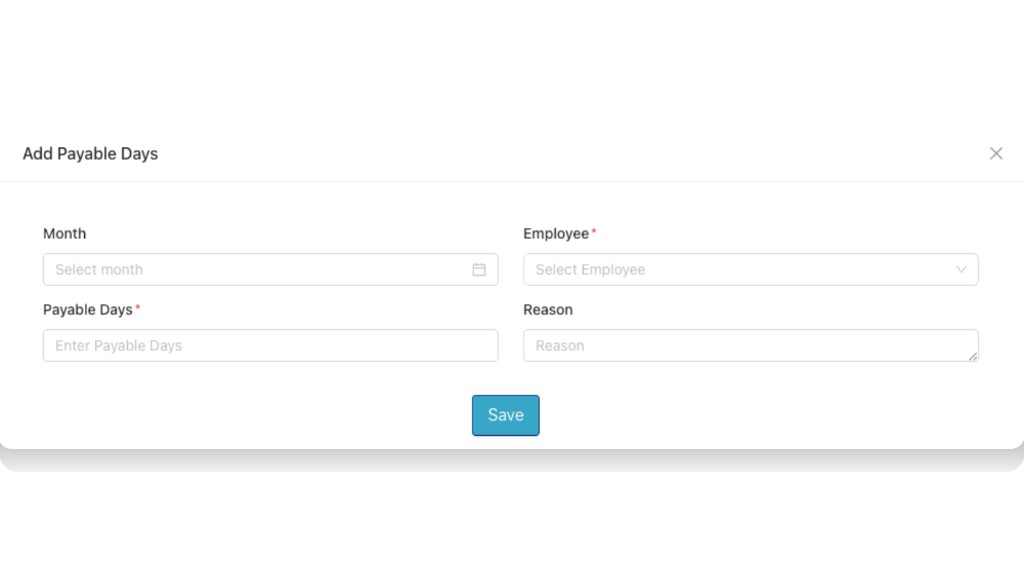
Fields in Add Payable Days

  • Month — select the month.
  • Employee* — choose Select Employee.
  • Payable Days* — enter payable days.
  • Reason — enter reason (if applicable).
Add Payable Days popup showing Month, Employee, Payable Days, Reason and Save button
Add Payable Days — fill Month, Employee, Payable Days, Reason, then Save.

2. Variable Deduction

Use Variable Deduction to add month-wise deductions for an employee. You can choose the deduction type(s), enter values, and optionally tick In Payslip to show the deduction on the employee’s payslip.

1

Open Variable Deduction and click Add Variable Deduction

Click the Variable Deduction tab and then click + Add Variable Deduction.
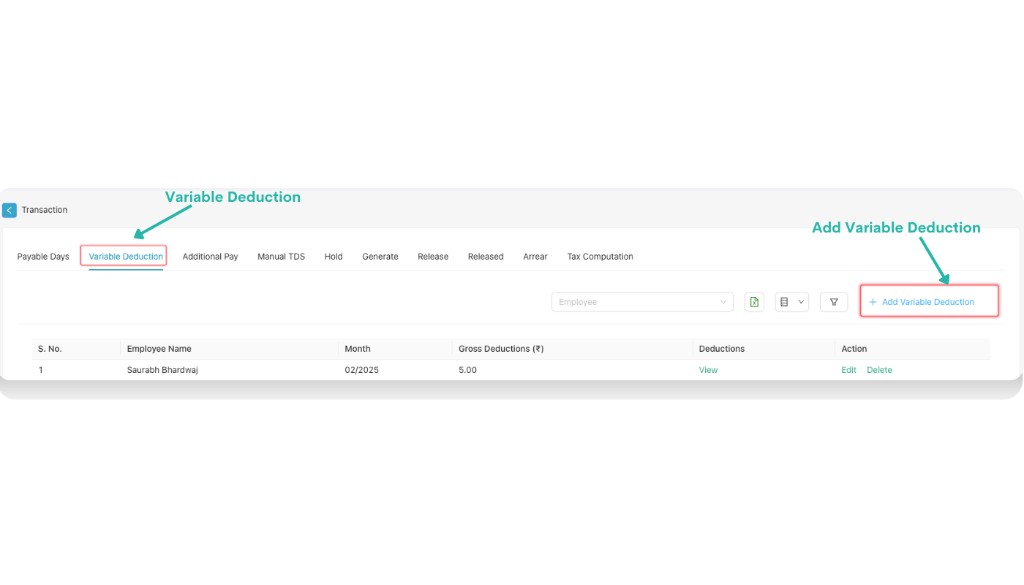
Variable Deduction tab with Add Variable Deduction button highlighted
Variable Deduction — select the tab and click + Add Variable Deduction.
2

Fill the form details (Month, Employee, Select Deduction)

In the Add Variable Deduction popup, select the month and employee, then choose the deductions you want to apply.
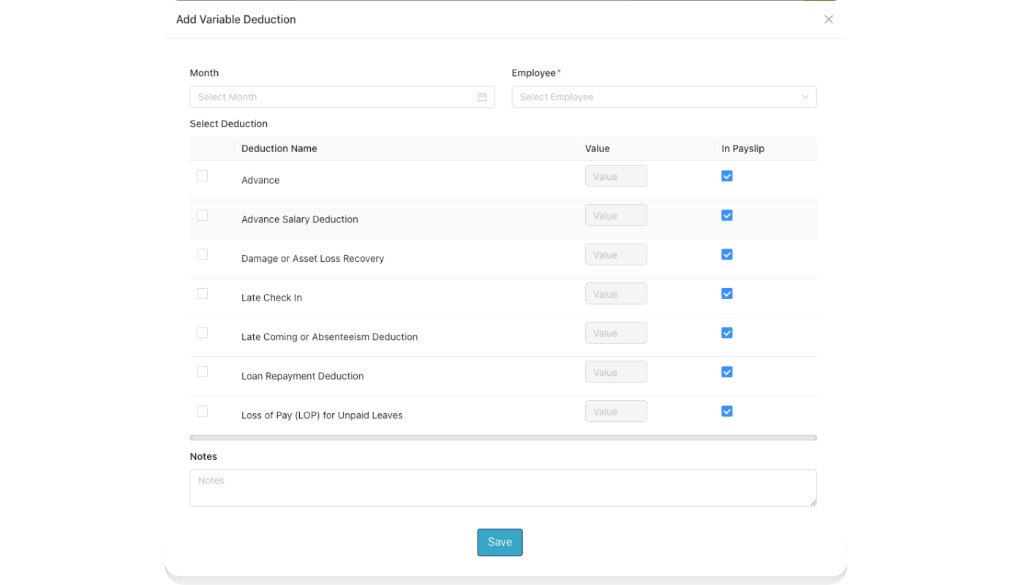
Fields in Add Variable Deduction

  • Month — select month.
  • Employee* — choose Select Employee.
  • Select Deduction — choose one or more deduction rows, enter Value, and tick In Payslip if you want it visible on payslip.
  • Notes — add remarks (if required) and then click Save.

Common deduction names

  • Advance
  • Advance Salary Deduction
  • Damage or Asset Loss Recovery
  • Late Check In
  • Late Coming or Absenteeism Deduction
  • Loan Repayment Deduction
  • Loss of Pay (LOP) for Unpaid Leaves
Add Variable Deduction popup showing Deduction Name, Value, and In Payslip checkbox with Notes and Save button
Add Variable Deduction — enter values and tick In Payslip to show on payslip, then Save.

3. Additional Pay

Use Additional Pay to add extra payments (for example, bonus/incentives) for an employee for a selected month.

1

Open Additional Pay and click Add Additional Pay

Select the Additional Pay tab and click + Add Additional Pay.
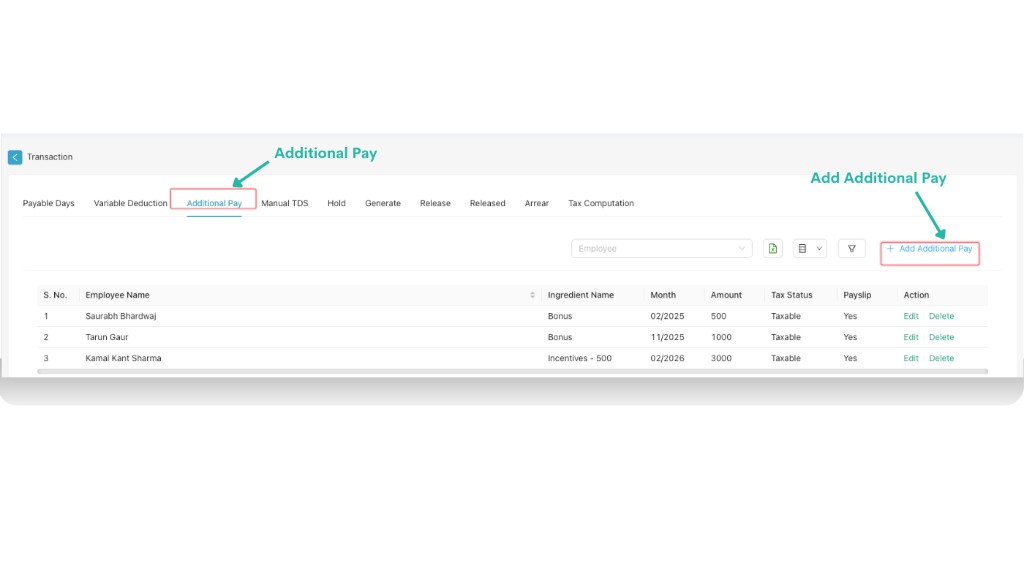
Additional Pay tab with Add Additional Pay button highlighted
Additional Pay — select the tab and click + Add Additional Pay.
2

Fill the Add Additional Pay form

Fill the details and then click Save.
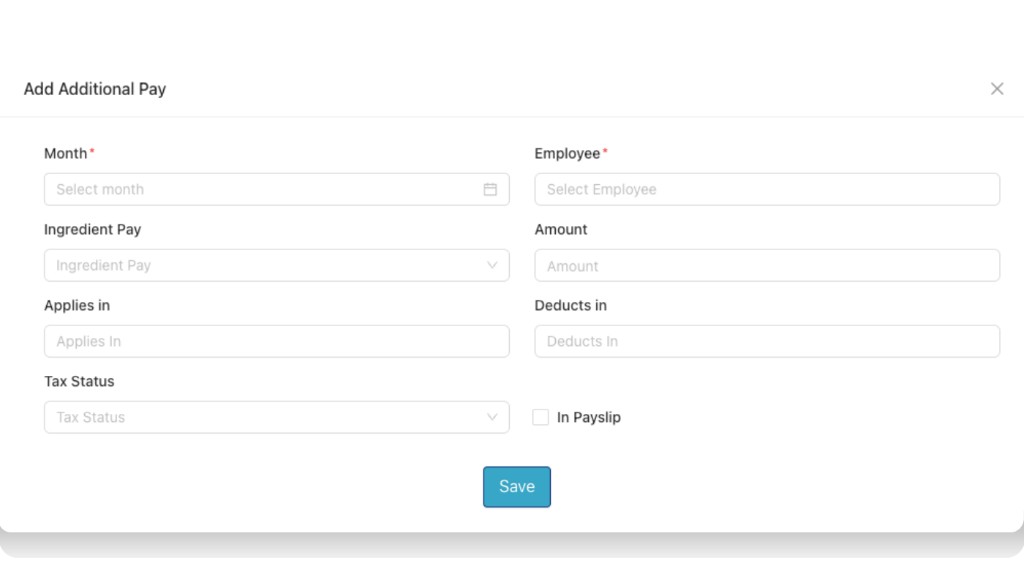
Fields in Add Additional Pay

  • Month* — select month.
  • Employee* — choose Select Employee.
  • Ingredient Pay — select Ingredient Pay.
  • Amount — enter amount.
  • Applies in — select Applies In.
  • Deducts in — select Deducts In.
  • Tax Status — select Tax Status.
  • In Payslip — tick if you want it to appear on the payslip.
Add Additional Pay popup showing Month, Employee, Ingredient Pay, Amount, Applies in, Deducts in, Tax Status, In Payslip and Save button
Add Additional Pay — fill details and tick In Payslip if needed, then Save.

4. Manual TDS

Use Manual TDS to add an amount of TDS to be deducted manually for an employee for a selected month.

1

Open Manual TDS and click Add Manual TDS

Select the Manual TDS tab and click + Add Manual TDS.
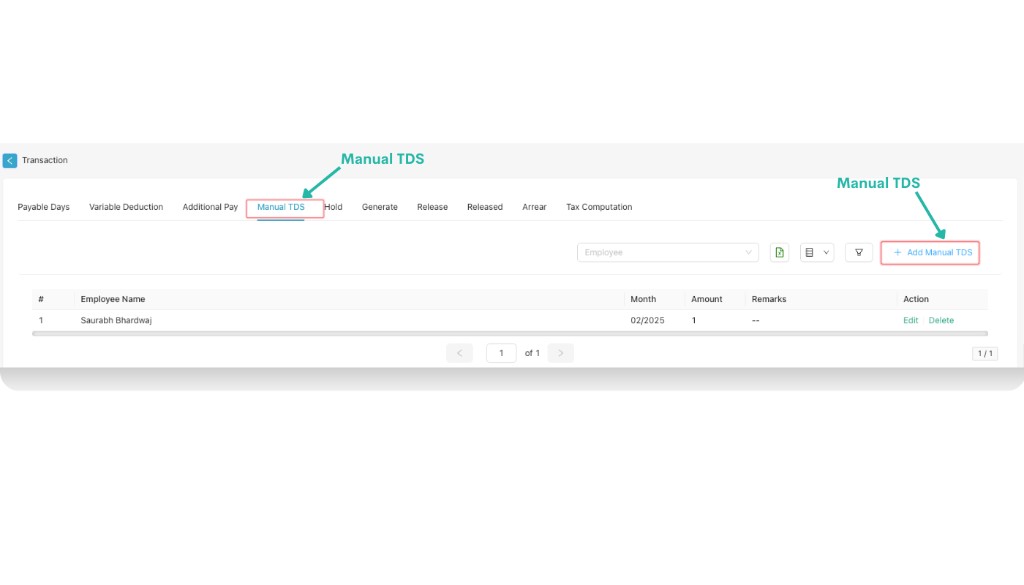
Manual TDS tab with Add Manual TDS button highlighted
Manual TDS — select the tab and click + Add Manual TDS.
2

Fill the Add Manual TDS form and save

Fill the details and then click Save.
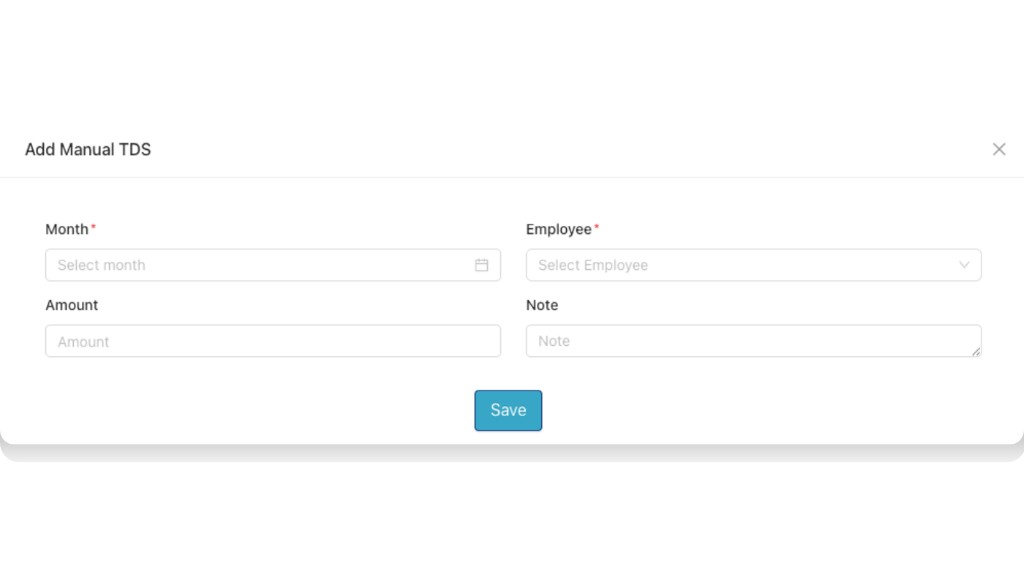
Fields in Add Manual TDS

  • Month* — select month.
  • Employee* — choose Select Employee.
  • Amount — enter amount.
  • Note — enter note (if required).
Add Manual TDS popup showing Month, Employee, Amount, Note and Save button
Add Manual TDS — fill Month, Employee, Amount, Note, then Save.

5. Hold

Use Hold to hold salary for an employee for a selected month range. You can also use Un Hold (if available) to release holds.

1

Open Hold and click Add Hold Salary Days

Select the Hold tab and click + Add Hold Salary Days.
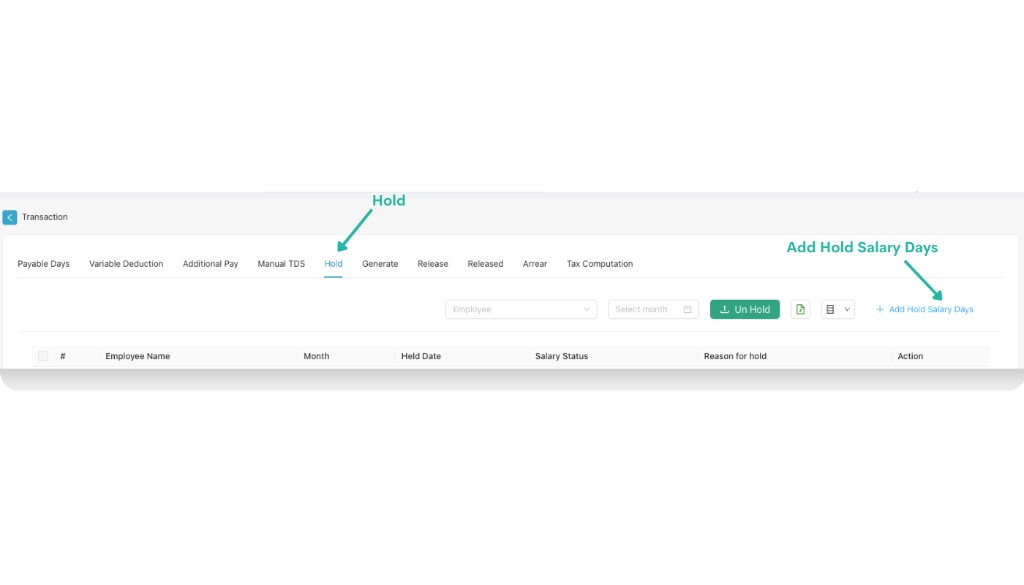
Hold tab with Add Hold Salary Days option highlighted
Hold — select the tab and click + Add Hold Salary Days.
2

Fill hold details and save

Hold fields

  • Employees / Employee — select employee(s).
  • From Month — select start month.
  • To Month — select end month.
  • Remark — enter remark.

6. Generate

Use Generate to generate salary. You can generate in bulk from the top Generate button, or generate individually from the Generate action in each row.
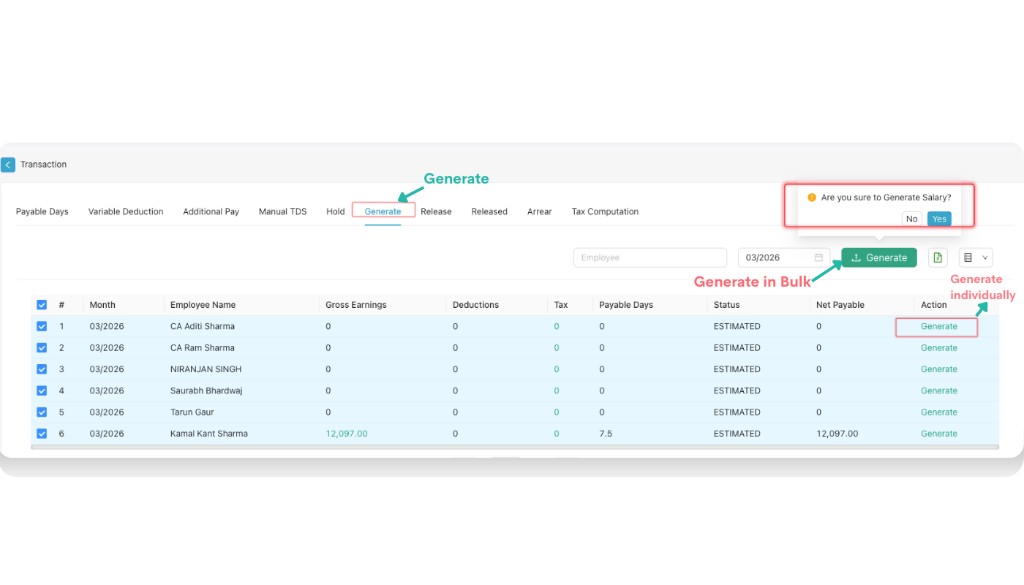
Generate tab showing Generate button and row-wise Generate action with confirmation popup
Generate — generate salary in bulk or individually (confirmation popup may appear).

Details shown in Generate list

  • Month
  • Employee Name
  • Gross Earnings
  • Deductions
  • Tax
  • Payable Days
  • Status
  • Net Payable
  • Action

7. Release

Use Release to release the generated salary. You can release salary in bulk using the top Release button, or release individually from the Release action in each row.
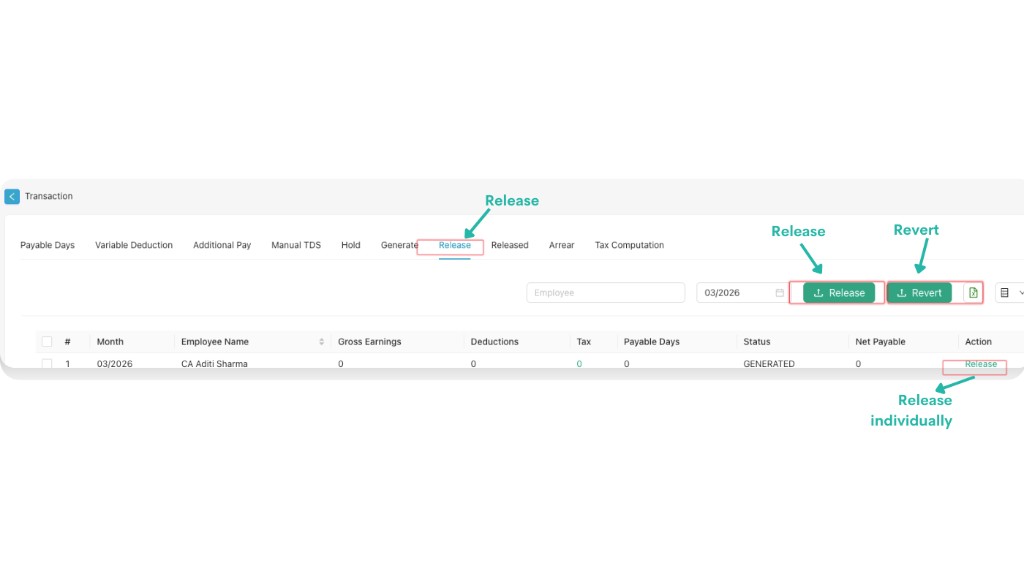
Release tab showing Release and Revert buttons and row-wise Release action
Release — release salary in bulk or individually (Revert option may be available).

8. Released

Use Released to check salaries that have already been released. From here you can review released entries and (if available) view salary slip details.
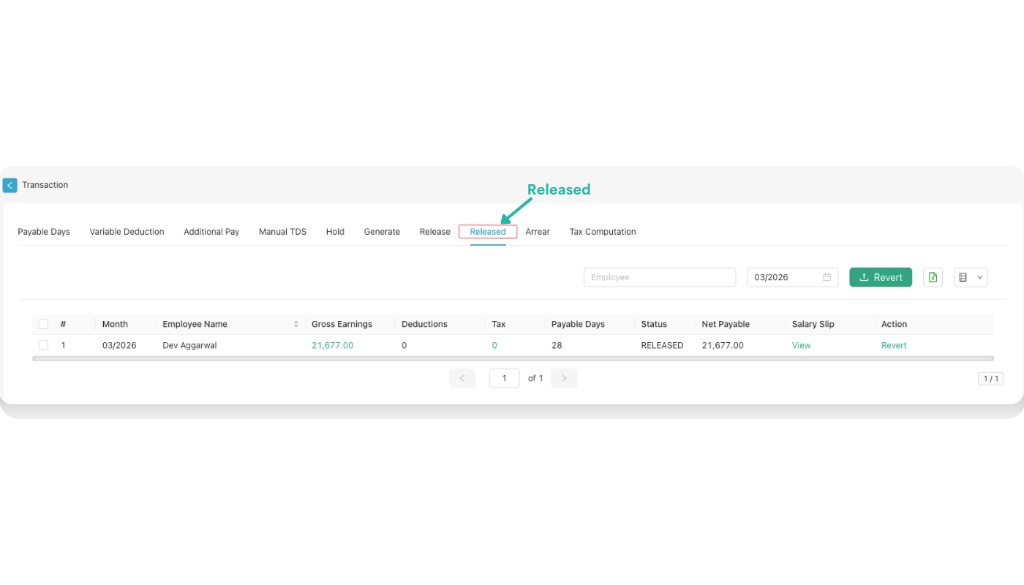
Released tab showing released salary list with salary slip view option
Released — view released salary entries and related actions (e.g., View salary slip, Revert).

Video Tutorial

Watch the Payroll walkthrough video. It includes the same Settings → Payroll navigation used to open the Transaction module.

Payroll video thumbnail from YouTube
Payroll — click the thumbnail card to open the video tutorial on YouTube.