Add Shift
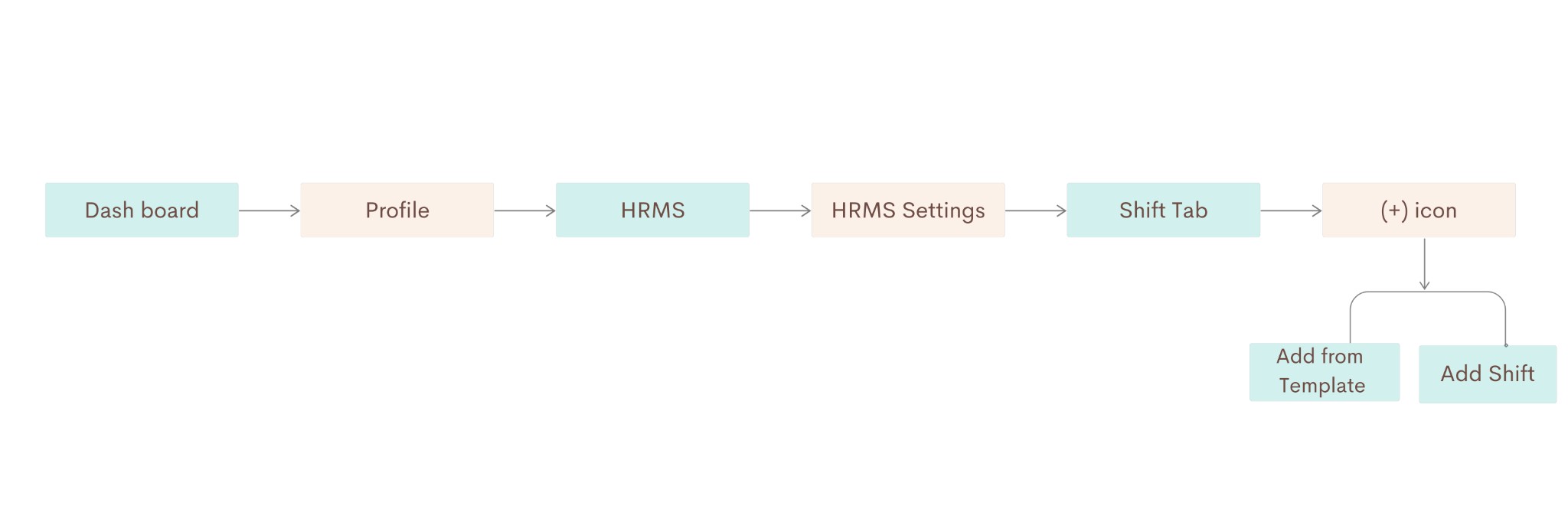
Define shift timings and patterns used for attendance and late-coming rules. Go to Dashboard → Profile → HRMS → HRMS Setting, open the Shift tab, then click the + icon to Add from template or Add shift.
Path
Step-by-step instructions
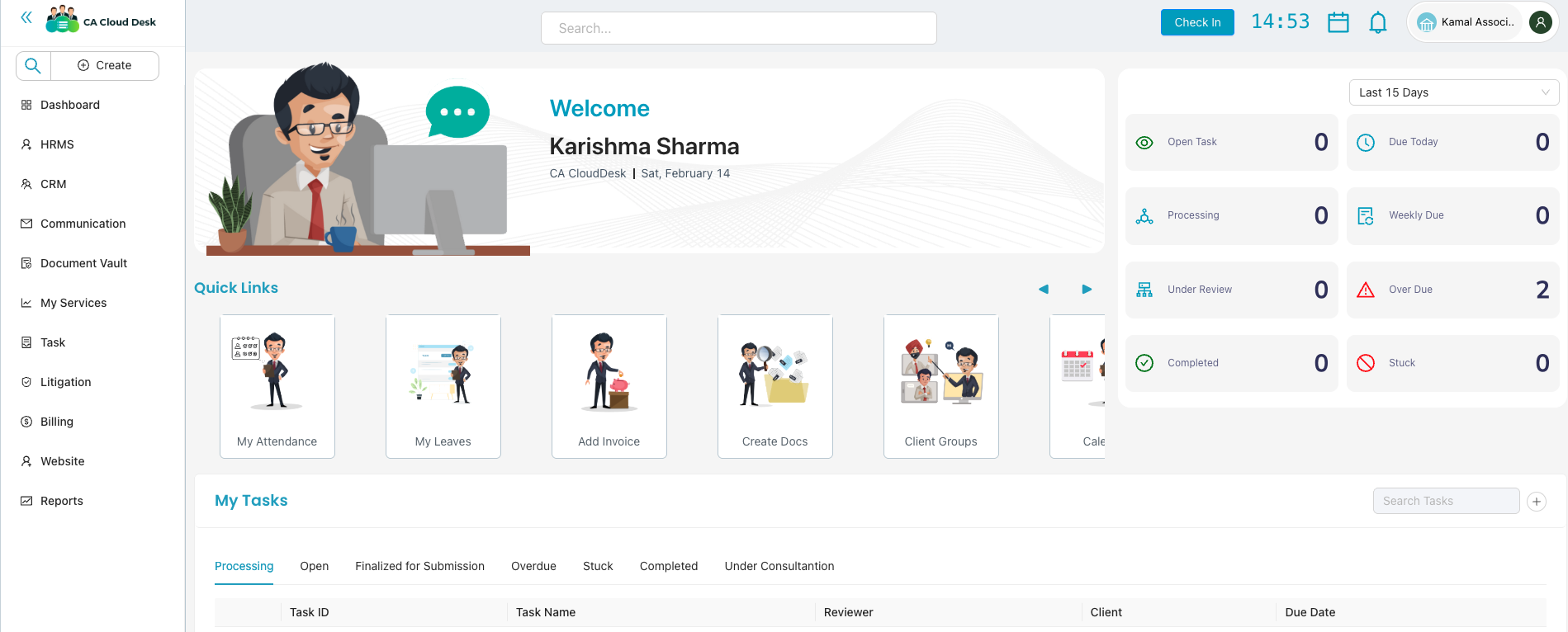
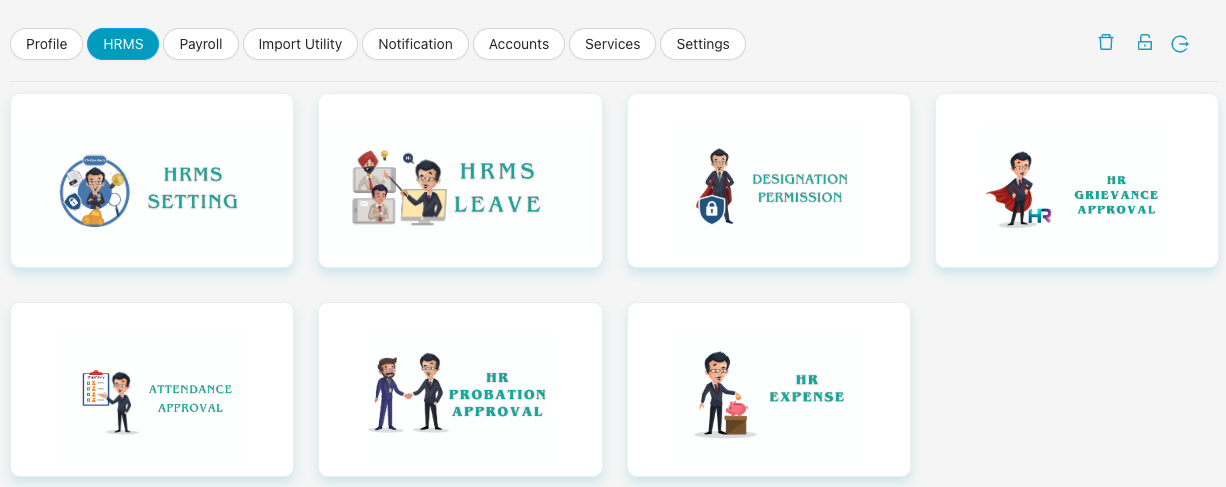
Select HRMS, then HRMS Setting
From the Dashboard, go to Profile (user icon in the top right). In the left navigation, click HRMS. On the HRMS page, select the HRMS Setting card (settings/gears icon).
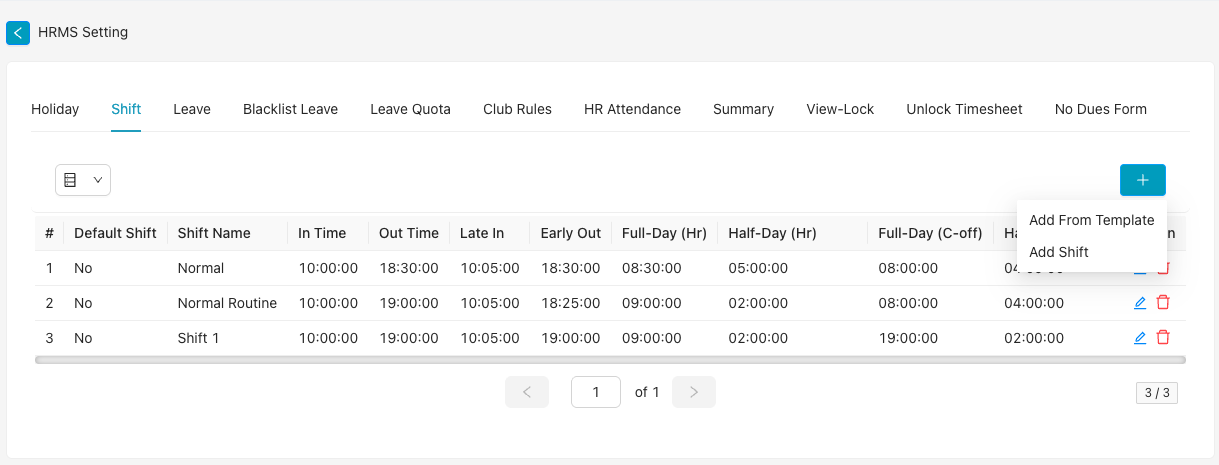
Select Shift tab, then click the + icon
Inside HRMS Setting, click the Shift tab. Then click the blue + button (top right of the shift table). You will see two options: (a) Add From Template — to copy from predefined shift templates — and (b) Add Shift — to create a new shift manually.
Add from template / Add shift
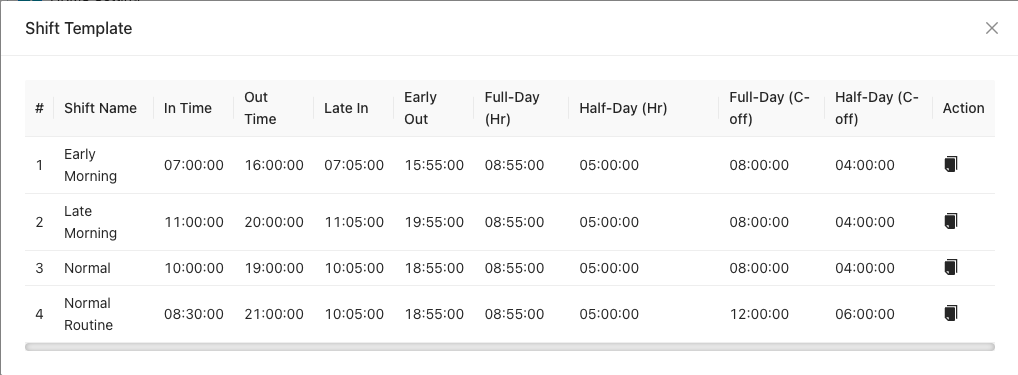
(a) Add From Template
Opens the Shift Template modal with a table of predefined shifts (e.g. Early Morning, Late Morning, Normal, Normal Routine). Each row shows Shift Name, In Time, Out Time, Late In, Early Out, Full-Day (Hr), Half-Day (Hr), Full-Day (C-off), Half-Day (C-off). Use the duplicate/action icon on a row to add that template as a new shift.
(b) Add Shift
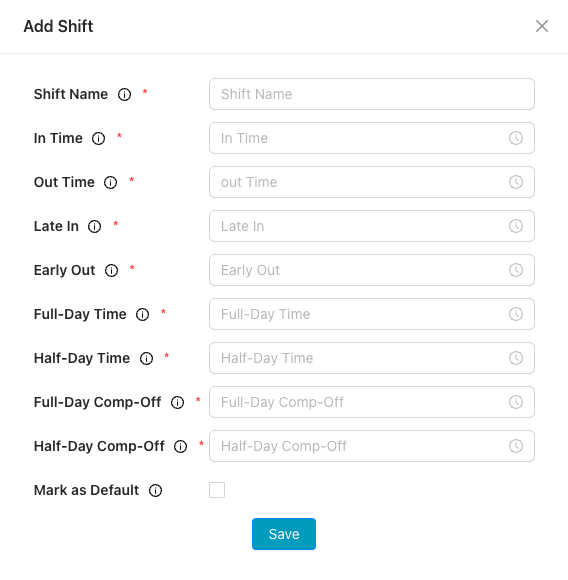
Opens the Add Shift form to create a shift manually. Fill in:
- Shift Name (required)
- In Time, Out Time (required) — use the time picker
- Late In, Early Out (required)
- Full-Day Time, Half-Day Time (required)
- Full-Day Comp-Off, Half-Day Comp-Off (required)
- Mark as Default — checkbox to set as default shift
Click Save to add the shift.
Video Tutorial
Watch this video for a step-by-step walkthrough of adding shifts in CA Cloud Desk—Dashboard → Profile → HRMS → HRMS Setting → Shift, and Add from template or Add shift.