
Add SMTP
How SMTP works in CA Cloud Desk: choose your email provider (Gmail, Yahoo, Rediff, or Outlook) and follow the steps to create an app password (where required) and configure SMTP in CA CloudDesk so notifications and documents can be sent from your account.
Overview
SMTP (Simple Mail Transfer Protocol) is used by CA Cloud Desk to send emails—for example notifications and documents. You configure one or more email accounts in Settings → SMTP Configuration. For Gmail, Yahoo, and Outlook you must use an App Password (not your normal login password). For Rediff Mail you use your normal email password. Port 587 is used for all providers below.
Path & screens
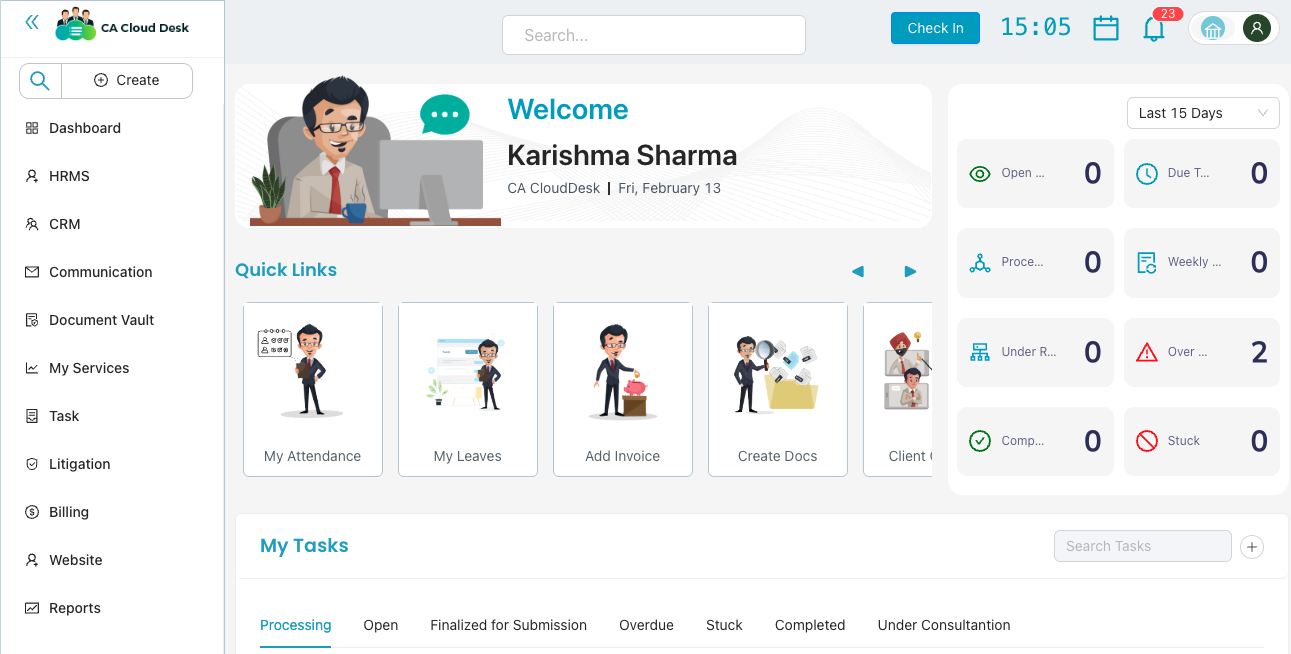
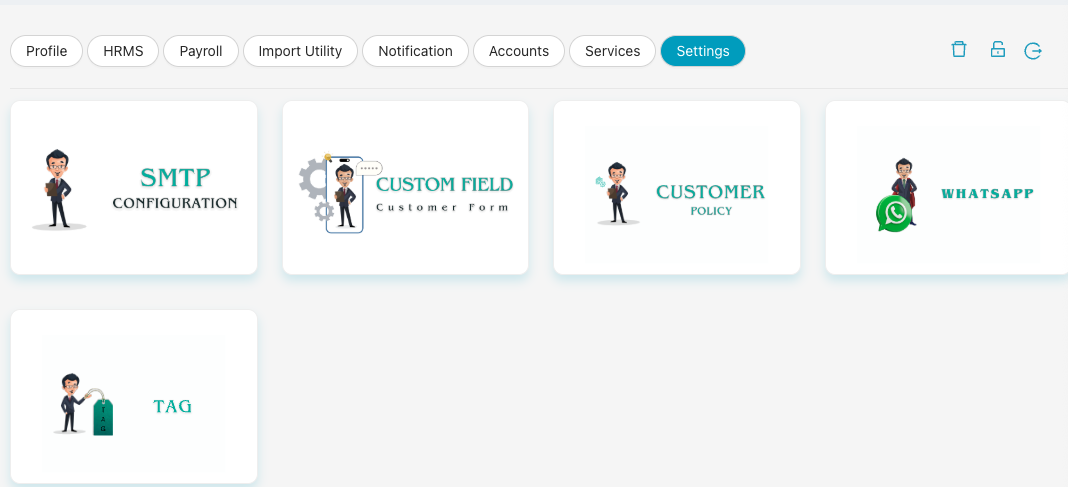
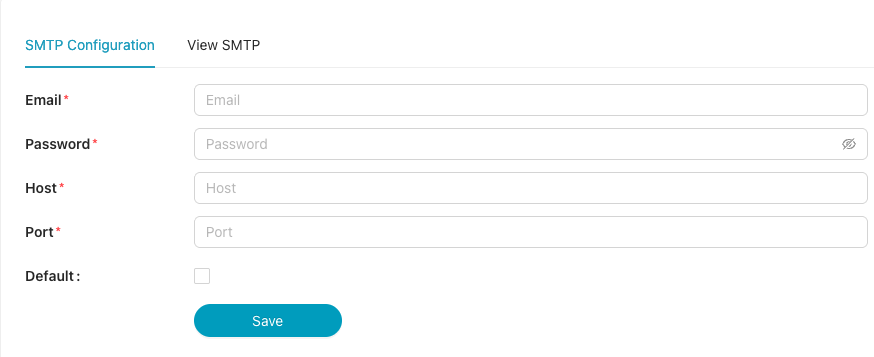
From the dashboard, open Settings (e.g. via your profile or main menu), then open SMTP Configuration. Use the SMTP Configuration tab to enter your email and server details; use View SMTP to see saved configurations.
Option 1: Gmail
Gmail Option 1
Create App Password in Google
- Log in to your Google Account.
- Click Manage your Google Account.
- Go to Security.
- Enable Two-Step Verification (if not already on).
- Search for App Passwords.
- Generate a new App Password.
- Copy the password (you will use it in CA CloudDesk).
Configure Gmail SMTP in CA CloudDesk
Go to CA CloudDesk → Settings → SMTP Configuration. Select Gmail (if the option is available) and enter:
| Field | Value |
|---|---|
| Email Address | Your Gmail ID |
| SMTP Host | smtp.gmail.com |
| Port | 587 |
| Username | Your Gmail ID |
| Password | App Password (the one you generated) |
Optionally check Default, then click Save.
✅ Gmail SMTP is now configured.
Option 2: Yahoo Mail
Yahoo Mail Option 2
Create App Password in Yahoo
- Log in to your Yahoo Account.
- Go to Account Security.
- Enable Two-Step Verification.
- Click Generate App Password.
- Select Mail app.
- Copy the password.
Configure Yahoo SMTP in CA CloudDesk
Go to CA CloudDesk → Settings → SMTP Configuration. Select Yahoo and enter:
| Field | Value |
|---|---|
| Email Address | Your Yahoo ID |
| SMTP Host | smtp.mail.yahoo.com |
| Port | 587 |
| Username | Your Yahoo ID |
| Password | App Password |
Click Save.
✅ Yahoo SMTP is now configured.
Option 3: Rediff Mail
Rediff Mail Option 3
Use Your Rediff Email Password
App password is not required for Rediff. Use your normal Rediff email password.
Configure Rediff SMTP in CA CloudDesk
Go to CA CloudDesk → Settings → SMTP Configuration. Select Rediff and enter:
| Field | Value |
|---|---|
| Email Address | Your Rediff ID |
| SMTP Host | smtp.rediffmail.com |
| Port | 587 |
| Username | Your Rediff ID |
| Password | Your Rediff Email Password |
Click Save.
✅ Rediff SMTP is now configured.
Option 4: Outlook
Outlook Option 4
Create App Password in Outlook
- Log in to your Microsoft Account.
- Go to Security.
- Enable Two-Step Verification.
- Click App Passwords.
- Generate a new App Password.
- Copy the password.
Configure Outlook SMTP in CA CloudDesk
Go to CA CloudDesk → Settings → SMTP Configuration. Select Outlook and enter:
| Field | Value |
|---|---|
| Email Address | Your Outlook ID |
| SMTP Host | smtp.office365.com |
| Port | 587 |
| Username | Your Outlook ID |
| Password | App Password |
Click Save.
✅ Outlook SMTP is now configured.
Video tutorial
Watch this video for a step-by-step walkthrough of configuring SMTP in CA Cloud Desk—Settings → SMTP Configuration, and how to set up Gmail, Yahoo, Rediff, or Outlook.
