Recurring Tasks in CA Cloud Desk
Set up tasks that repeat automatically on weekly, monthly, quarterly, half-yearly, or yearly schedules. Configure recurrence, workflow, and save to auto-generate tasks without manual intervention.
Path
How to add a recurring task
Select Task from the left navigation, click + or Create Task, enter basic task information, configure When this Task Occurs recurrence settings, set workflow and status, then click Create Task.
Getting Started
Log in and open the Create Task form.
Step 1
- Log in to CA Cloud Desk
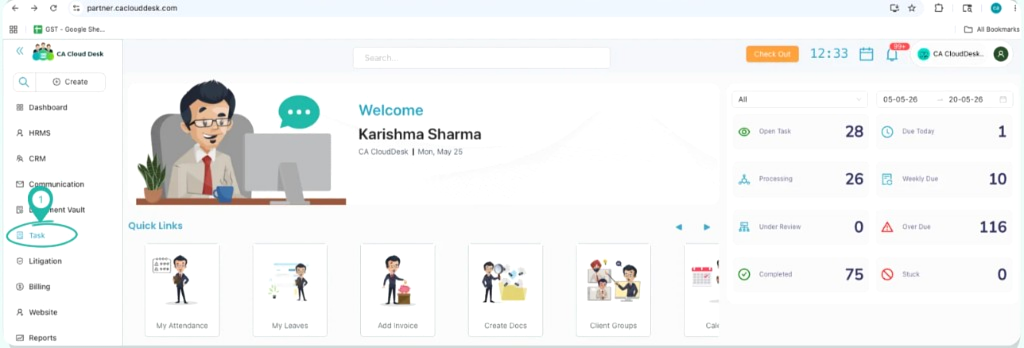
- From the left navigation menu, select Task
- Click on Tasks
Step 2
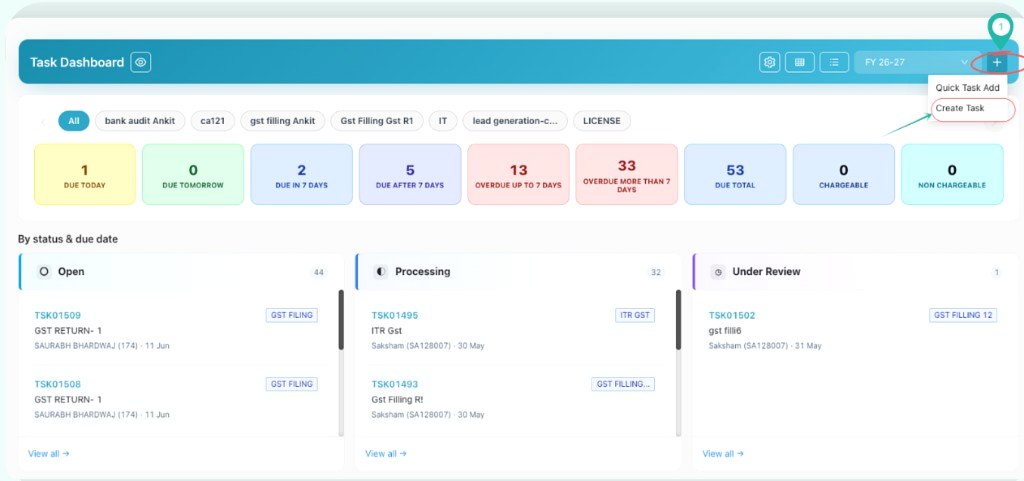
- Click the + icon on the Task Dashboard
- Select Create Task from the dropdown menu
Log in to CA Cloud Desk. From the left navigation menu, select Task to open the Task Dashboard.
On the Task Dashboard, click the + (Plus) icon and select Create Task from the dropdown menu.
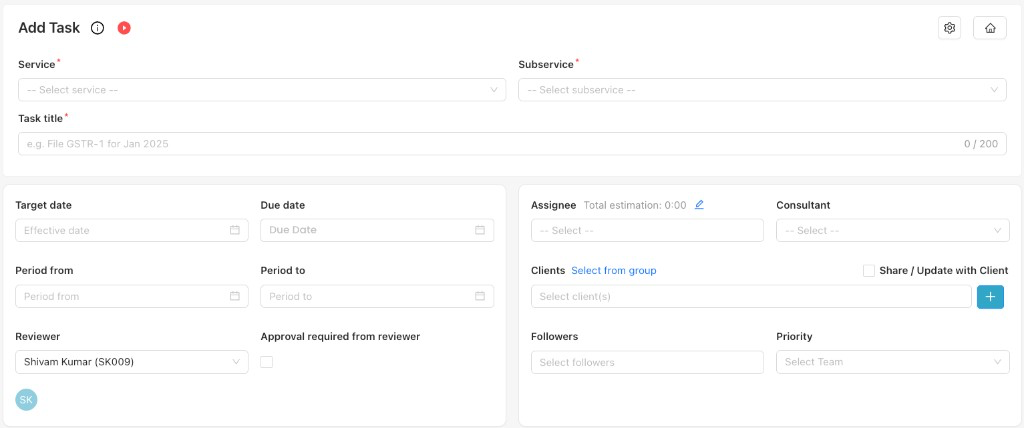
Select the Service and Sub-Service, enter the Task Title, set target and due dates, assign the Assignee, Reviewer, and Consultant, select the Client, and configure Priority.
Recurring Settings
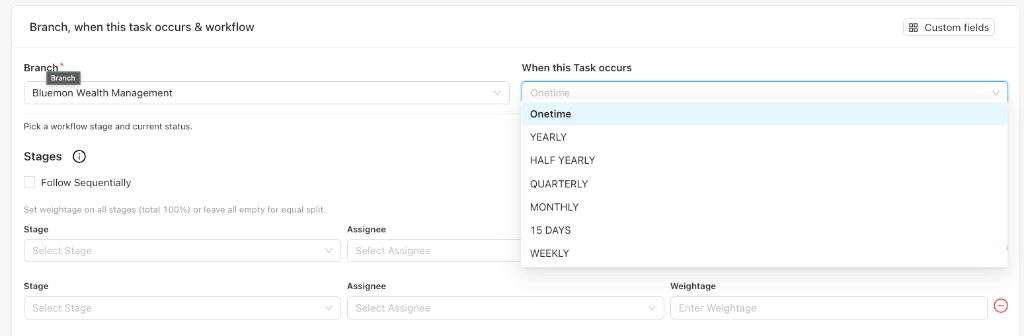
Configure how often the task should repeat.
In the Branch, when this task occurs & workflow section, open the When this Task occurs dropdown and select the desired recurrence frequency. Define the schedule by specifying Start Date, End Date (if applicable), Repeat Frequency, and any specific recurrence conditions.
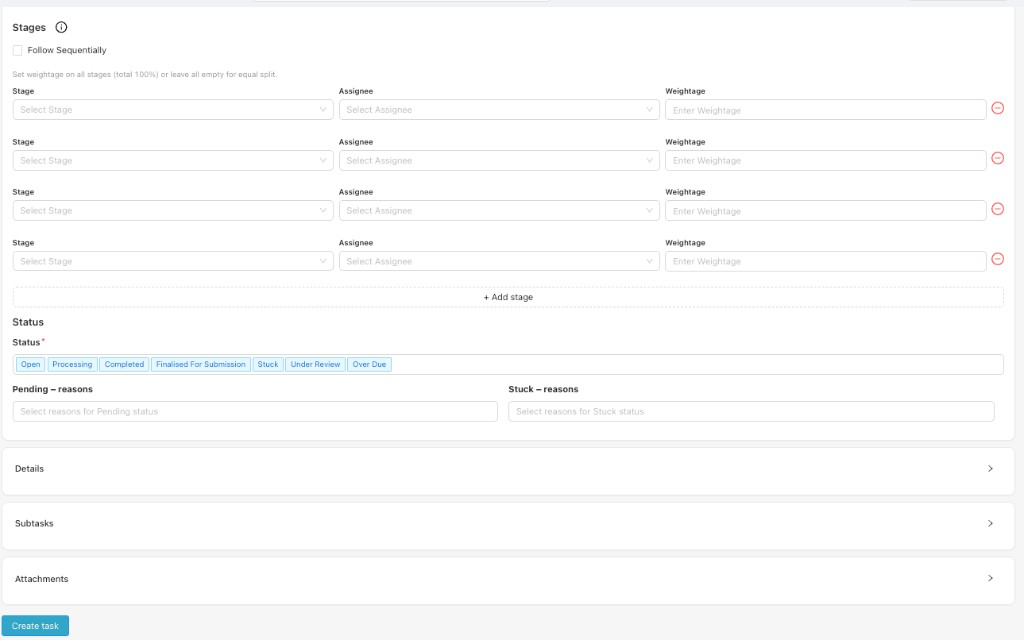
Select the required Stages and assign an Assignee and Weightage for each stage. Choose the Status, configure Pending and Stuck reasons if needed, and set Priority with the appropriate Reviewer and Consultant.
Save Recurring Task
Review and save the recurring task configuration.
Review all entered details and click Create task at the bottom of the form.
Recurring task saved
Result: The system will automatically generate tasks based on the defined recurrence schedule, ensuring timely task creation without manual intervention.