How to Edit a Task in CA Cloud Desk
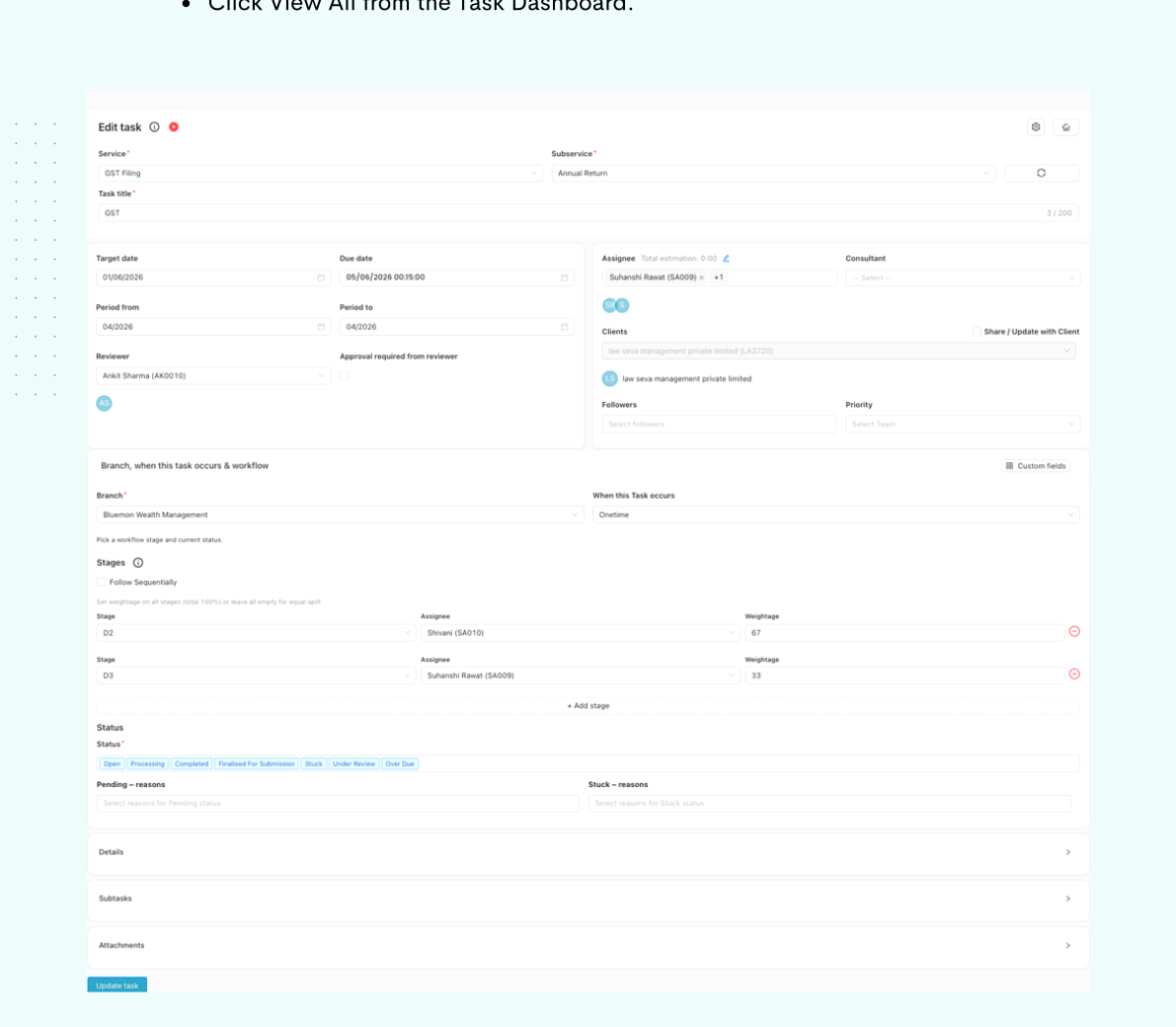
Update task details, modify assignments, change deadlines, and update task status. You can edit tasks in bulk or open a single task in edit mode, then click Update task to save your changes.
Path
Two ways to edit tasks
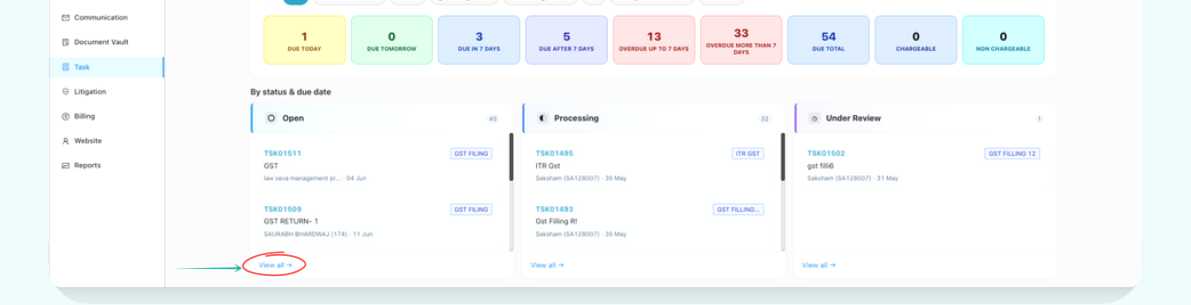
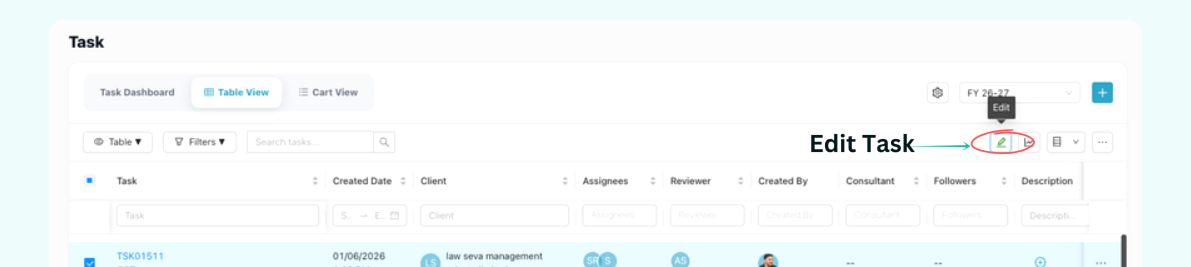
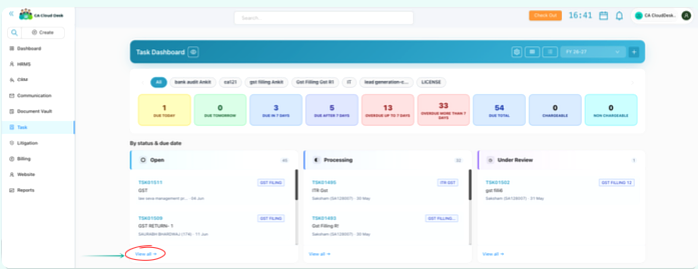
Method A — Bulk Edit Multiple Tasks: Click View All from the Task Dashboard → select tasks using checkboxes → click the Edit icon → enter password and click Confirm.
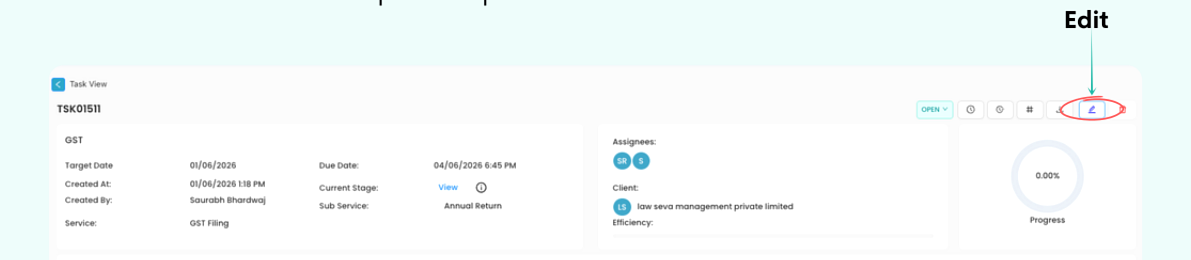
Method B — Edit a Single Task: Open the Task Dashboard or Table View → click the specific task → click the Edit option to open the task in edit mode.
Getting Started
Follow these steps before editing a task.
Step 1
- Log in to CA Cloud Desk
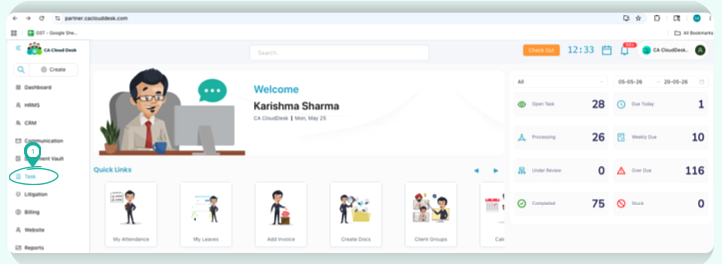
- From the left navigation menu, select Task
- Click on Tasks
- Click the Settings icon
Step 2
- Open the task for editing using Method A (bulk) or Method B (single task)
- Update fields in the Edit task form
- Click Update task to save changes
From the CA Cloud Desk left navigation menu, select Task to begin the process.
Method A — Bulk Edit Multiple Tasks
Use this method when you need to edit more than one task at the same time.

Method B — Edit a Single Task
Use this method when you need to edit one specific task.
Update Task
In the Edit task form, update the required fields and click Update task to save your changes.
Task updated successfully
After making all required updates, click Update task at the bottom of the form. Your changes will be applied to the selected task or tasks.