Task Reminders in CA Cloud Desk
Set up reminders and notifications for task deadlines and updates. Open a task, click Task Reminder, enter the duration in Days or Hours, click Save, and see Task Reminder has been set successfully.
Path
How to set a task reminder
From the CA Cloud Desk left navigation menu, select Task and open any particular task. Click the Task Reminder option, enter the reminder duration, select Days or Hours, and click Save. A pop-up Task Reminder has been set successfully will confirm the reminder is active.
Getting Started
Log in and open the task you want to set a reminder for.
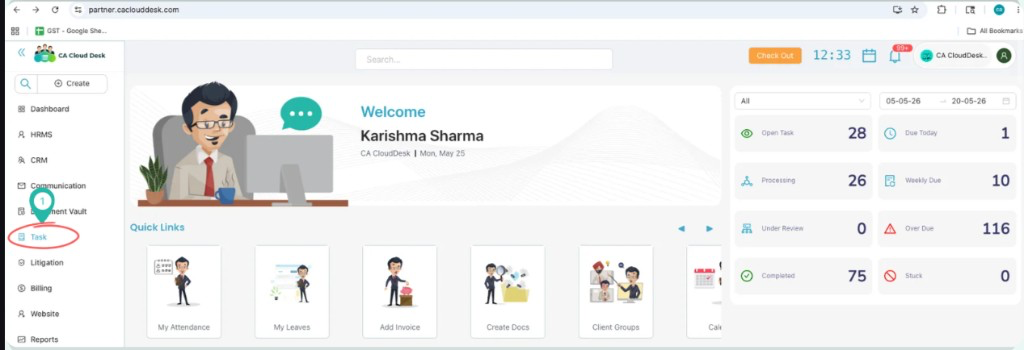
Log in to CA Cloud Desk. From the CA Cloud Desk left navigation menu, select Task.
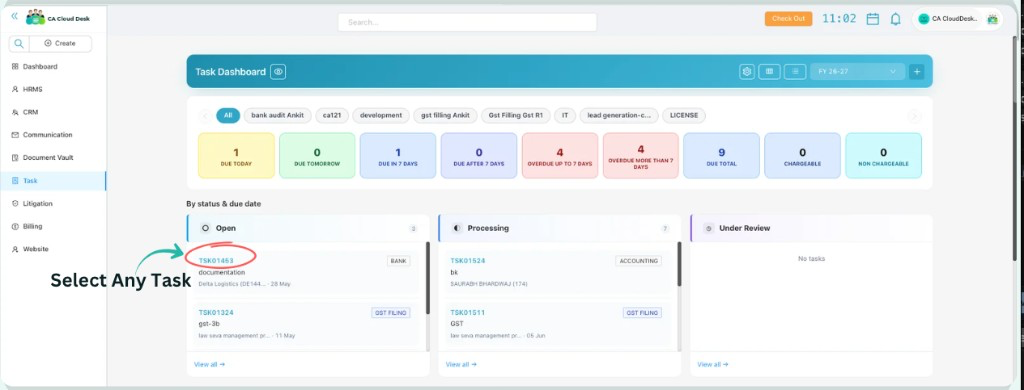
From the Task Dashboard, open any particular Task.
Set Reminder
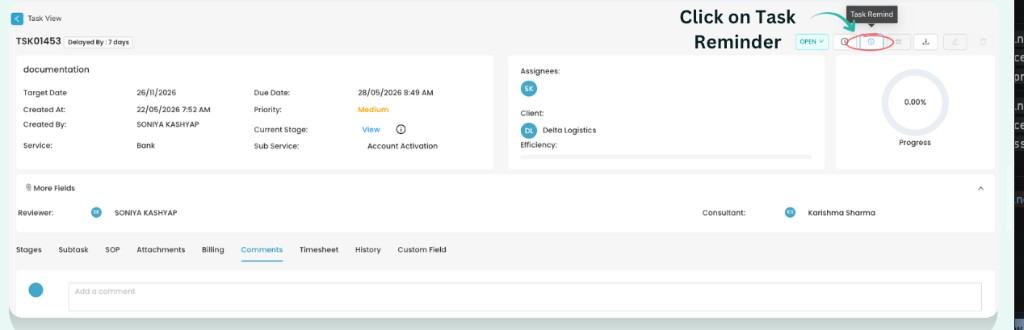
Click Task Reminder on the opened task, enter reminder details, and save.
From any particular opened task, click on the Task Reminder option to set or view reminders for the task.
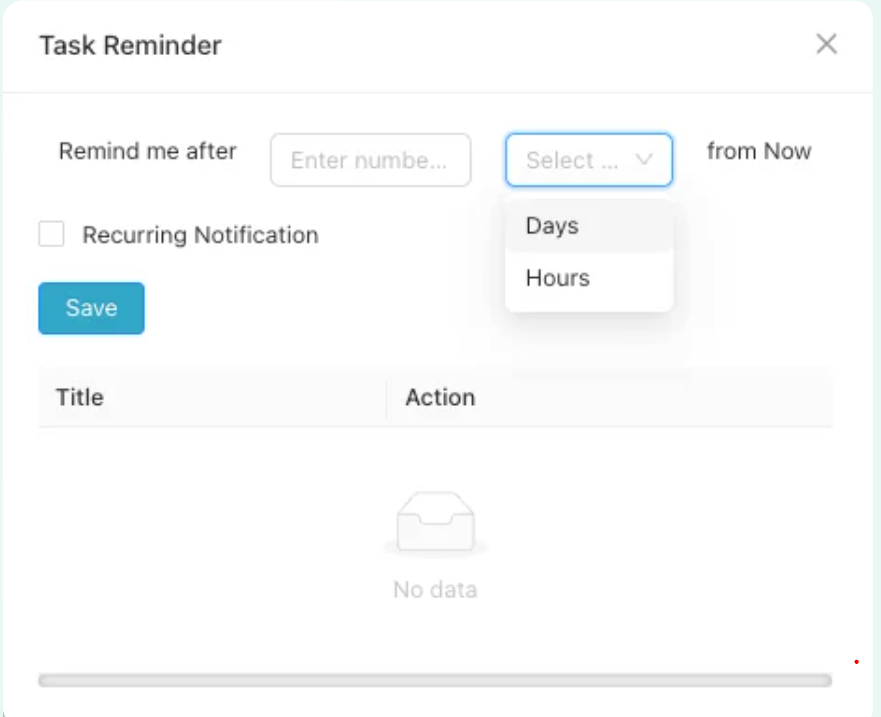
Enter the reminder duration, select Days or Hours, optionally enable Recurring Notification, and click Save to set the task reminder.
After clicking Save, a Task Reminder has been set successfully pop-up will appear, confirming that the reminder is now active.
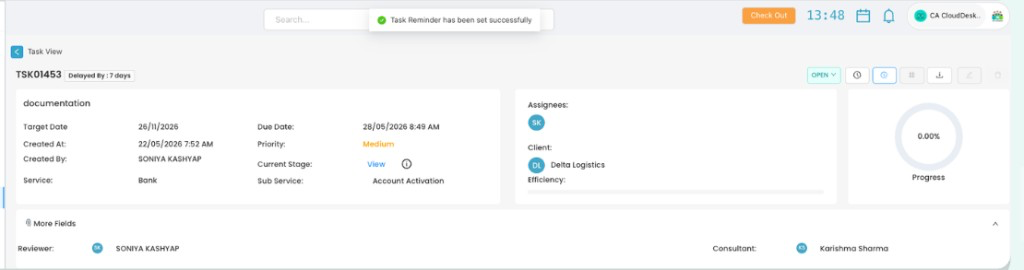
Task Reminder has been set successfully
Your task reminder is now active. You will be notified based on the duration and unit (Days or Hours) you selected. View or manage existing reminders from the Task Reminder dialog on any task.