Task Permissions in CA Cloud Desk
Configure who can view, edit, assign, and manage tasks based on roles and permissions. Open Settings, select HRMS → Designation Permission, add a permission set, and enable Tasks and Edit Task permissions.
Path
How to configure task permissions
From the CA Cloud Desk dashboard, select Settings. Select HRMS and then Designation Permission. Click the Plus icon (+) to add task permissions. Enter designation and description, then select the checkboxes for the desired Tasks and Edit Task permissions.
Getting Started
Log in and open Designation Permission settings.
Step 1
- Log in to CA Cloud Desk
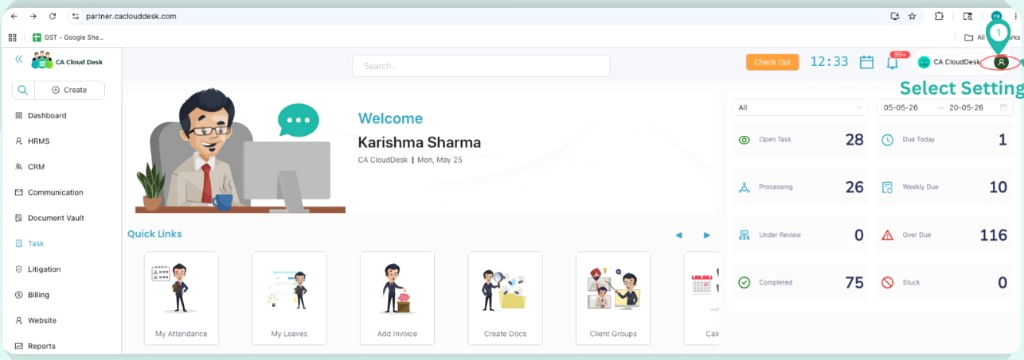
- From the CA Cloud Desk dashboard, select Settings
Step 2
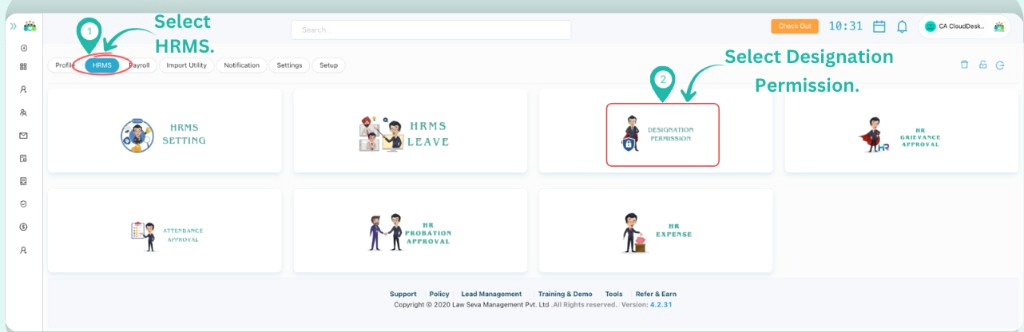
- Select HRMS from the settings tabs
- Click Designation Permission
Log in to CA Cloud Desk. From the CA Cloud Desk dashboard, select Settings.
Select HRMS and then select Designation Permission.
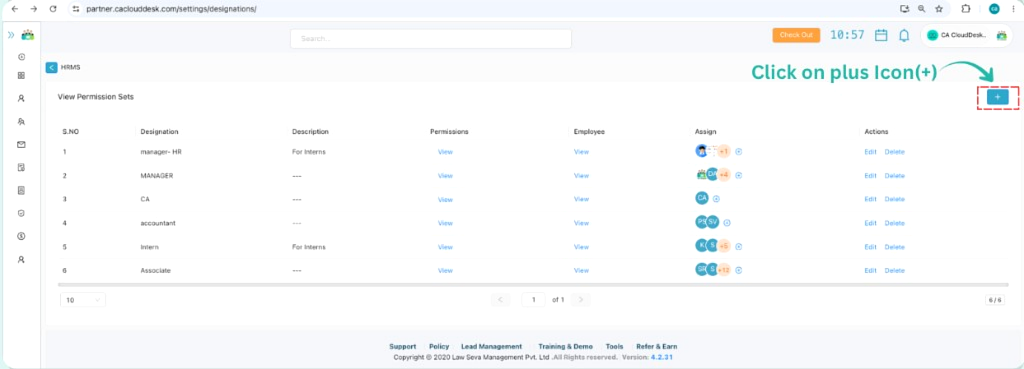
Add Permission Set
Create a new permission set and enter designation details.
After selecting Designation Permission, click on the Plus icon (+) to add task permissions.
From the Add Permission Set screen, enter Designation and Description, then configure permissions for the role.
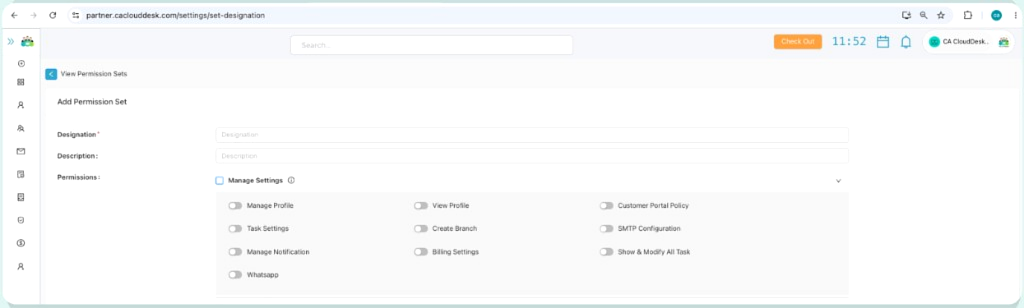
Configure Permissions
Select the task permission checkboxes for the designation.
Select the checkboxes for the desired permissions under Tasks and Edit Task — such as View Task, Create Task, Edit Task, Delete Task, Task Assignee, Task Due Date, and more.
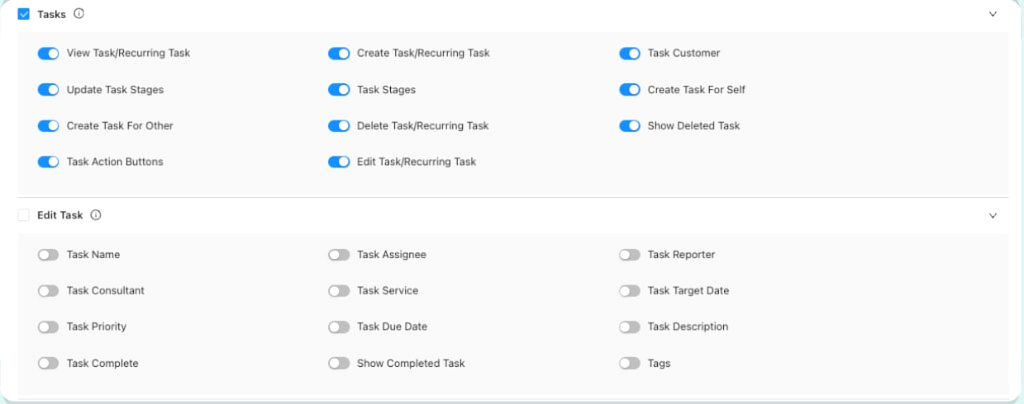
Task permissions configured
Once saved, users assigned to this designation will have the selected task permissions. They can view, create, edit, and manage tasks based on the roles and permissions you enabled.