Task Dashboard
View a comprehensive task overview, analytics, and insights for your practice. Use Dashboard View for status summaries, Table View for detailed filtering and bulk actions, or Card View for quick visual tracking.
Path
Three task display formats
Dashboard View — Displays tasks grouped by status with summary widgets.
Table View — Displays tasks in a tabular format for detailed filtering and bulk actions.
Card View — Displays tasks as individual cards for quick visual tracking.
Getting Started
Log in to CA Cloud Desk, open the Task module, and configure your preferred task view.
Step 1
- Log in to CA Cloud Desk
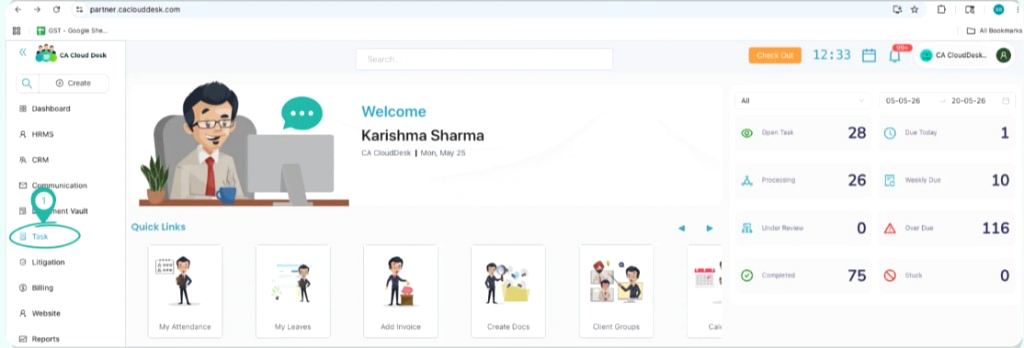
- From the left navigation menu, select Task
Step 2
- Open the Task Dashboard
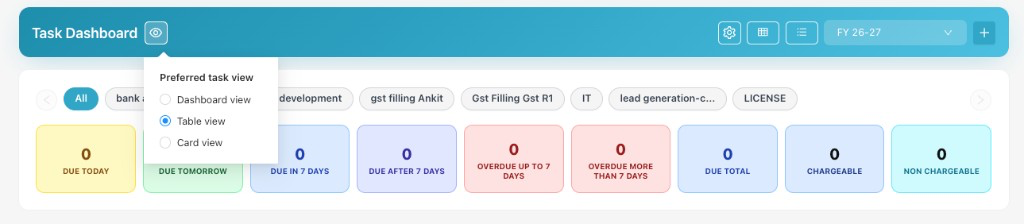
- Click the View Settings (eye icon) beside the Task Dashboard heading
- From Preferred Task View, select Dashboard, Table, or Card View
From the CA Cloud Desk left navigation menu, select Task to begin.
Click the View Settings (eye icon) beside the Task Dashboard heading. From the Preferred Task View menu, select Dashboard view, Table view, or Card view.
Dashboard View
The Dashboard View provides a quick overview of task performance, due dates, workload, and task status.
Navigate to Task > Dashboard. The dashboard opens by default in Dashboard View.
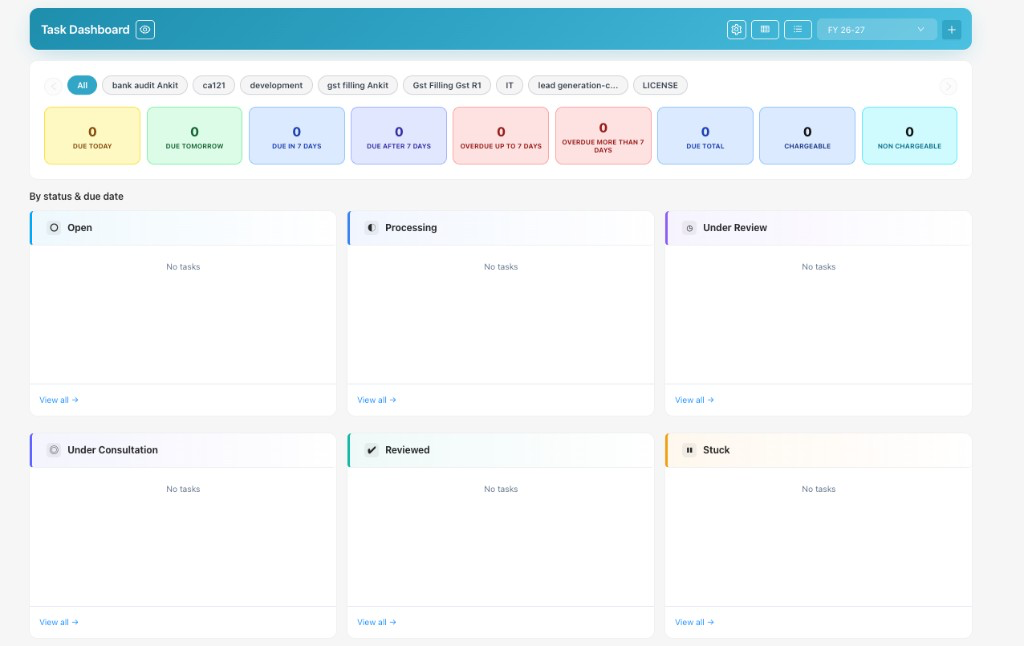
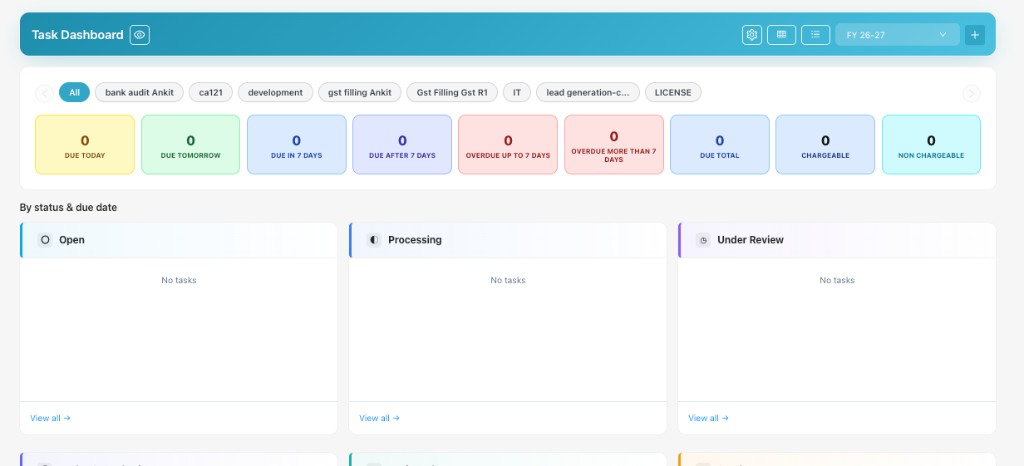
Select a service tab such as GST Filing, Audit, ITR, or any available service. Use the Financial Year selector (for example, FY 26-27) to switch periods, and apply filters if required.
The dashboard displays task counts based on due dates.
Tasks are grouped by status and due date in columns such as Open, Processing, Under Review, Under Consultation, Reviewed, and Stuck.
Scroll down to review userwise task summary, pending aging tasks, priority counts, and assigned vs unassigned totals.
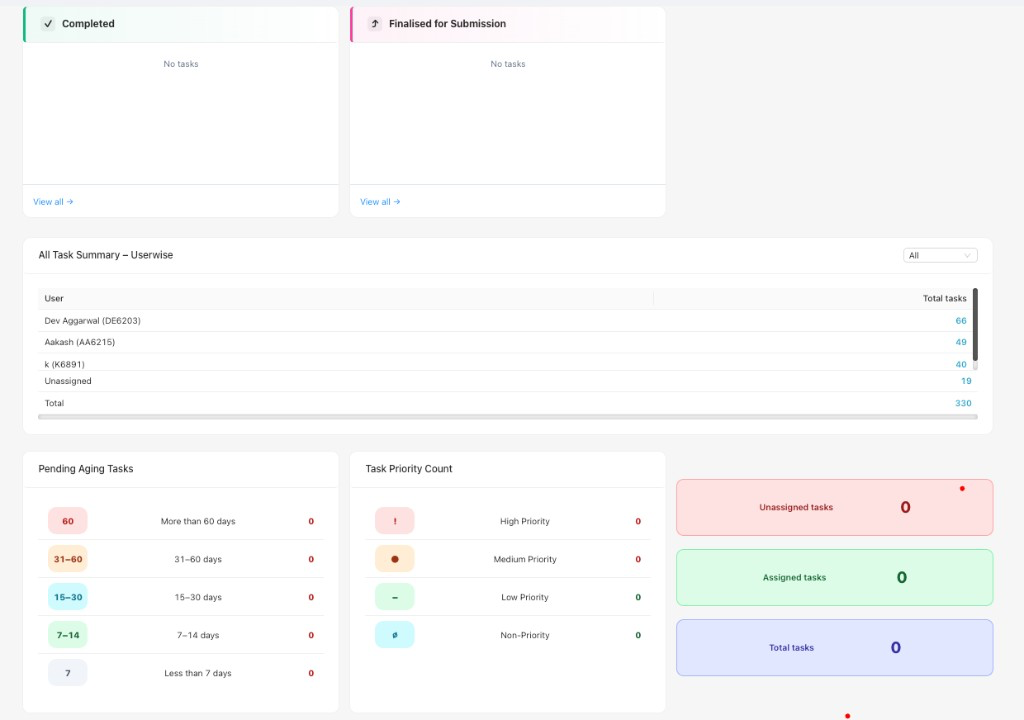
Table View
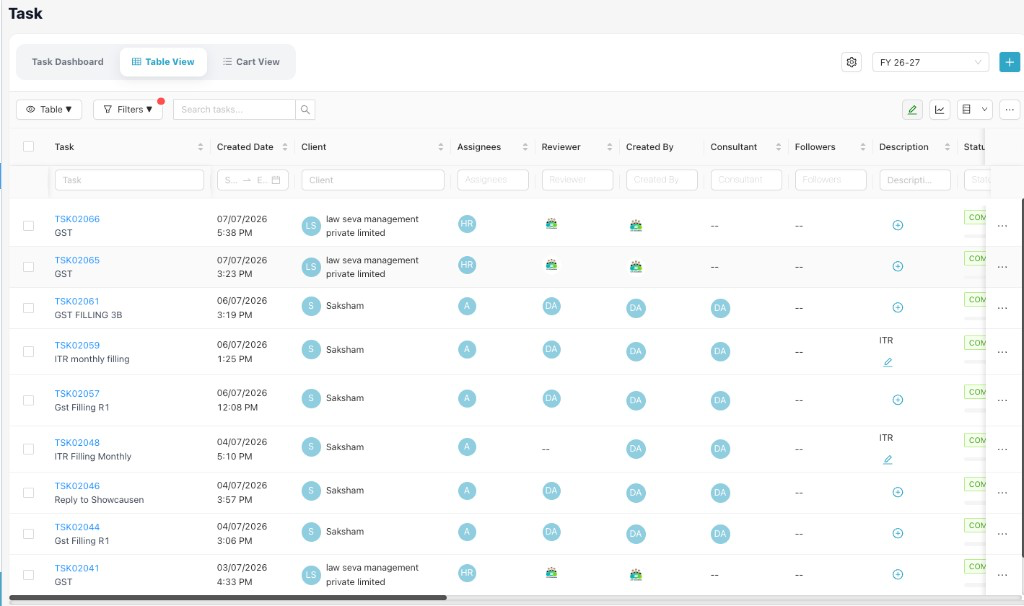
Table View displays tasks in a tabular format for detailed filtering, sorting, and bulk actions. Select Table View from the Preferred Task View menu or the view tabs.
Best for detailed work
Use Table View when you need to filter tasks by column, select multiple tasks for bulk edits, or review detailed task information across clients and assignees.
Card View
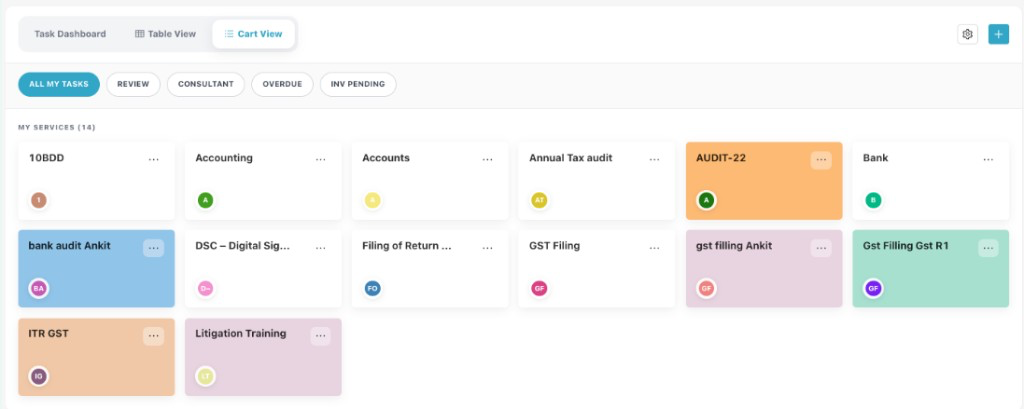
Card View (also labeled Cart View in the tabs) displays services as individual cards for quick visual tracking. Select Card view from the Preferred Task View menu or open Cart View.
Best for quick overview
Use Card View to browse services — GST Filing, Audit, ITR, and more — with filter tabs for All My Tasks, Review, Consultant, Overdue, and Inv Pending.