Share Task with Client in CA Cloud Desk
Share task progress and updates with clients through secure client portal access. Select Task, create a new task, and tick Share / Update with Client while adding the task.
Path
How to share a task with a client
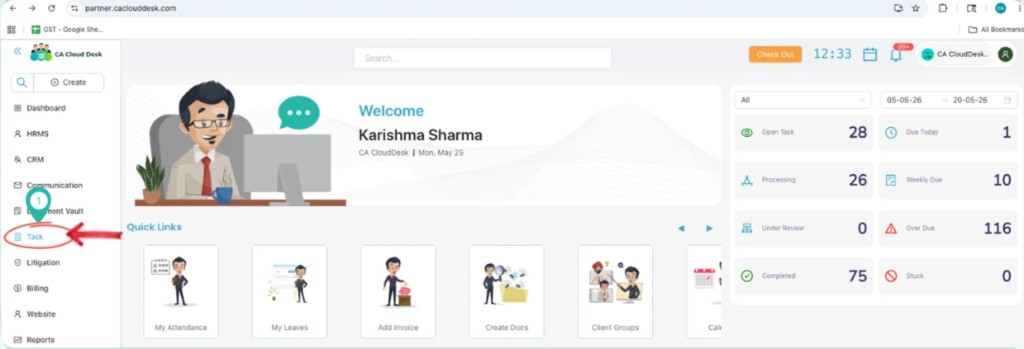
From the CA Cloud Desk left navigation menu, select Task. From the Task Dashboard, click the Plus icon and select Create Task. While creating the task, tick Share / Update with Client to share the task with the client through the client portal.
Getting Started
Log in and open the Task module.
Step 1
- Log in to CA Cloud Desk
- From the CA Cloud Desk left navigation menu, select Task
Step 2
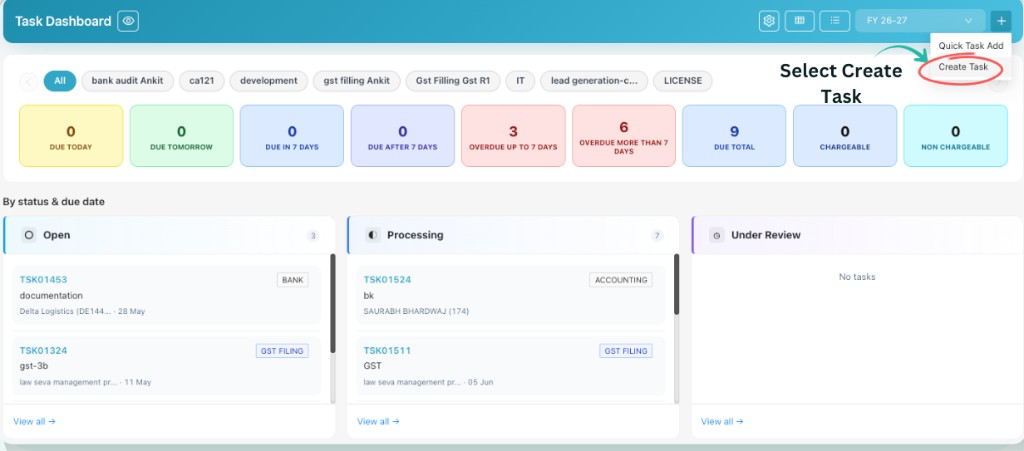
- From the Task Dashboard, click the Plus icon
- Select Create Task to open the Add Task form
Log in to CA Cloud Desk. From the CA Cloud Desk left navigation menu, select Task.
Create Task
Open the Add Task form from the Task Dashboard.
From the Task Dashboard, click on the Plus icon to create a new task. Select Create Task.
Share with Client
Enable client sharing while creating the task.
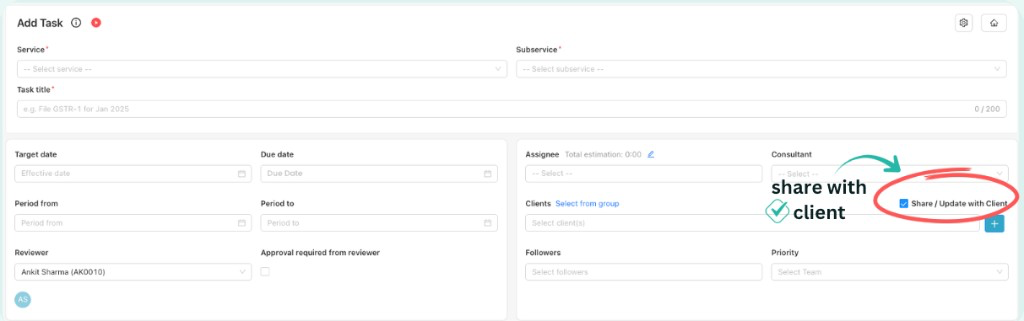
While creating or adding a task, tick the option Share / Update with Client to share the task with the client.
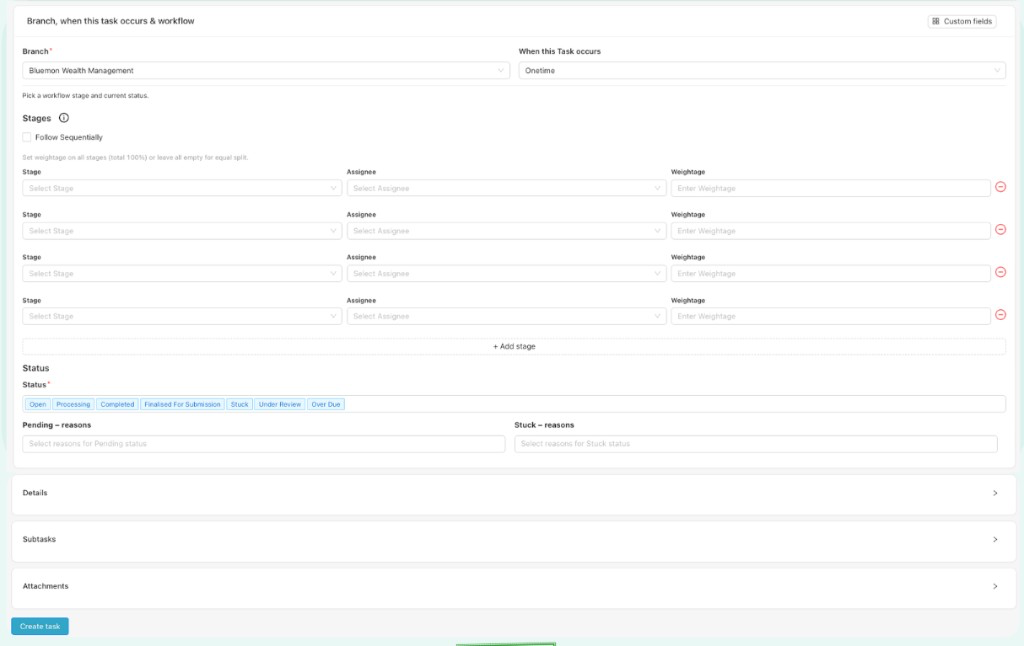
Task shared with client
When Share / Update with Client is enabled, the client can view task progress and updates through the secure client portal. Complete the remaining task fields and click Create task to save.