Task Comments in CA Cloud Desk
Add comments, updates, and notes to tasks for better team collaboration. Open a task, select the Comments tab, add your comment, and see Comment Added Successfully!
Path
How to add a comment
From the CA Cloud Desk left navigation menu, select Task and open any particular task. Select the Comments option, type your comment in the Add a comment field, and submit. A success message Comment Added Successfully! will be displayed.
Getting Started
Log in and open the task you want to comment on.
Step 1
- Log in to CA Cloud Desk
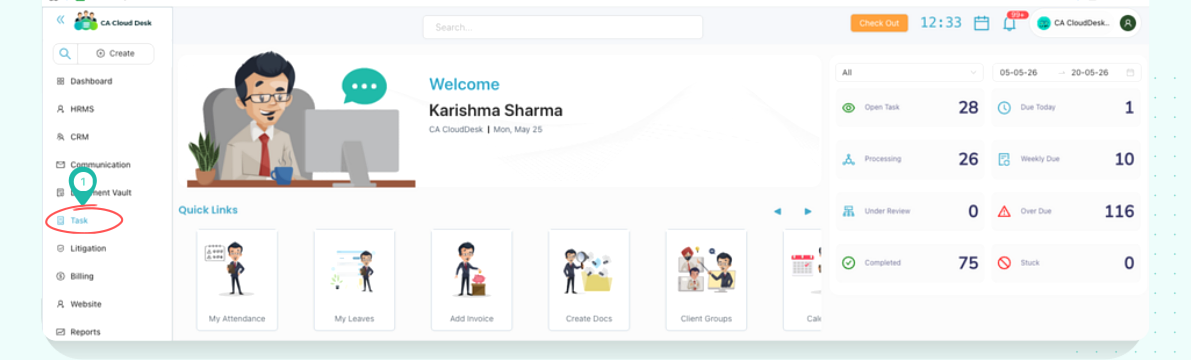
- From the CA Cloud Desk left navigation menu, select Task
Step 2
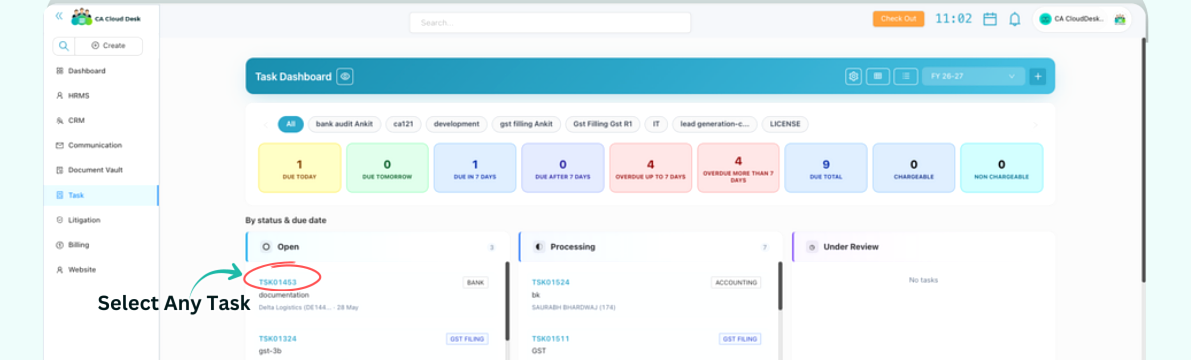
- From the Task Dashboard, open any particular Task
- The task detail screen opens with tabs including Comments
Log in to CA Cloud Desk. From the CA Cloud Desk left navigation menu, select Task.
From the Task Dashboard, open any particular Task.
Add Comment
Select the Comments tab on the opened task and add your comment.
From any particular opened task, select the Comments option. From here, you can add any comment.
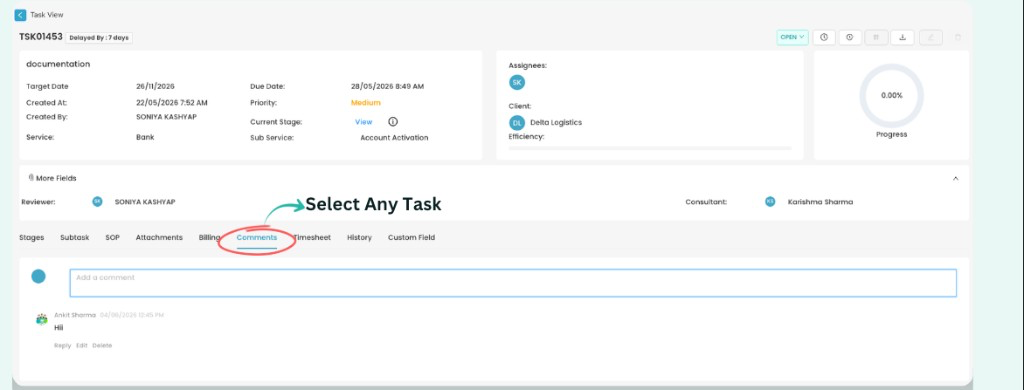
Once the comment is added, a success message Comment Added Successfully! will be displayed.
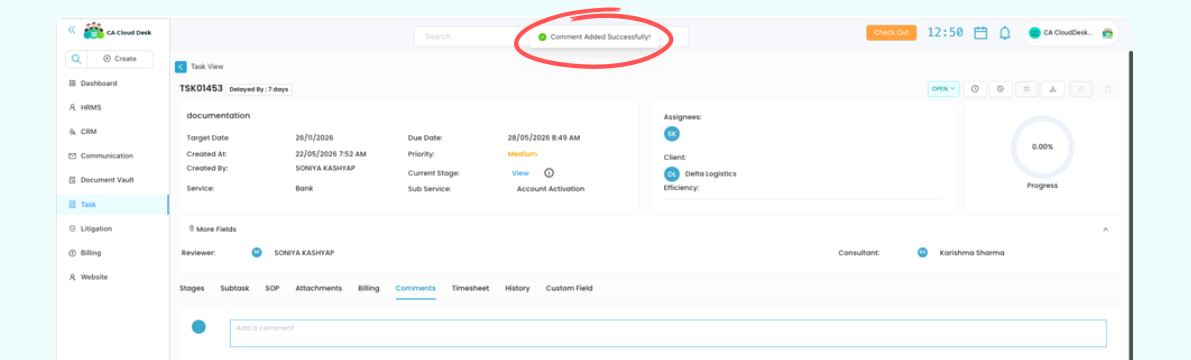
Comment Added Successfully
Your comment has been added to the task. Team members can view, reply to, edit, or delete comments from the Comments tab.