
Bulk Actions in Tasks
Perform actions on multiple tasks at once — update status, reassign, change priority, modify consultant or followers, or delete tasks. Select tasks in Table View, use the Edit option, and apply changes to all selected tasks in one step.
Path
What you can do in bulk
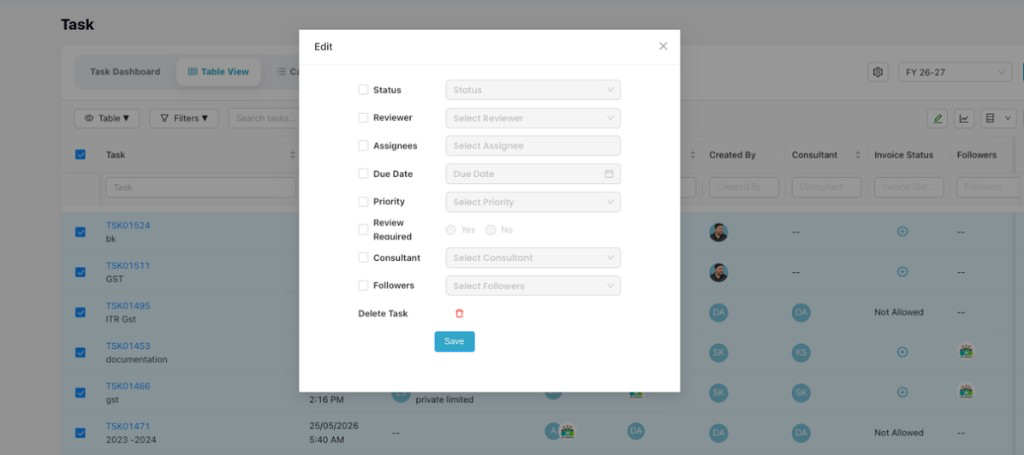
Update Status, Reviewer, Assignee, Due Date, Priority, Consultant, or Followers across multiple tasks at once. You can also delete selected tasks using the bulk Edit window.
Getting Started
Log in to CA Cloud Desk and open the Task module in Table View before selecting tasks for bulk actions.
Step 1
- Log in to CA Cloud Desk
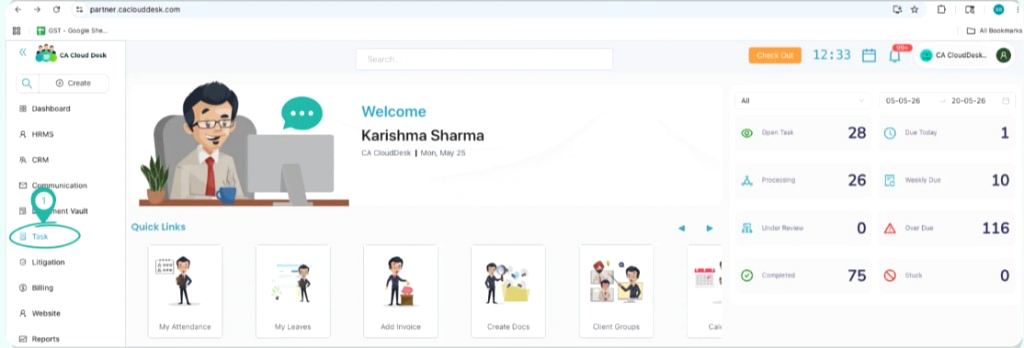
- From the left navigation menu, select Task
- Click on Tasks
Step 2
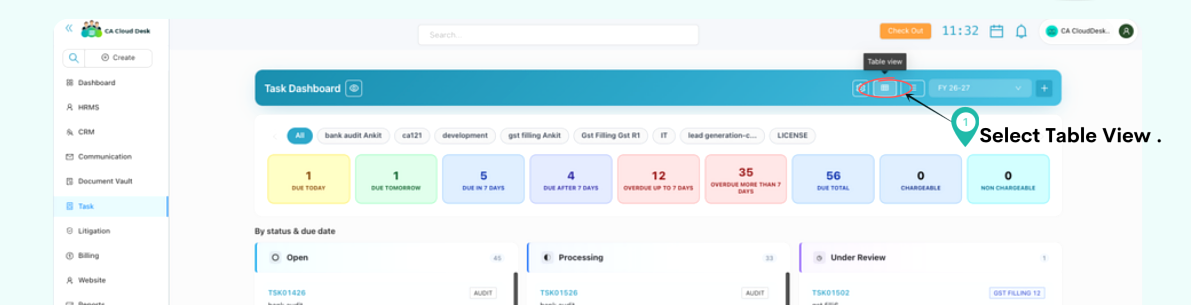
- Open the Task Dashboard
- Select the Table View option from the view controls
- Use Table View to select and manage multiple tasks
From the CA Cloud Desk left navigation menu, select Task to begin the process.
Select the Table View option from the Task Dashboard view controls.
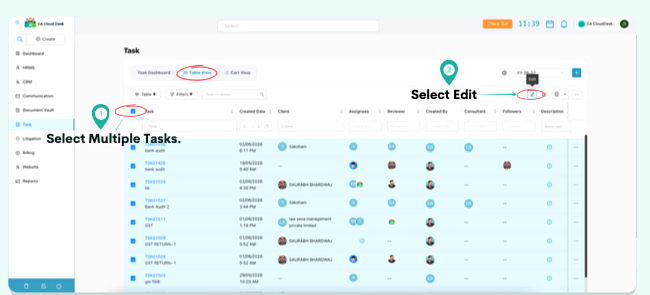
Step 3 — Select Tasks & Click Edit
You can edit tasks in bulk using the Edit option. Select multiple tasks using the checkboxes, then click the Edit icon.
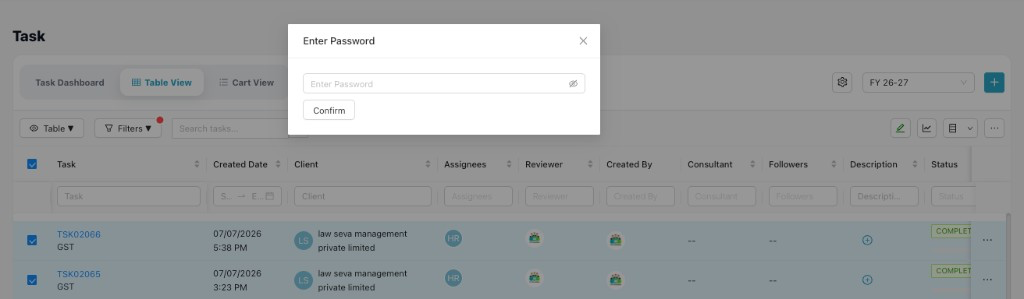
Step 4 — Enter Your Password
Enter your password of CA Cloud Desk Partnerdesk and click Confirm to proceed with bulk editing.
Security confirmation
Bulk actions require password verification to protect task data. Enter your Partnerdesk password in the dialog and click Confirm to open the bulk Edit window.
Step 5 — Perform Bulk Task Updates
To update multiple tasks at once, select the required tasks using the checkboxes and click the Edit icon. In the Edit window, choose the fields you want to modify, enter the updated values, and click Save.
Click a field below to see what you can update in bulk:
Status
Change task status
Reviewer
Assign reviewer
Assignee
Reassign tasks
Due Date
Update deadlines
Priority
Set priority level
Consultant
Change consultant
Followers
Add or update followers
Delete Task
Remove selected tasks
Status
Check the Status field in the Edit window and choose the new status. The update applies to all selected tasks when you click Save.
Result
The selected changes will be applied to all chosen tasks simultaneously, reducing manual effort and ensuring consistency across tasks.